Add my Professional Email to Outlook (Windows)
Step 5 of the Set up my Professional Email series.
Add your Professional Email or Professional Email powered by Titan account to Outlook on Windows.
Note: We only support Outlook versions currently supported by Microsoft. Older versions, including Outlook 2016 and 2019, have reached end of support and may not work with our email servers. Learn more from Microsoft.
- Open Outlook.
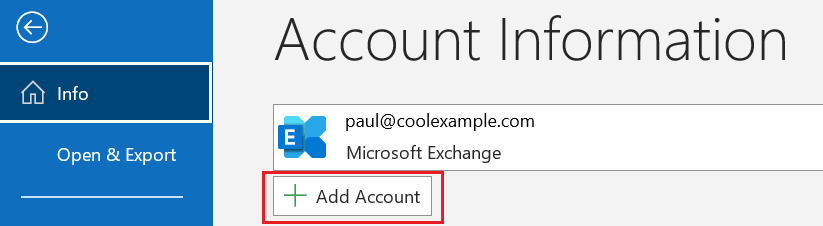
- If you're a new user, skip to step 3. Otherwise, select File, and then + Add Account.
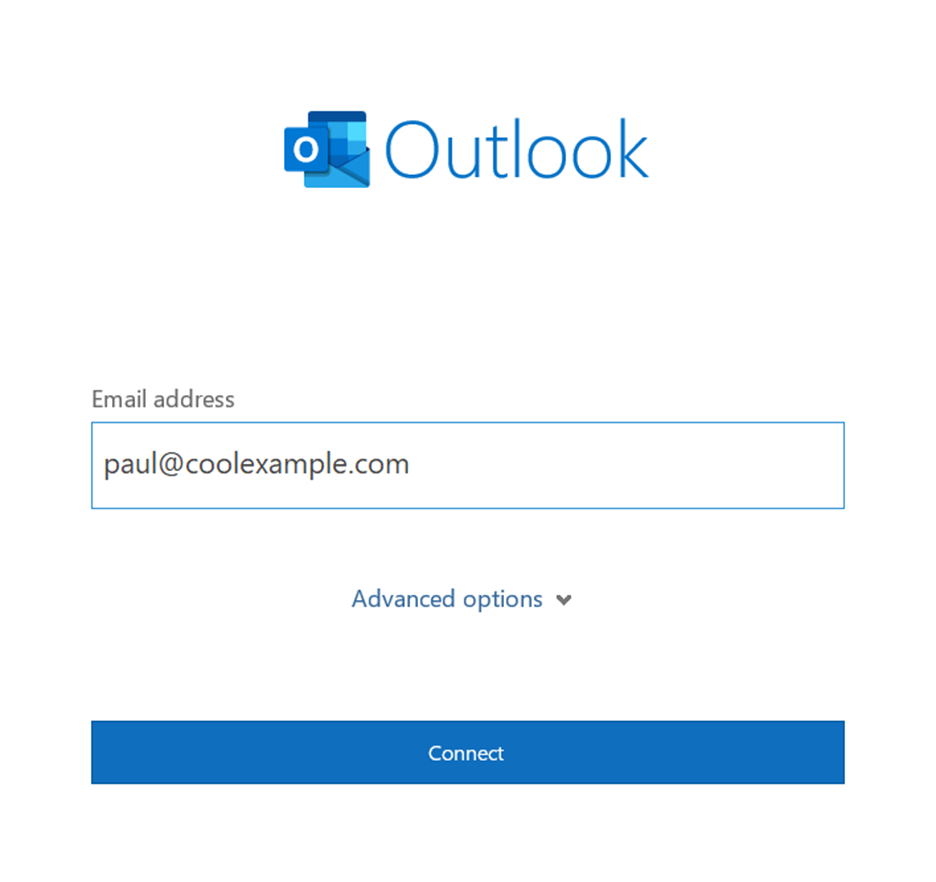
- Enter your Professional Email address, and then select Connect.
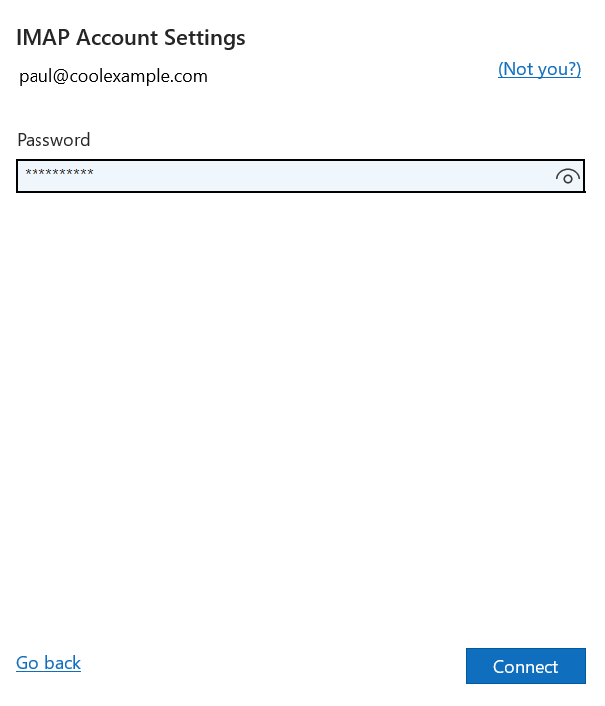
- If Outlook automatically discovers your IMAP account, it'll ask for your password, skip to step 8. Otherwise, continue to step 4.
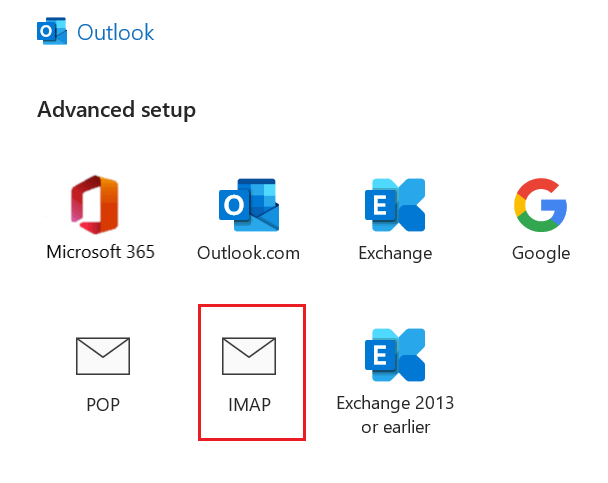
- Choose IMAP.
- Under Incoming mail, make sure the fields are as follows:
- Server: imap.secureserver.net
- Port: 993
- Encryption method: SSL/TLS
- Under Outgoing mail, make sure the fields are as follows:
- Server: smtpout.secureserver.net
- Port: 465
- Encryption method: SSL/TLS
- Select Next.
- Enter your password, and then select Connect.
- Once you see confirmation that your email account was added, select Done.
Your Professional Email or Professional Email powered by Titan is now set up on your Outlook for Windows!