Cancel a subscription for my GoDaddy product
Many GoDaddy product subscriptions automatically renew at the end of their subscription period. If you do not want your product to automatically renew, you can cancel its subscription at any time and use the product until the end of the subscription. You won’t be charged on the next billing date.
- If you change your mind, you can manually renew the subscription.
Note: If you purchased your product through a mobile app store like the Apple App Store or Google Play, you need to use that mobile app store to make changes to your subscription.
- Go to your Renewals and Billing page and select Manage Subscriptions.
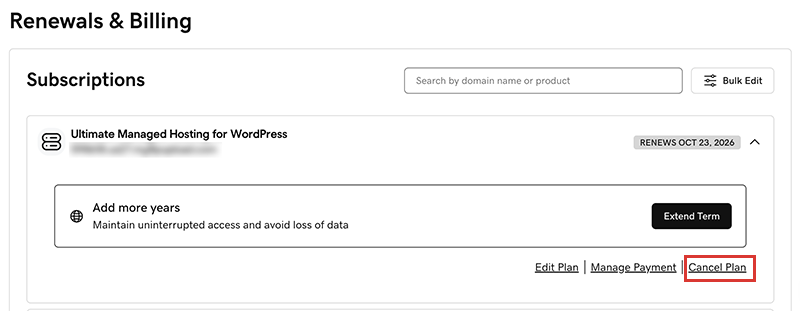
- In the Subscriptions list, select the product and then select Cancel Plan.
- From the list, select a reason for cancelling the subscription and then select Continue to Cancel.
Note: Depending on your answer, we might ask another question or two to help us understand your decision. Select Continue to Cancel to proceed.
- Below Confirm your cancellation we'll show you the date that your subscription will be cancelled. You can keep using the product until that date, and after that date your product and all associated data will be deleted.
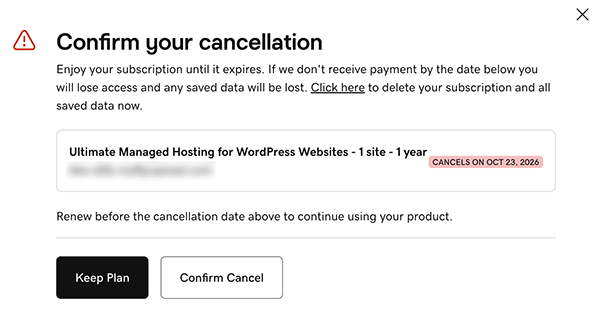
- Select Confirm Cancel to cancel the subscription.
Note: If you’re canceling a domain with Domain Protection, we'll need to verify your identity. Select Yes, Delete this product, then select Verify and delete. We'll send a verification code via SMS text message or authenticator app if you've had 2-step verification (2SV) enabled in your account for more than 24 hours. Otherwise, select Send Password to send a one-time password to the email address on your GoDaddy account.
More info
- If you can't cancel a domain, it's possible that the domain status is pending updates. Domains must be in active status before you can change the auto-renew setting.
- To find out if you're eligible for a refund, contact our GoDaddy Guides for help.
- Here's our refund policy.