Impor kontak, kalender, email, dan tugas saya
Catatan: Petunjuk ini hanya untuk referensi. Panduan GoDaddy kami tidak dapat membantu Anda dalam mengimpor data.
Untuk memindahkan item Outlook dari satu alamat ke alamat lain, atau satu perangkat ke perangkat lain, pertama-tama buat file cadangan Outlook . Setelah memiliki file cadangan, Anda siap mengimpor ke Outlook. Perlu diketahui bahwa Microsoft tidak lagi mendukung versi Outlook yang lebih lama dari 2016.
Pilih tab yang sesuai berdasarkan platform email yang Anda gunakan.
Outlook di web dapat mengimpor nilai yang dipisahkan koma (.csv) Untuk mendapatkan hasil terbaik, file Anda juga harus memiliki pengkodean UTF-8.
- Masuk ke Outlook di web . Gunakan alamat email dan kata sandi Microsoft 365 (nama pengguna dan kata sandi GoDaddy Anda tidak dapat digunakan di sini).
- Di sisi paling kiri halaman, pilih
 Orang.
 - Pilih Kelola , lalu Impor kontak .
- Pilih Telusuri , pilih file .csv Anda, lalu pilih Buka .
- Pilih Impor .
Outlook untuk Windows dapat mengimpor file Nilai terpisah koma (.csv) atau Tabel penyimpanan pribadi (.pst).
New OutlookClick here to follow the steps for New Outlook.
New Outlook
Click here to follow the steps for New Outlook.
- Buka Outlook.
- Select Settings, then Data files, and then Import.
- Under Outlook Data File (.pst), select Get started, and then Select file.
- Browse to and select your .pst file, and then select Open.
- Choose the folder you want to import from. Leave the Include subfolders checkbox selected to include subfolders too.
- Choose how you want duplicate items to be handled, and then select Next.
- Select the destination mailbox from the Account list.
- Select or create the destination folder.
- Pilih Impor .
Note: New Outlook currently only supports importing Outlook Data Files (.pst). To import a .csv file, select the Classic Outlook section instead.
Classic OutlookClick here to follow the steps for Classic Outlook.
Classic Outlook
Click here to follow the steps for Classic Outlook.
- Buka Outlook.
- Di sudut kiri atas, pilih File .
- Pilih Buka & Ekspor , lalu Impor / Ekspor .
- Pilih Impor dari program atau file lain , lalu Berikutnya .
- Pilih jenis file Anda ( Comma Separated Values (.csv) atau Outlook Data File (.pst)), lalu pilih Berikutnya .
- Pilih Telusuri , pilih file Anda, lalu Buka .
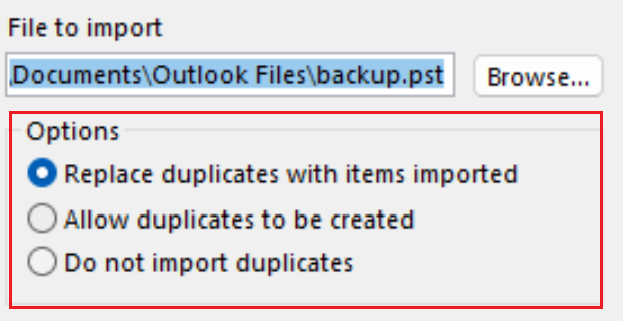
- Under Options, choose how you want duplicate items to be handled, and then select Next.
- Jika file dilindungi kata sandi, masukkan kata sandi, lalu pilih OK .
- Pilih kotak surat Microsoft 365 tempat Anda ingin mengimpor data. Jika Anda tidak mengimpor ke kotak surat Microsoft 365, pilih Impor item ke folder saat ini . Pilihan ini akan mengimpor data Anda ke folder yang dipilih saat ini.
- Pilih Selesai . Outlook akan mulai mengimpor item Outlook dari file cadangan Anda. Setelah kotak kemajuan menghilang, impor selesai.
Outlook untuk Mac dapat mengimpor file Tabel penyimpanan pribadi (.pst) atau Outlook untuk Mac (.olm).
Wajib diisi: Langkah-langkah ini hanya berlaku untuk Outlook Lama.
- Buka Outlook.
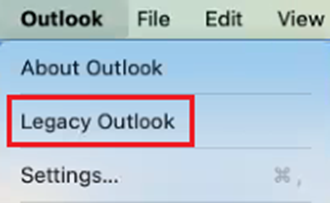
- Jika Anda menggunakan Outlook versi baru, alihkan ke Outlook versi lama. Pilih Outlook, lalu Outlook Baru. Anda mungkin harus mengonfirmasi bahwa Anda ingin beralih.
- Pilih File , lalu Impor .
- Jika Anda tidak melihat Impor , pilih Alat Bantu , lalu Impor .
- Pilih jenis file cadangan Anda, lalu Lanjutkan .
- Temukan file di Mac Anda, lalu pilih Impor .
- Setelah impor selesai, pilih Selesai . Item yang diimpor akan muncul di panel navigasi di bawah Di Komputer Saya .
Info selengkapnya
- Learn more about exporting and importing files in Outlook from Microsoft.
- See more about how to import contacts to Outlook on the web from Microsoft.
- Migrasikan email saya ke Microsoft 365