Menambahkan Professional Email saya ke Thunderbird secara manual
Add your Professional Email to Thunderbird using your server and port settings. We recommend using the account detection tool; if it doesn't work, you can use these settings to add your email account. (Add your email to Thunderbird using the auto discovery tool.)
- Masukkan pengaturan IMAP SSL:
Nama host server Port SSL/TSL Autentikasi Masuk (IMAP) imap.secureserver.net 993 SSL Kata sandi normal Keluar (SMTP) smtpout.secureserver.net 465 ATAU 587 SSL Kata sandi normal Nama pengguna Alamat Professional Email - Pilih Tes ulang.
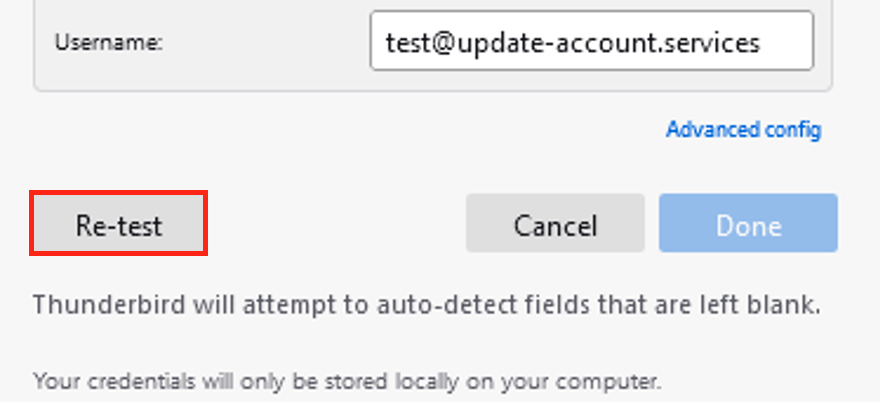
- Pilih Selesai. Akun email Anda akan mulai dimuat di Thunderbird.
To confirm your email was added correctly, send yourself an email, and then respond to it using Thunderbird. If Thunderbird can't verify your email account, please contact a GoDaddy Guide. Go to Transfers