จัดเก็บหรือยกเลิกการจัดเก็บอีเมลด้วย Professional Email powered by Titan
ย้ายข้อความไปยังโฟลเดอร์เก็บถาวรเพื่อให้กล่องขาเข้าของคุณไม่เกะกะ ข้อความในโฟลเดอร์เก็บถาวรจะไม่ถูกลบ
Select a tab based on whether you're on webmail on desktop or the mobile app.
เก็บอีเมล
- ลงชื่อเข้าใช้ ของเว็บเมล ใช้ที่อยู่และรหัสผ่าน Professional Email powered by Titan ของคุณ (ชื่อผู้ใช้และรหัสผ่าน GoDaddy จะใช้ไม่ได้ที่นี่)
- เลือกอีเมลในกล่องขาเข้า
- เลือก เก็บถาวร เหนืออีเมล
อีเมลจะถูกย้ายไปยังโฟลเดอร์ เก็บถาวร โฟลเดอร์จะยังคงอยู่ในโฟลเดอร์โดยไม่มีกำหนดเว้นแต่คุณจะลบหรือย้ายกลับไปที่ กล่องขาเข้า
ยกเลิกการจัดเก็บอีเมล
- ลงชื่อเข้าใช้ ของเว็บเมล ใช้ที่อยู่และรหัสผ่าน Professional Email powered by Titan ของคุณ (ชื่อผู้ใช้และรหัสผ่าน GoDaddy จะใช้ไม่ได้ที่นี่)
- ที่ด้านซ้ายสุดให้เลือกโฟลเดอร์ เก็บถาวร
- เลือกอีเมล
- เหนือข้อความให้เลือก ย้ายไปที่โฟลเดอร์ แล้วเลือก กล่องขาเข้า หากคุณไม่เห็น ย้ายไปที่โฟลเดอร์ ให้เลือก
 ดำเนินการเพิ่มเติม แล้ว ย้ายไปที่โฟลเดอร์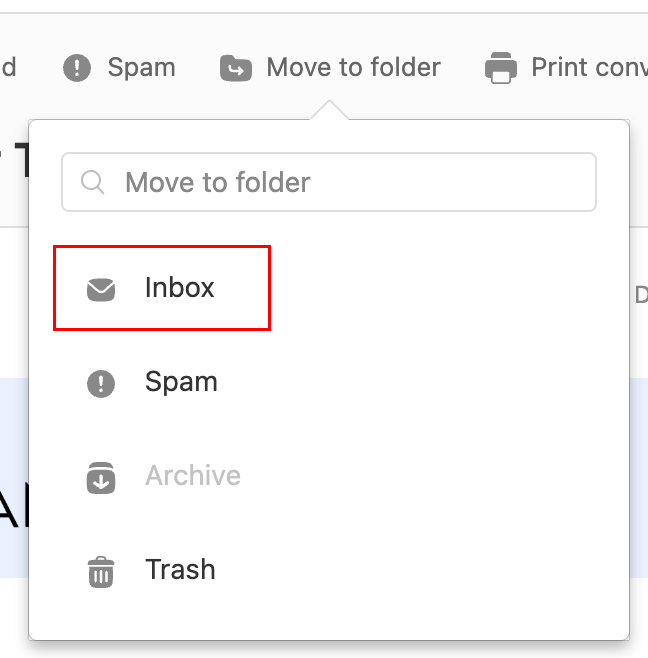
คุณจะเห็นข้อความยืนยันว่าอีเมลถูกย้ายไปที่กล่องขาเข้าของคุณแล้ว
เก็บอีเมล
- เปิดแอพ Titan
- In your inbox, tap an email.
- At the top of the email, tap
 Archive.
You'll see a confirmation that the conversation was moved to the archive.
ยกเลิกการจัดเก็บอีเมล
- Open the Titan mobile app.
- In the upper-right corner, tap the
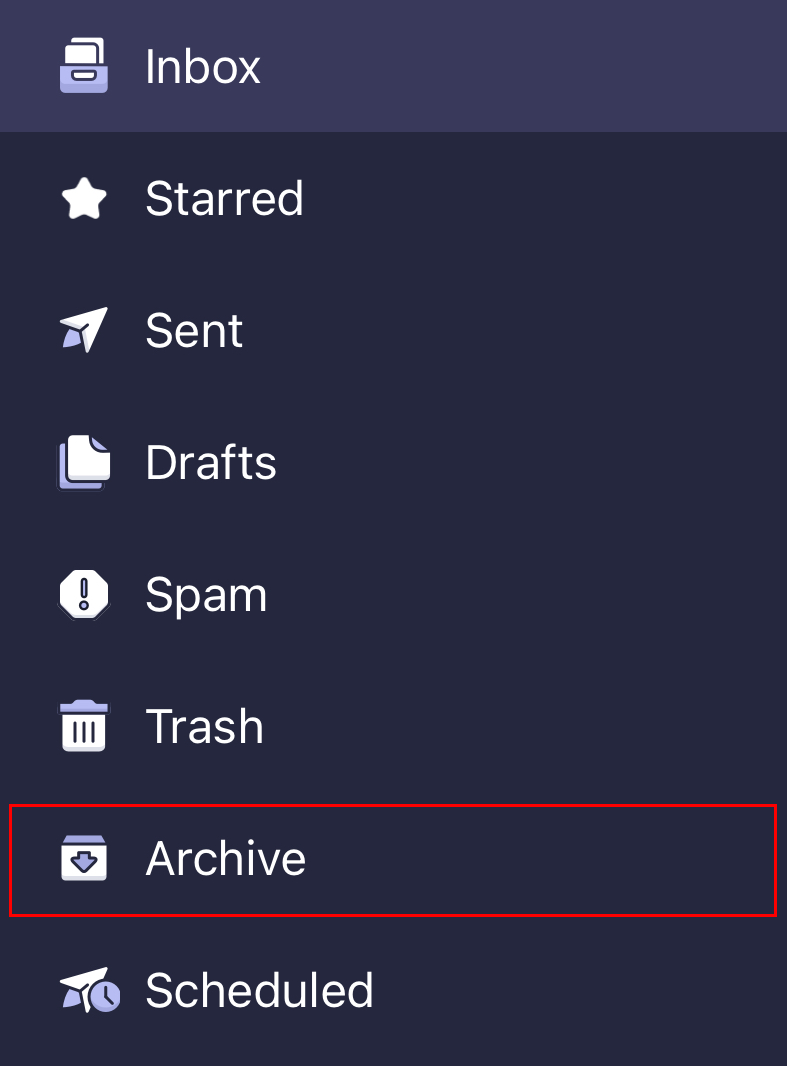
 icon for the menu. menu or swipe left, and then tap Settings.
 - Tap Archive.
- In the upper-right corner, tap
 More actions, and then Move to folder.
 - Tap Inbox. You'll see a confirmation that the message was moved to your inbox.
ข้อมูลเพิ่มเติม
- หากต้องการเก็บอีเมลที่เก่ากว่าวันที่กำหนด ให้กรองข้อความของคุณก่อนโดยใช้การค้นหาขั้นสูง
- ใช้ป้ายกำกับอีเมลเพื่อจัดระเบียบกล่องขาเข้า
- ส่งต่ออีเมลขาเข้าไปยังที่อยู่อีเมลอื่น