Apply a color palette to my Sites bio link (previously Link in Bio)
Use the Palette tool to update all the colors of your Sites bio link at once.
Note: If you don't yet have a Sites bio link, first follow the steps for creating your Sites bio link.
- Sign in to your GoDaddy mobile app.
- At the bottom of the screen, select Sites.
- A list of your Sites bio links will show. Tap the one you want to work on.
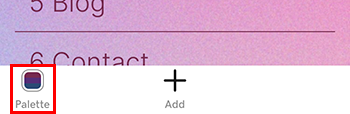
- At the bottom of the screen, tap Palette.
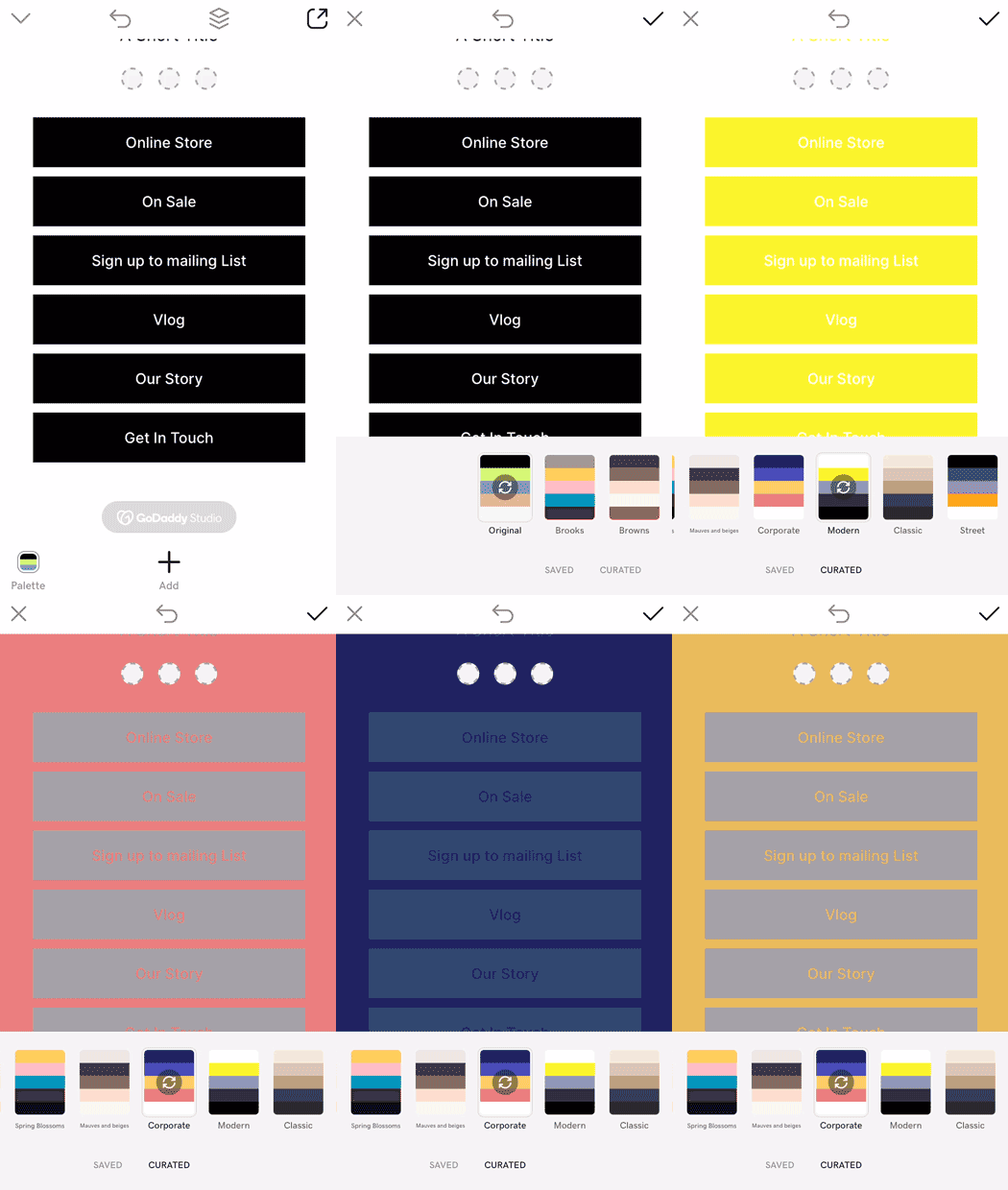
- To find a color palette you like, swipe left. To see the different color combinations available in one palette, tap the palette multiple times.
- To save your changes, tap the
 checkmark in the upper-right corner.
Note: All Content Creator customers have a predefined set of color palettes to choose from, while PRO customers also have access to their own saved palettes from other Content Creator projects.
checkmark in the upper-right corner.
Note: All Content Creator customers have a predefined set of color palettes to choose from, while PRO customers also have access to their own saved palettes from other Content Creator projects. - Once you're ready to publish, in the upper-right corner, tap
 Publish. Your Sites bio link will be visible immediately.