Set my call availability hours in GoDaddy Conversations
Note:
- The GoDaddy Conversations mobile app is not available with free Conversations plans.
- You need a standalone Conversations subscription to get a business phone number. GoDaddy Websites + Marketing plans don't come with a phone number.
- For now, GoDaddy Conversations is available in English only.
Set your call availability hours to take control of your work-life balance and manage customers’ expectations about response times.
By default, your availability is set to all hours. You can change this to receive calls only during certain hours. Outside of these hours, your phone won’t ring. Instead, the caller will be sent to your voicemail to leave a message.
- Sign in to your GoDaddy Conversations app.
- In the lower-right corner, tap
 Account.
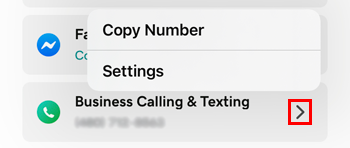
 - To the right of Business Calling & Texting, tap the arrow and then tap Settings.
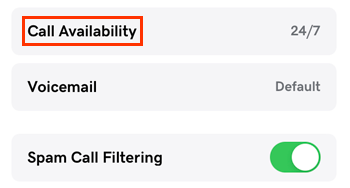
- Tap Call Availability.
- Tap Custom Availability and then verify that your time zone is correct.
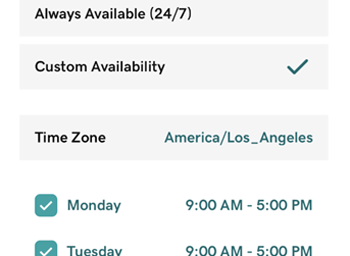
- Tap the day you want to set your availability for.
- Tap the From or To time and use the dial to set the time. You can also turn on the All-Day toggle (shows green) if you’d like to receive calls at all hours on that day.
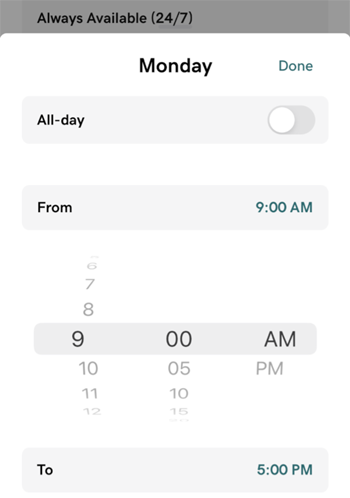
- Tap Done.
- Repeat steps 6 to 8 for all the days where you’d like to set custom availability.
- For days when you're closed for business, clear the checkbox next to that day.
- In the upper-right corner, tap Save to update the changes.
- Sign in to your GoDaddy Conversations app.
- In the lower-right corner, tap Account.
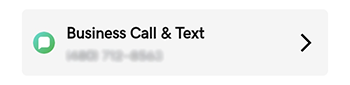
- Tap Business Call & Text.
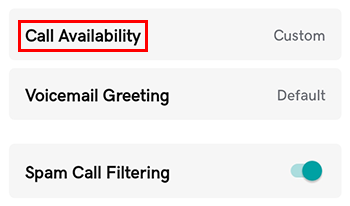
- Tap Call Availability.
- Tap Custom Availability and then verify that your time zone is correct.
- Tap the day you want to set your availability for.
- Tap the From or To time and use the dial to set the time. You can also turn on the All-Day toggle (shows green) if you’d like to receive calls at all hours on that day.
- Tap Done.
- Repeat steps 6 to 8 for all the days where you’d like to set custom availability.
- For days when you're closed for business, clear the checkbox next to that day.
- In the upper-right corner, tap Save to update the changes.
- In a web browser, go to your GoDaddy product page.
-
If you have the standalone version of Conversations, expand Conversations Unified Inbox. To the right of your Conversations plan, select Web Inbox.
OR
If you have a Websites + Marketing plan, scroll to Websites + Marketing and select Manage next to your site. In the left menu, expand Conversations.
- Select Settings.
- Select Phone & SMS (if you don't see this option, scroll right).

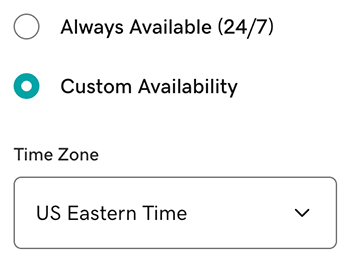
- Select Custom Availability and then verify that your time zone is correct.
- Select the checkbox next to the day you want to set your availability for, and then select Custom.
- Select the From or To time and select a time from the list. You can also select All Day if you’d like to receive calls at all hours on that day.
- Repeat steps 6 to 8 for all the days where you’d like to set custom availability. For days when you're closed for business, clear the checkbox next to that day.