Set up my business phone number
Note: The GoDaddy mobile app is not available with free Conversations plans.
Set up a dedicated Business Calling & Texting phone number through GoDaddy Conversations to exchange text messages and talk on the phone with your customers. Your customers can send you images (.jpg, .png and non-animated .gif files) and leave voicemails when you’re unavailable.
Required: You need a
paid Conversations subscription
to get a business phone number. GoDaddy Websites + Marketing free plans don't come with a phone number.
- Download the GoDaddy mobile app, and then sign in using your GoDaddy details.
- If you previously had a Websites + Marketing plan with Conversations and a business number, this will now fall away. After you've bought your Conversations standalone subscription, at the bottom of the screen, tap Conversations.

- At the top of the screen, tap the venture dropdown.
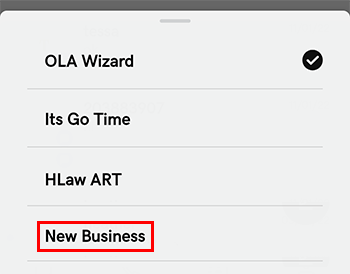
- Scroll through the list of ventures and tap New Business. This is your new paid plan.
- Tap Connect Channels.
- Tap Call & Text.
- Follow the steps to set up your new business.
- Enter a 3-digit U.S. toll-free code or local area code of the city or region where you do business.
- Tap the phone number you want to use.
- Tap Choose Number to finalize your selection.
To see your new business phone number, from your Conversations inbox, in the top-right corner, tap  more, and then tap Settings. The number will display below Call & Text.
- Download the GoDaddy mobile app, and then sign in using your GoDaddy details.
- If you previously had a Websites + Marketing plan with Conversations and a business number, this will now fall away. After you've bought your Conversations standalone subscription, at the bottom of the screen, tap Conversations.
- At the top of the screen, tap the venture dropdown.
- Scroll through the list of ventures and tap New Business. This is your new paid plan.
- Tap Connect Channels.
- Tap Call & Text.
- Follow the steps to set up your new business.
- Enter a 3-digit U.S. toll-free code or local area code of the city or region where you do business.
- Tap the phone number you want to use.
- Tap Choose Number to finalize your selection.
To see your new business phone number, from your Conversations inbox, in the top-right corner,  settings. The number will display below Call & Text.