Download data from Professional Email Drive
If you’re migrating from Professional Email to Microsoft 365, any content stored in your Professional Email Drive won’t be moved automatically. To keep your files, be sure to download any folders or documents you want to save from your Drive.
- Sign in to your Webmail. Use your Professional Email address and password (your GoDaddy username and password won't work here).
- In the menu above your inbox, select
 Drive. Your Drive will open.

- To download individual files:
- To open a folder, double-select its name.
- Next to each file you want to save, select the checkbox.
- In the menu above the list of files, select
 Download.
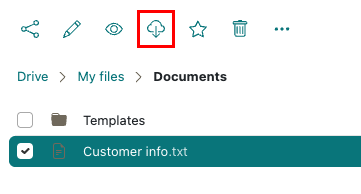
- Choose a place on your computer to download the folder. The files will download to your computer.
- To download all content in a folder:
- To save the contents of a folder, next to the folder, select the checkbox.
- In the menu above the list of files, select Download.
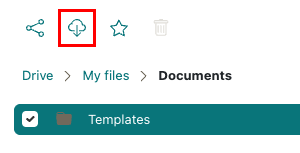
- Choose a place on your computer to download the folder. The folder’s contents will download as a .zip file.
If needed, repeat these steps to download all of your content. If you’re having trouble downloading multiple files or folders at once, try downloading them in smaller batches.