Respond to my GoDaddy Conversations messages
When customers send you a message through any of the communication channels linked to GoDaddy Conversations, you can respond from the web app or from the GoDaddy mobile app on Android or iOS .
Note: The GoDaddy mobile app is not available with free Conversations plans.
- In a web browser, go to your GoDaddy product page.
-
If you have the standalone version of Conversations, expand Conversations Unified Inbox. To the right of your Conversations plan, select Web Inbox.
OR
If you have a Websites + Marketing plan, scroll to Websites + Marketing and select Manage next to your site. In the left menu, expand Conversations.
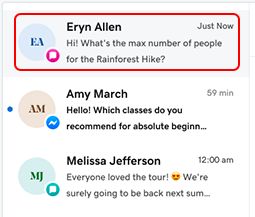
- Select Inbox. A list of all your unarchived conversations will show.
Note: If you're on a paid Conversations plan and you've not yet set up the GoDaddy mobile app, you'll be prompted to do so. Follow the steps if you'd like to use the app, or skip this step if you prefer.
- Select a conversation from the list.
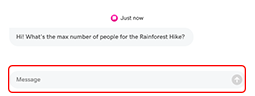
- Type a response in the Message field, and then select Send to send your message.
- Sign in to your GoDaddy mobile app.
- At the bottom of the screen, tap Conversations to see a list of all your unarchived conversations.

- Tap the conversation you want to respond to. The full chat history will show.
- To reply, type a message in the box provided and tap
 Send.
Send.