Naviguer dans l'éditeur Airo AI Builder
Étape 1 de la série Mise en route d'Airo AI Builder .
Explorons Airo AI Builder pour vous familiariser avec ses fonctionnalités clés lorsque vous travaillez sur votre application ou votre site.
Sélectionnez un lien pour en savoir plus:
Site web
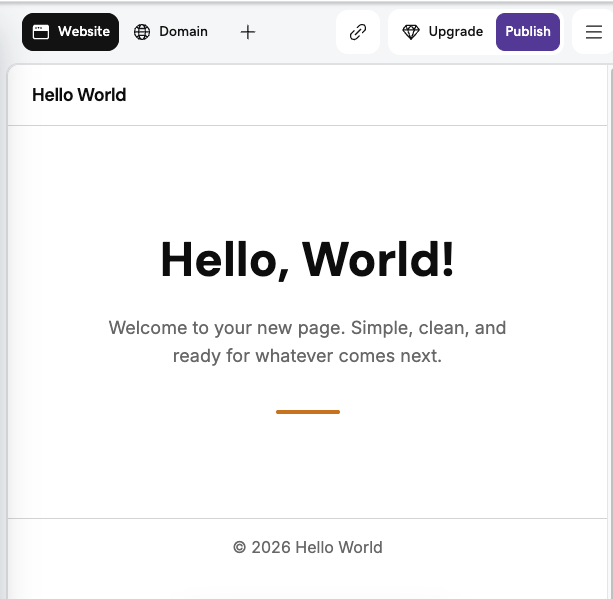
C'est là que vous prévisualisez votre contenu, votre structure et vos éléments lorsque vous modifiez votre application ou votre site. Les modifications sont enregistrées automatiquement au fur et à mesure que vous travaillez. Lorsque vous êtes prêt à effectuer vos modifications en ligne, publiez vos modifications .
Chat
C'est ici que vous pouvez interagir avec Airo AI Builder. Vous pouvez:
- Décrivez vos idées dans un langage simple pour créer des pages, ajouter des fonctionnalités, modifier vos visuels, créer une boutique en ligne et bien d’autres tâches sans codage.
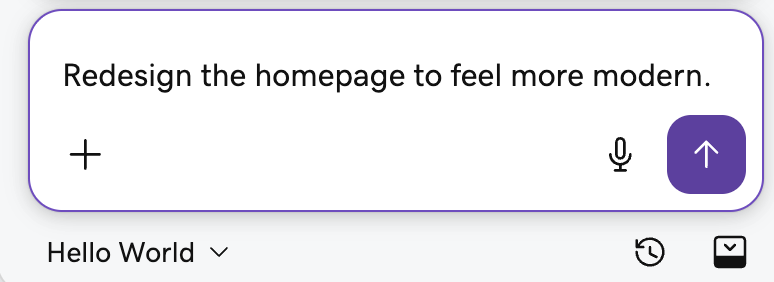
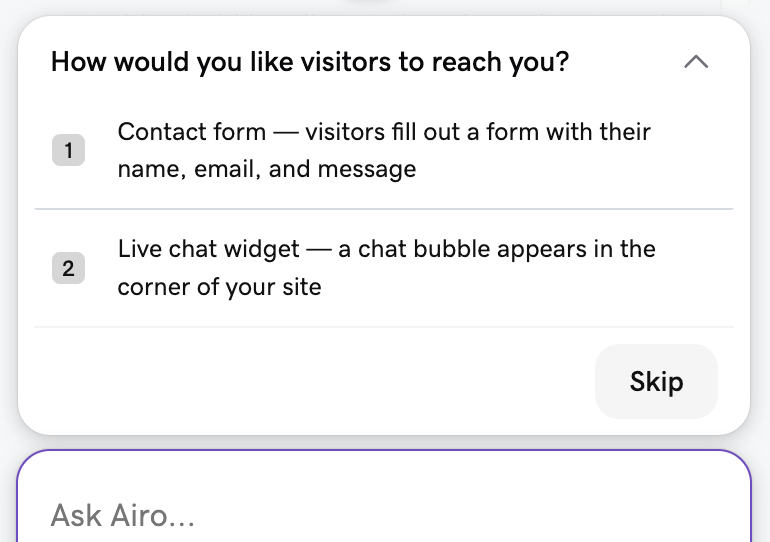
- Posez des questions à Airo AI Builder sur la création de votre application ou de votre site (par exemple, «J'ai besoin d'un moyen pour que les visiteurs me contactent. Comment configurer cela?»).
- Sélectionnez une suggestion dans Airo AI Builder pour apporter des modifications ou ajouter des informations.
- Sélectionner
 Démarrez l'enregistrement vocal pour parler votre message dans le chat.
 - Sélectionner
 faire glisser la poignée ou
 Flottez le chat pour déplacer la position du chat.
 - Sélectionner
 Histoire ou
 Restaurer , pour annuler les modifications générées par l'IA dont vous ne voulez plus .
Barre d'outils
Cela vous permet de sélectionner et de modifier directement des parties spécifiques de votre site ou de votre application. Vous pouvez sélectionner: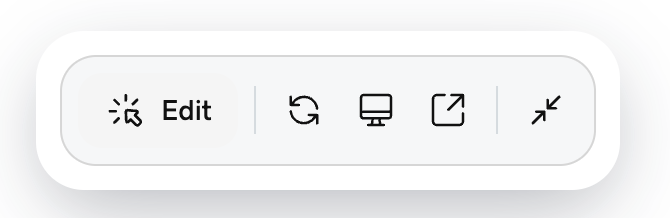
 Modifier : sélectionnez du texte, des images et des éléments de mise en page pour apporter des modifications qui ne nécessitent pas l'utilisation de crédits IA .
 Actualiser : Actualisez l'aperçu du site Web .
 Ordinateur de bureau / ordinateur portable : affichez un aperçu de votre application ou de votre site pour un autre appareil.
 Aperçu : ouvrez un aperçu de votre application ou de votre site dans un nouvel onglet.
 Réduire la barre d'outils ou
 Développer la barre d'outils : déplacez la position de la barre d'outils.
Menu du haut
Cela vous permet de sélectionner certaines des fonctionnalités puissantes d'Airo AI Builder. Si c'est votre première fois, sélectionnez Nouvel onglet , puis sélectionnez la fonction souhaitée. Ensuite, l'icône de fonction apparaîtra dans le menu supérieur. Airo AI Builder est en développement continu, mais certaines fonctionnalités actuelles incluent:
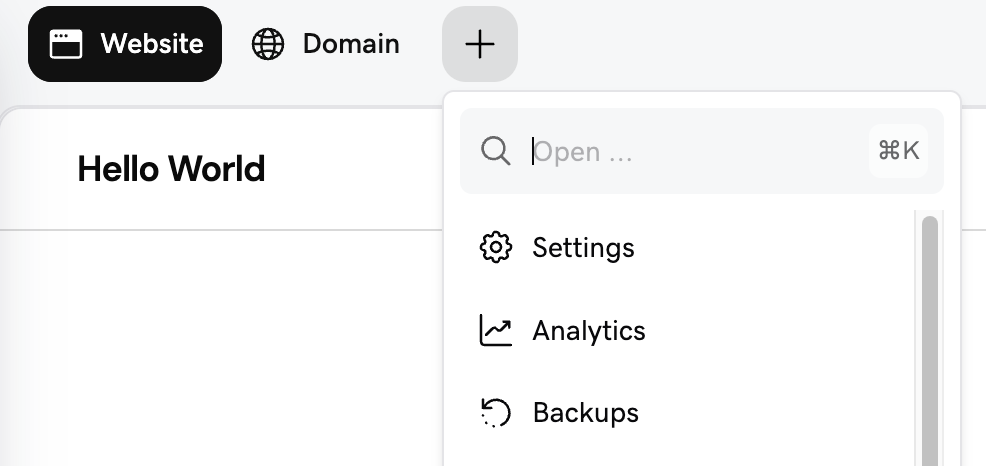
- Paramètres : téléchargez vos fichiers de projet , purgez la mise en cache, gérez l'accès des équipes, etc.
- Domaine : connectez un domaine à votre application ou site .
- Analyses : voyez comment les visiteurs trouvent et utilisent votre site.
- Sauvegardes : récupérez les fichiers du site ou les bases de données à partir d'une sauvegarde .
- Marque : Consultez votre guide d'identité de marque.
- Marketing : touchez des clients sur chaque canal avec une campagne.
- Code : affichez et modifiez votre code.
- Base de données : affichez et modifiez les tables de votre base de données.
- Boîte de réception : affichez les conversations avec vos visiteurs et répondez-y .
- Support : Obtenez de l'aide des guides GoDaddy.
- Automatisations : exécutez automatiquement des tâches prédéfinies pour votre application ou votre site.
- Logo : affichez et téléchargez votre logo chargé ou généré par l'IA.
- Médias : téléchargez et gérez les fichiers de votre bibliothèque multimédia.
- Secrets : stockez en toute sécurité les secrets, les clés API, les jetons et autres variables d'environnement.
- Sécurité : affichez les problèmes de sécurité et exécutez des contrôles de qualité du code.