Teruskan pesan Professional Email powered by Titan ke alamat lain
Anda dapat meneruskan email masuk dari kotak masuk Professional Email powered by Titan ke alamat email lain, seperti kotak masuk pribadi atau kotak surat bersama. Ini berguna jika Anda ingin mengelola pesan di satu tempat atau memastikan Anda tidak melewatkan email penting.
Catatan: Penerusan eksternal hanya tersedia untuk paket Pro Plus, Premium, dan Ultra. Tingkatkan paket email saya
- Masuk ke . Gunakan alamat dan kata sandi Professional Email powered by Titan Anda (nama pengguna dan kata sandi GoDaddy tidak dapat digunakan di sini).
- Di sudut kanan atas, pilih
 Pengaturan , lalu Preferensi .
 - Di sisi paling kiri, pilih Penerusan .
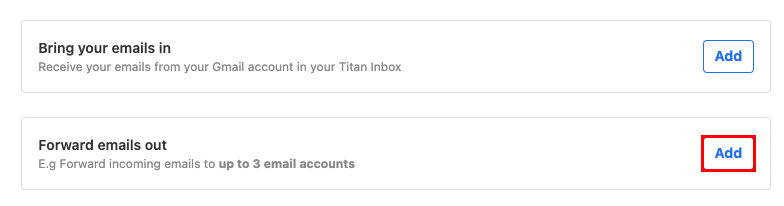
- Di samping Teruskan email keluar , pilih Tambah .
- Di bawah Teruskan email ke , masukkan alamat email tujuan tempat Anda ingin meneruskan email masuk.
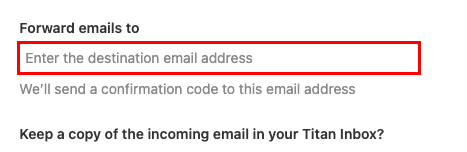
- Pilih apakah Anda ingin menyimpan salinan email masuk di kotak masuk Titan, lalu pilih Berikutnya . Kami akan mengirimkan kode konfirmasi ke alamat email tujuan.
- Masukkan kode konfirmasi, lalu pilih Mulai penerusan . Pesan masuk Anda sekarang akan diteruskan ke alamat email yang ditentukan.
Anda dapat kembali ke halaman Penerusan kapan saja untuk mengubah atau menghapus penerusan Anda.
Info selengkapnya
- Pelajari tentang opsi penerusan untuk Professional Email powered by Titan.
- Untuk mengirim email ke beberapa kontak sekaligus, buat grup kontak.
- Gunakan label email untuk mengatur kotak masuk saya