Save email attachments to Titan Drive
You can save email attachments directly to Titan Drive so you don’t have to download files to your computer first. That way, you can keep important files organized and accessible from your Titan email account.
Save a single attachment to Titan Drive
- Sign in to webmail. Use your Professional Email powered by Titan address and password (your GoDaddy username and password won't work here).
- Open the email that contains the attachment.
- Find the attachment below the email message.
- Hover over the attachment, and then select Add to Drive.
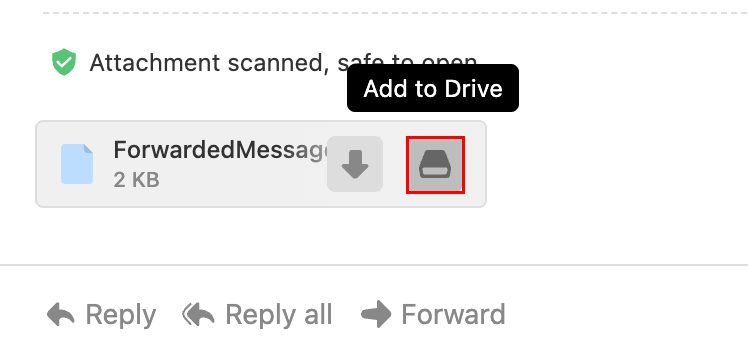
The attachment will be saved to your Titan Drive.
Save multiple attachments at once
If an email includes more than one attachment, you can save them all in one step.
- Sign in to webmail. Use your Professional Email powered by Titan address and password (your GoDaddy username and password won't work here).
- Open the email with the attachments.
- Select Add all to Drive.
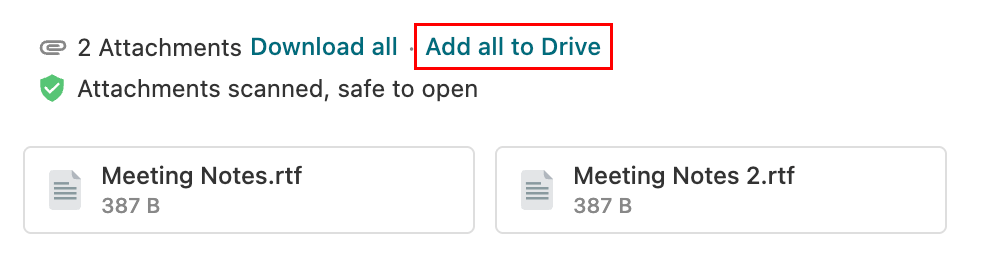
- Choose the folder where you want to save the files.
- Select Save.
All attachments will be uploaded to the selected Titan Drive folder. Learn how to access your saved files.
View saved attachments
If an attachment has already been saved to Titan Drive:
- Sign in to webmail. Use your Professional Email powered by Titan address and password (your GoDaddy username and password won't work here).
- Open the email.
- Next to the attachment, select Show in Drive.
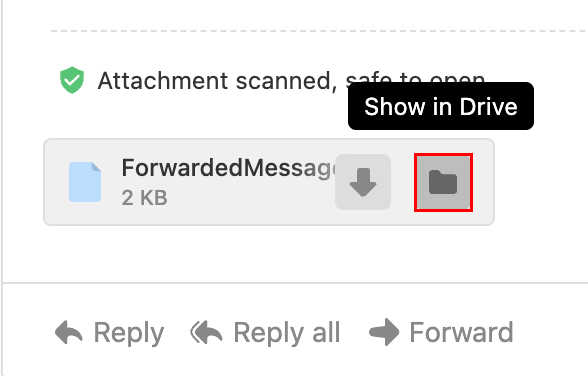
A new browser tab opens and highlights the file in its folder in Titan Drive.
Save sent attachments to Titan Drive
When you send an email with an attachment uploaded from your computer, Titan may prompt you to save that file to Drive after the message is sent.
- Sign in to webmail. Use your Professional Email powered by Titan address and password (your GoDaddy username and password won't work here).
- Compose a new email.
- Attach a file from your device.
- Send the email.
- Hover over the attachment in the sent email, and then select Add to Drive.
The file will be saved to Titan Drive after sending.