Speichern Sie E-Mail-Anhänge in Titan Drive
Sie können E-Mail-Anhänge direkt in Titan Drive speichern, damit Sie nicht zuerst Dateien auf Ihren Computer herunterladen müssen. Auf diese Weise können Sie wichtige Dateien über Ihr Titan-E-Mail-Konto organisieren und darauf zugreifen.
Speichern Sie einen einzelnen Anhang in Titan Drive
- Melden Sie sich bei Webmail an. Verwenden Sie Ihre Professional Email powered by Titan-Adresse und Ihr Passwort (Ihr Benutzername und Ihr Passwort für GoDaddy funktionieren hier nicht).
- Öffnen Sie die E-Mail mit dem Anhang.
- Suchen Sie den Anhang unterhalb der E-Mail.
- Bewegen Sie die Maus über den Anhang und wählen Sie Zu Drive hinzufügen aus.
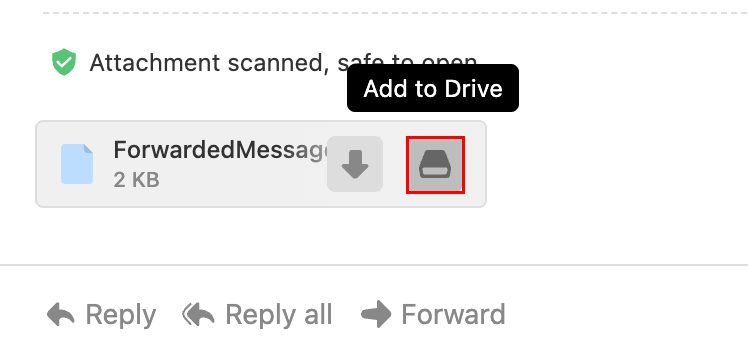
Der Anhang wird in Ihrem Titan Drive gespeichert.
Speichern Sie mehrere Anhänge gleichzeitig
Wenn eine E-Mail mehrere Anhänge enthält, können Sie sie in einem Schritt speichern.
- Melden Sie sich bei Webmail an. Verwenden Sie Ihre Professional Email powered by Titan-Adresse und Ihr Passwort (Ihr Benutzername und Ihr Passwort für GoDaddy funktionieren hier nicht).
- Öffnen Sie die E-Mail mit den Anhängen.
- Wählen Sie Alle zu Google Drive hinzufügen .
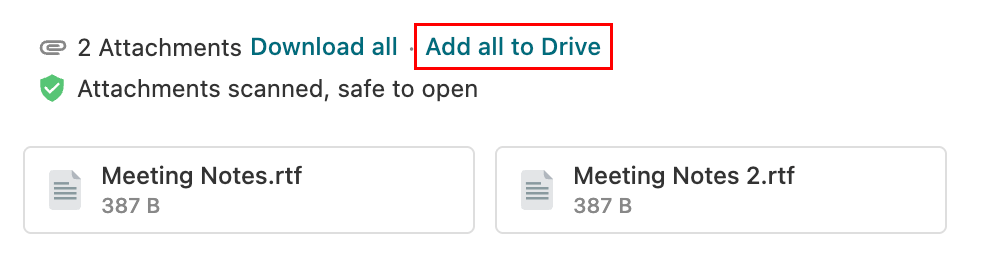
- Wählen Sie den Ordner aus, in dem Sie die Dateien speichern möchten.
- Wählen Sie Speichern.
Alle Anhänge werden in den ausgewählten Titan Drive-Ordner hochgeladen. Erfahren Sie, wie Sie auf Ihre gespeicherten Dateien zugreifen .
Zeigen Sie gespeicherte Anhänge an
Wenn ein Anhang bereits in Titan Drive gespeichert wurde:
- Melden Sie sich bei Webmail an. Verwenden Sie Ihre Professional Email powered by Titan-Adresse und Ihr Passwort (Ihr Benutzername und Ihr Passwort für GoDaddy funktionieren hier nicht).
- Öffnen Sie die E-Mail.
- Wählen Sie neben dem Anhang die Option In Drive anzeigen .
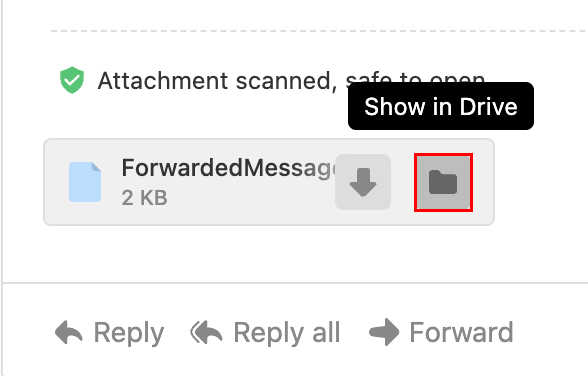
Ein neues Browser-Register wird geöffnet und hebt die Datei in ihrem Ordner in Titan Drive hervor.
Speichern Sie gesendete Anhänge in Titan Drive
Wenn Sie eine E-Mail mit einem von Ihrem Computer hochgeladenen Anhang senden, fordert Titan Sie möglicherweise auf, diese Datei nach dem Senden der Nachricht in Google Drive zu speichern.
- Melden Sie sich bei Webmail an. Verwenden Sie Ihre Professional Email powered by Titan-Adresse und Ihr Passwort (Ihr Benutzername und Ihr Passwort für GoDaddy funktionieren hier nicht).
- Verfassen einer neuen E-Mail.
- Hängen Sie eine Datei von Ihrem Gerät an.
- Senden Sie die E-Mail.
- Zeigen Sie mit der Maus auf den Anhang in der gesendeten E-Mail und wählen Sie Zu Drive hinzufügen aus.
Die Datei wird nach dem Senden in Titan Drive gespeichert.