Install the Titan desktop app
The Titan desktop app gives you a native email experience on Windows and macOS. With the native app, you don't need to use your web browser to access your inbox.
Select a tab based on your operating system.
- Go to https://titan.email/download.
- Download the Windows installer.
- Open the downloaded installer.
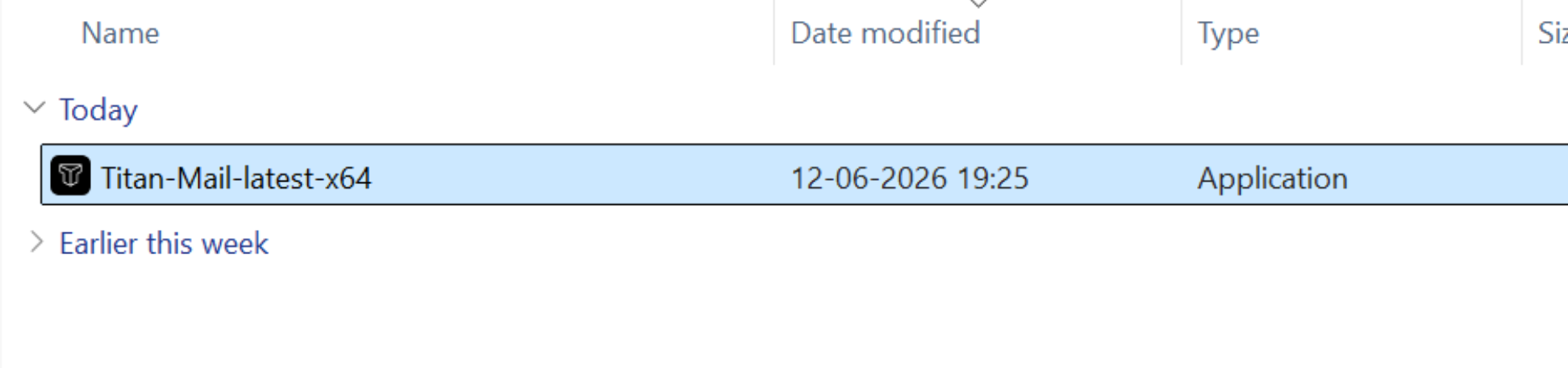
- Follow the on-screen prompts to complete the installation.
- (Optional) Windows may display a publisher warning during installation. To continue, select More info, and then Run anyway.
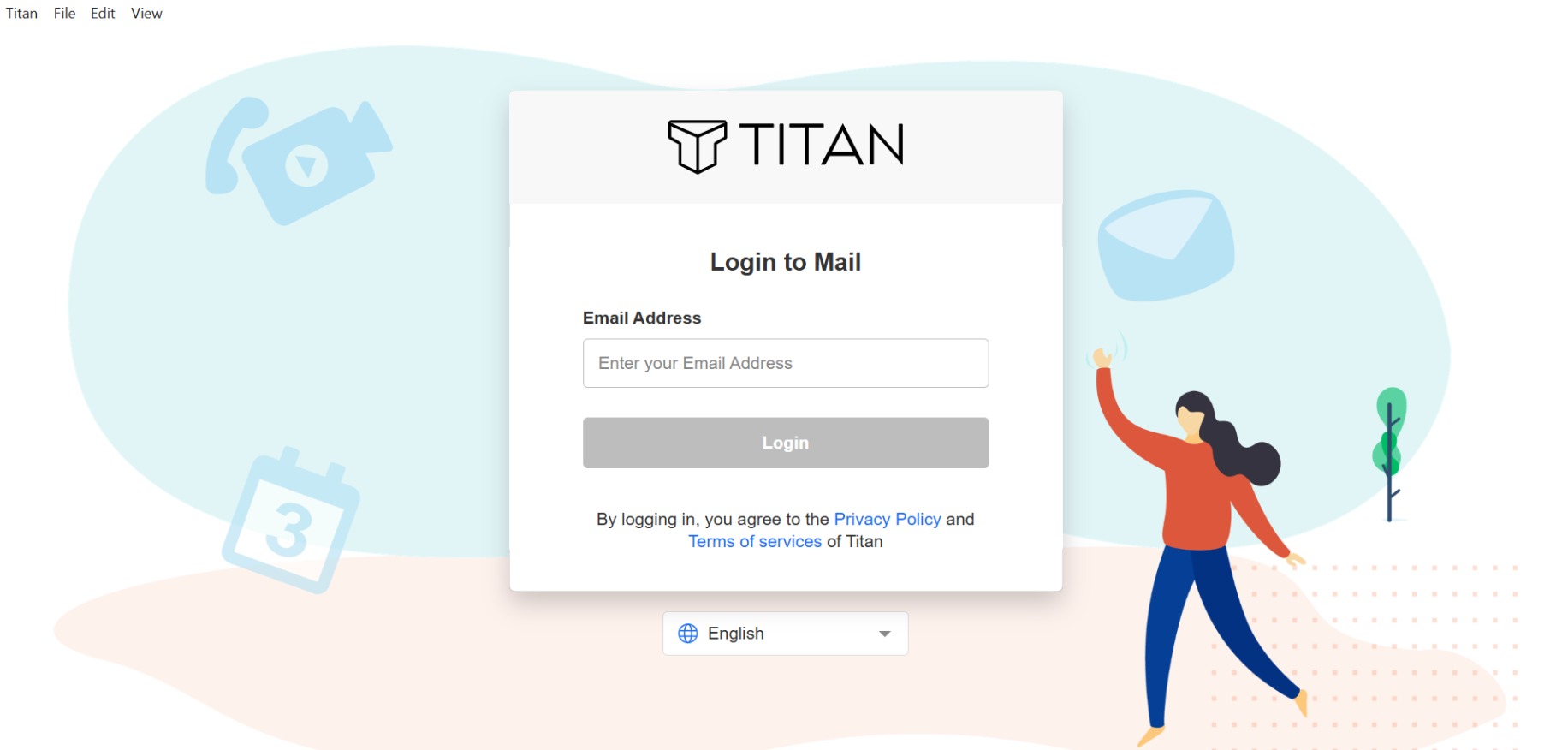
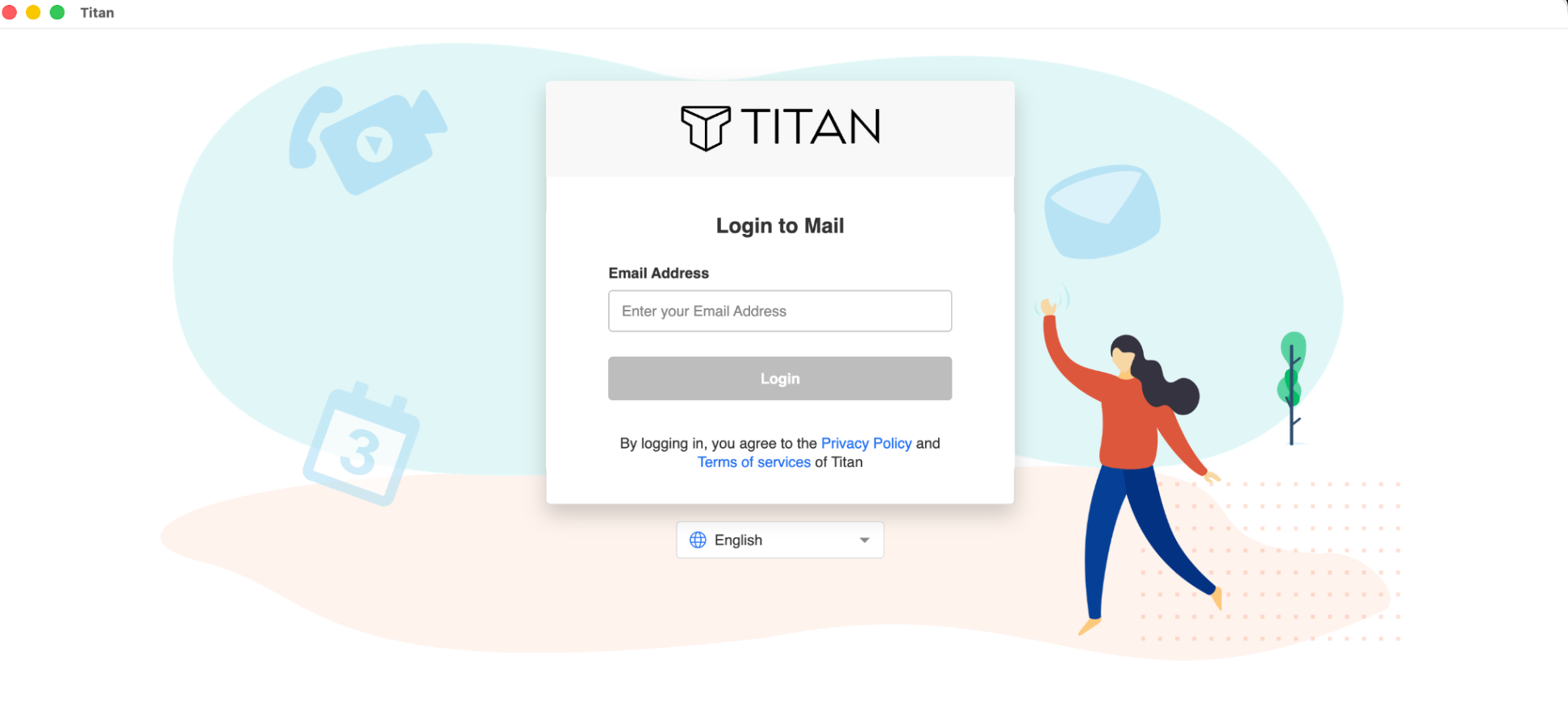
- Once installation is complete, open the Titan app, and then sign in with your email address and password.
- Go to https://titan.email/download.
- Download the macOS installer.
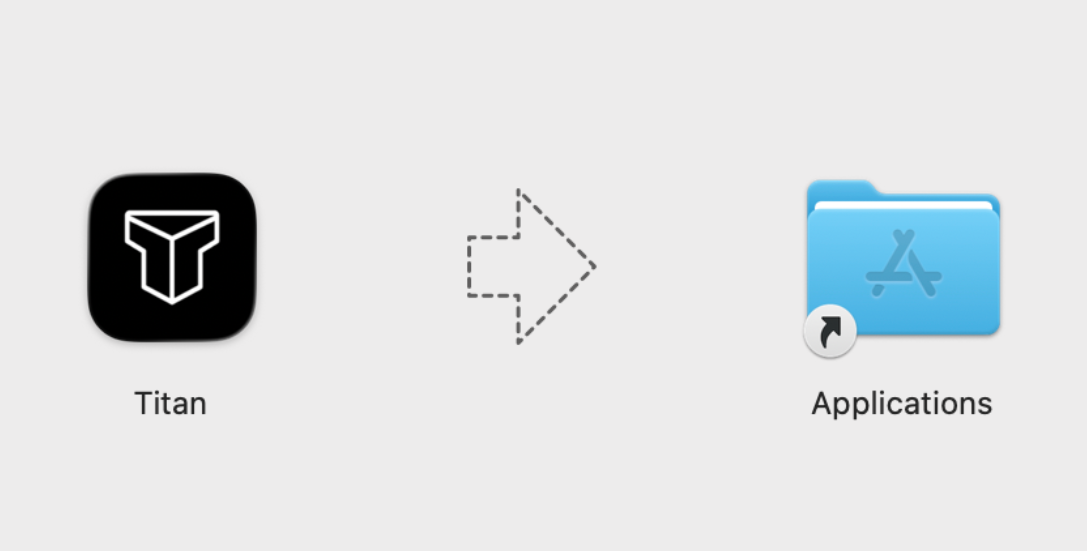
- Open the downloaded file, and then drag and drop the Titan app into your Applications folder.
- Open the Titan app from your Applications folder.
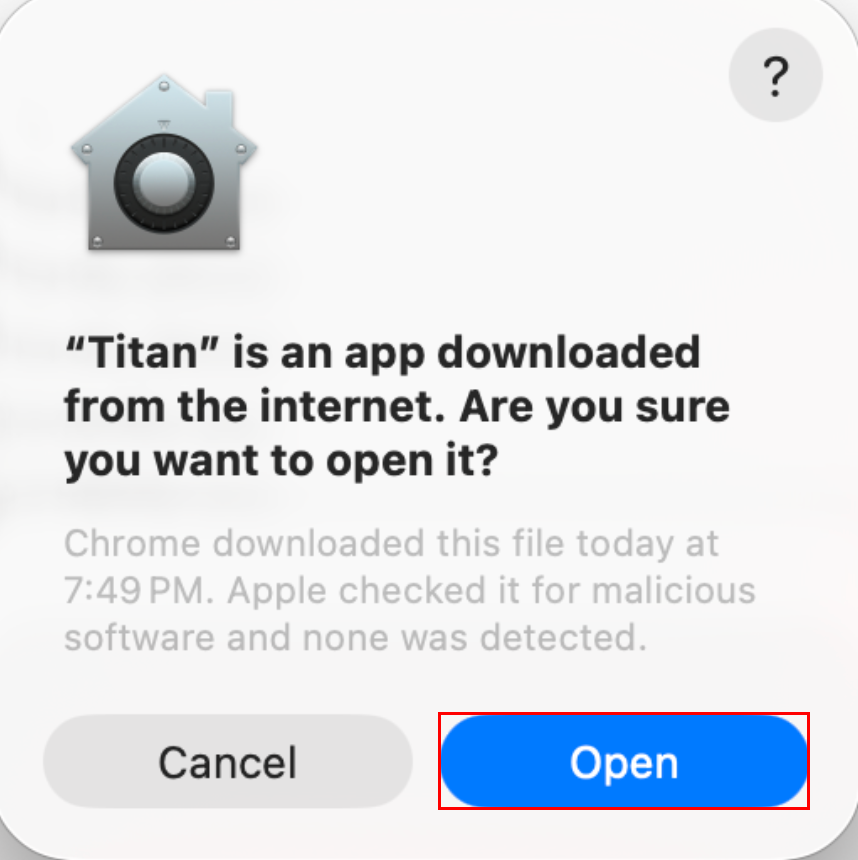
- (Optional) macOS may display a security warning when opening apps downloaded from the internet. To continue, select Open.
- Sign in with your email address and password.
Related steps
- Sign in to webmail
- Set up Professional Email powered by Titan on other email clients for your phone and computer.