Set and manage reminders in GoDaddy Conversations
Note: The GoDaddy mobile app is not available with free Conversations plans.
When you read a message in your Conversations inbox but can't respond right away, set a reminder to help you follow up later.
You can create, edit and remove reminders to keep track of messages that need your attention by a certain date and time. To find all messages that have reminders set, filter in the top bar by selecting Has Reminder.
- Sign in to your GoDaddy mobile app.
- At the bottom of the screen, tap Conversations to see a list of all your unarchived conversations.

Set a reminder from your inbox
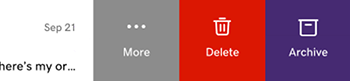
- On the conversation you want to set a reminder for, swipe slightly left.
- Tap More.
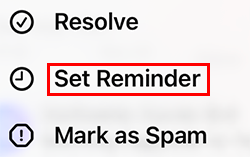
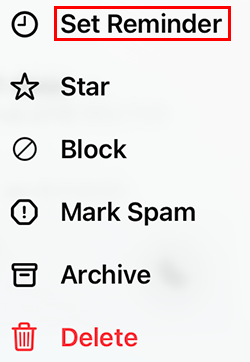
- Tap Set Reminder.
- Choose a date and time, and then tap
 apply.
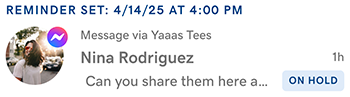
 - The reminder will show above the message and the message will be marked as ON HOLD.
- When the reminder is triggered, an email notification will be sent as follows:
- Currently, if you set a reminder on a message no one has replied to yet, no notifications will be sent. We'll soon be changing this so that all team members with access to manage your Conversations inbox will be notified.
- If someone already replied to the message, only that person will receive the notification, regardless of who set the reminder.
Set a reminder from within a thread
- Tap the conversation for which you want to set a reminder.
- In the upper-right corner, tap
 More.
More. - Tap Set Reminder.
- Choose a date and time, and then tap apply.
- The reminder will show above the message and the message will be marked as ON HOLD.
- When the reminder is triggered, an email notification will be sent as follows:
- Currently, if you set a reminder on a message no one has replied to yet, no notifications will be sent. We'll soon be changing this so that all team members with access to manage your Conversations inbox will be notified.
- If someone already replied to the message, only that person will receive the notification, regardless of who set the reminder.
Remove or edit a reminder
- On the conversation you want to edit or remove a reminder for, swipe slightly left.
- Tap More.
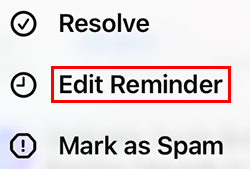
- Tap Edit Reminder.
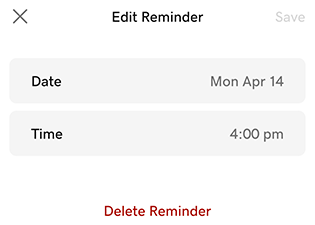
- To update the reminder, set a new date and time, and then tap apply. To remove the reminder, select Delete Reminder.
- Sign in to your GoDaddy mobile app.
- At the bottom of the screen, tap Conversations to see a list of all your unarchived conversations.
Set a reminder from within a thread
- Tap the conversation you want to set a reminder for.
- In the upper-right corner, tap
 set reminder.
 - Choose a date and time, and then tap apply.
- The reminder will show above the message and the message will be marked as ON HOLD.
- When the reminder is triggered, an email notification will be sent as follows:
- Currently, if you set a reminder on a message no one has replied to yet, no notifications will be sent. We'll soon be changing this so that all team members with access to manage your Conversations inbox will be notified.
- If someone already replied to the message, only that person will receive the notification, regardless of who set the reminder.
Remove or edit a reminder
- Tap the conversation you want to edit or delete a reminder for.
- In the upper-right corner, tap edit reminder.
- To update the reminder, set a new date and time, and then tap apply. To remove the reminder, select Delete Reminder.
- In a web browser, go to your GoDaddy product page.
-
If you have the standalone version of Conversations, expand Conversations Unified Inbox. To the right of your Conversations plan, select Web Inbox.
OR
If you have a Websites + Marketing plan, scroll to Websites + Marketing and select Manage next to your site. In the left menu, expand Conversations.
- Select Inbox. A list of your unarchived conversations will show.
Set a reminder
- Hover your mouse pointer over the conversation for which you want to set a reminder.
- Next to the message, select More.
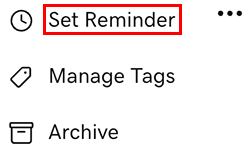
- Select Set Reminder.
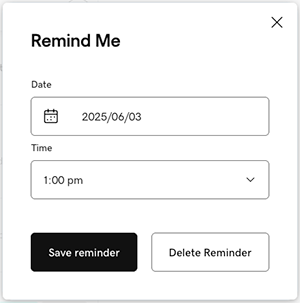
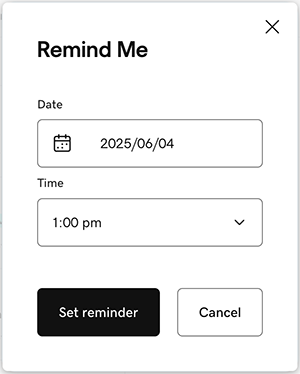
- Select a date and time, and then select Set reminder.
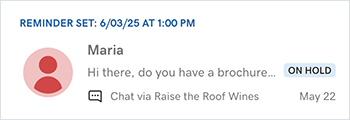
- The reminder will show above the message and the message will be marked as ON HOLD.
- When the reminder is triggered, an email notification will be sent as follows:
- Currently, if you set a reminder on a message no one has replied to yet, no notifications will be sent. We’ll soon be changing this so that all team members with access to manage your Conversations inbox will be notified.
- If someone already replied to the message, only that person will receive the notification, regardless of who set the reminder.
Remove or edit a reminder
If you need to change the date or time on a reminder, or want to delete it:
- Hover your mouse pointer over the message you want to update.
- Next to the message, select More.
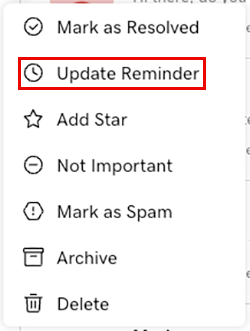
- Select Update Reminder.
- To update the reminder, set a new date and time, and then select Save Reminder. To remove the reminder, select Delete Reminder.