Troubleshoot appointment booking time slots that show as unavailable
Sometimes time slots for bookings on your online calendar don’t show as available like you expect them to. Usually, this is because of issues with the booking settings. Here are some of the most common causes and how to check and fix them.
Staff member not available
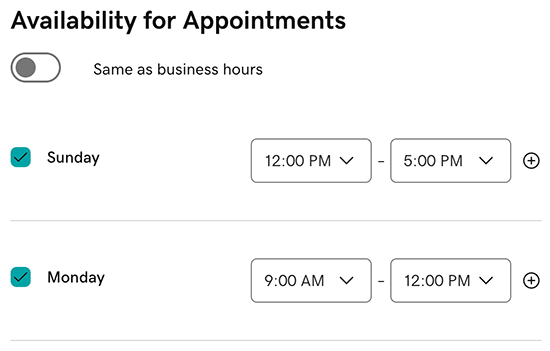
Your service might be assigned to a staff member whose availability hours differ from your general business settings.
- Go to your GoDaddy product page.
- Scroll down, expand Websites + Marketing and select Manage next to your site.
- From your dashboard, expand Appointments, and then select Staff.
- Select the name of the staff member to review their individual availability settings.
- If the staff member's availability doesn't match your business hours, adjust their schedule here so they can accept bookings when your business is open.
Staff member already assigned to a booking
Your staff member might already have another appointment scheduled at that time.
- Go to your GoDaddy product page.
- Scroll down, expand Websites + Marketing and select Manage next to your site.
- From your dashboard, expand Appointments, and then select Calendar. A list of your upcoming appointments will show.
- If needed, filter by month, day or staff member to narrow the search.
- To filter by month or day, under Upcoming, select an option.
- To filter by staff member, under Upcoming, first filter by Day, and then the option to further filter by staff member will appear.
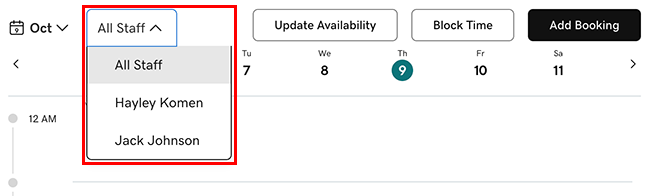
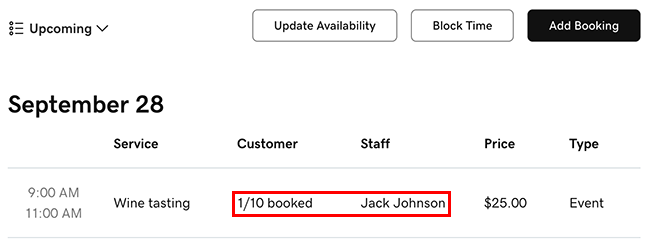
- If the staff member has been booked, their name will appear next to the relevant appointment. If so, you may want to edit the appointment date or assign the appointment to somebody else.
Conflicts with personal calendar
If you're syncing a personal calendar (like Google Calendar), events from that calendar might be blocking the time slot.
- Go to your GoDaddy product page.
- Scroll down, expand Websites + Marketing and select Manage next to your site.
- From your dashboard, expand Appointments, and then select Calendar.
- A list of your upcoming appointments will show. If needed, use the Upcoming filter to find the specific appointment.
- Look for grey time blocks, which indicate blocked time from either synced calendar events or manually blocked periods. You can do 1 of 2 things:
- Remove any manually added blocked time OR
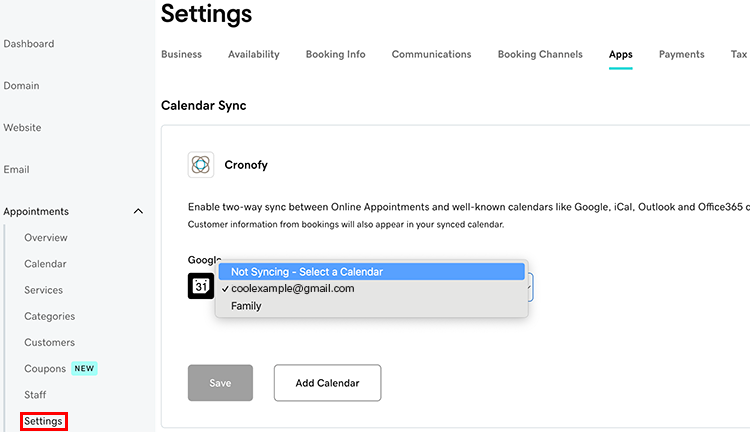
- Disconnect the synced calendar by going to Settings, and then Apps. From the dropdown menu for the synced calendar, select Not Syncing - Select a Calendar, and then Save.
Advance booking requirement conflicts
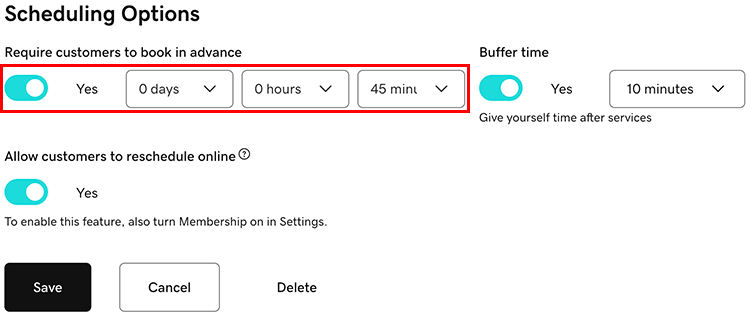
Your service might require customers to book a certain number of hours or days in advance. If customers try to book later than that, they won't be able to.
- Go to your GoDaddy product page.
- Scroll down, expand Websites + Marketing and select Manage next to your site.
- From your dashboard, expand Appointments, and then select Services.
- Select the service for which you have an appointment conflict.
- Scroll down to Scheduling Options and check if you've set an advance booking time limit. If so, make sure customers are booking within your specified timeframe or update the time limit here.
Buffer time conflicts
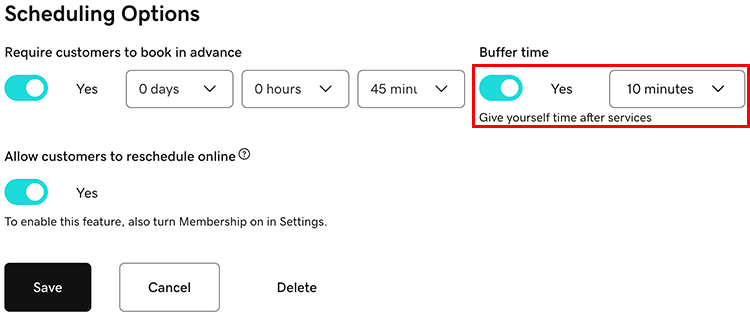
The booking might have a buffer time applied, which prevents bookings within a short space of time before or after the appointment.
- Go to your GoDaddy product page.
- Scroll down, expand Websites + Marketing and select Manage next to your site.
- From your dashboard, expand Appointments, and then select Services.
- Select the service for which you have an appointment conflict.
- Scroll down to Scheduling Options and check if the Buffer time toggle is switched on. If so, make sure customers are booking within your specified timeframe or update the buffer time here.
Event accidentally deleted
If you accidentally delete an instance of a recurring event, it can prevent bookings for that specific day and time.
- Go to your GoDaddy product page.
- Scroll down, expand Websites + Marketing and select Manage next to your site.
- From your dashboard, expand Appointments, and then select Calendar.
- A list of your upcoming appointments will show. Select Upcoming, and if Deleted appears as an option, select it.
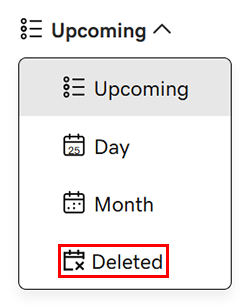
- From the list that appears, restore the deleted service.
Still having issues?
If you've worked through this list and still can't figure out why your time slots aren't available, republish your site. This fixes many common issues. Also, test the booking process yourself to see if you can reproduce the problem. This may give you more insight into what the problem may be.