Verify that it's me when signing in to Microsoft 365
When accessing your Microsoft 365 account from a new device or location, you may be prompted to verify your identity to help protect your account's security.
- When you get the Verify it’s you page, select an option to verify your identity:
- Email a code to my recovery email: A code will be sent to your recovery email address.
- Email a code to my account on another device: If you’re signed in to your email address on another device, like your phone, tablet or computer, a code will be sent there.
- Email a code to your GoDaddy account administrator: If none of the other options work for you, we can send a code to your account administrator, typically the owner of the GoDaddy account.
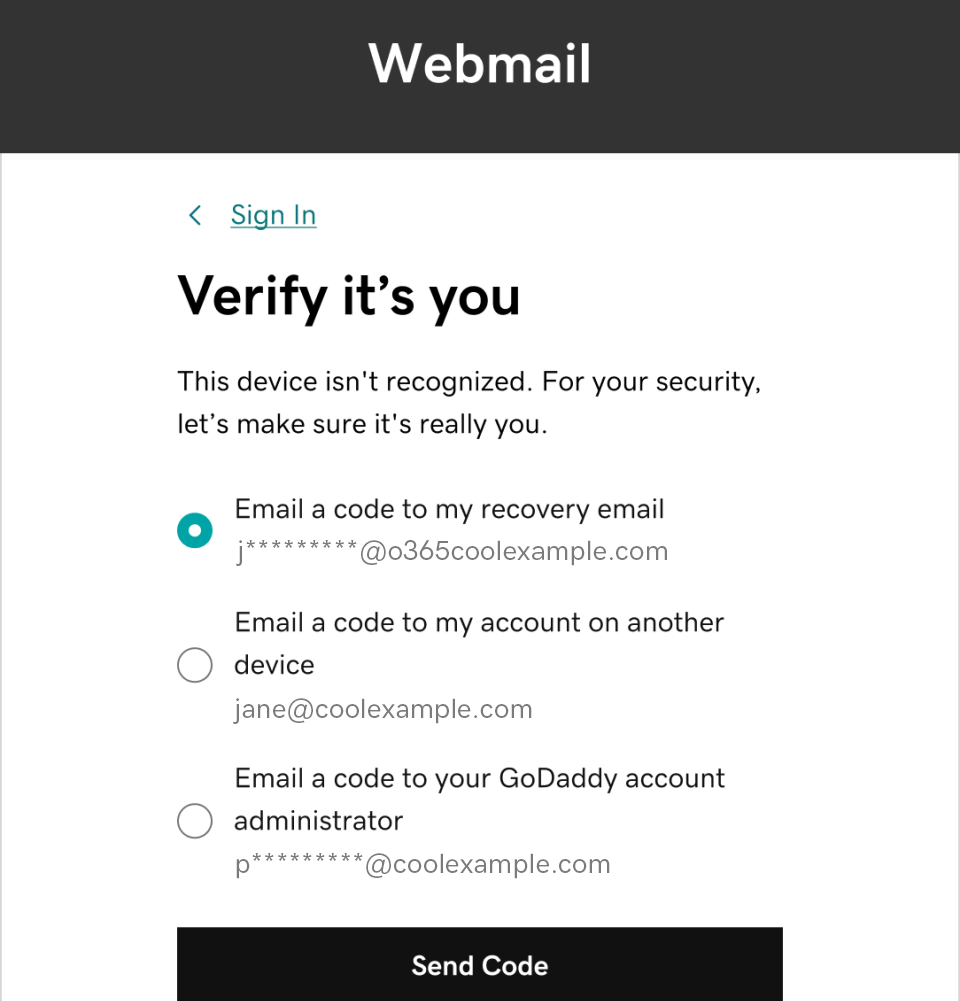
- Select Send Code. We’ll send an email with a 6-digit code to your selected address.
- Enter the 6-digit code from the email we sent you, and then select Verify Code.
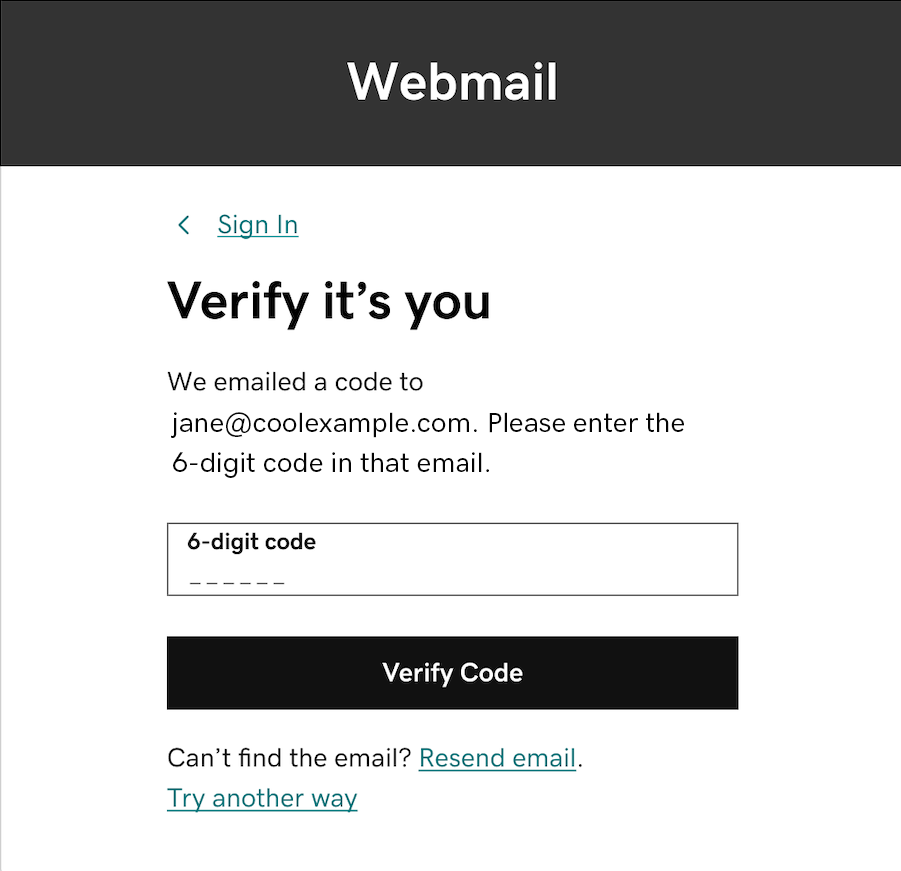
Once you’re verified, you can continue with signing in to your account.
Related step
- If you don’t already have a recovery email, we recommend adding one to your account. Your GoDaddy account admin can also add one for you.
- Change my Microsoft 365 recovery email address