Connect Conversations to my Microsoft 365 from GoDaddy email address
Link your Microsoft 365 email address to Conversations to get your emails directly in your Conversations unified inbox. If you’re a Websites + Marketing subscriber and you’re using a chat widget or web forms on your website, messages from those sources will also show in your Conversations box, through this email address.
- Sign in to your GoDaddy mobile app.
- At the bottom of the screen, tap Conversations to see a list of all your unarchived conversations.

- In the top-right corner, tap
 more, and then tap Settings.
 - Tap Email. You may be asked to sign in to your GoDaddy account.
- Expand Email, and then tap Connect.
- Tap Microsoft 365, and then tap Next.
- If you already have a Microsoft 365 email address, it’ll show on the screen. If you don’t, you’ll be prompted to get one before you can continue with these steps.
Select the email address you want to connect to Conversations and then tap Continue.
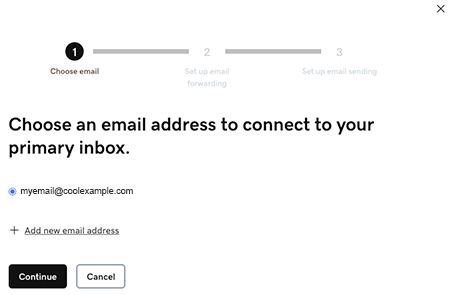
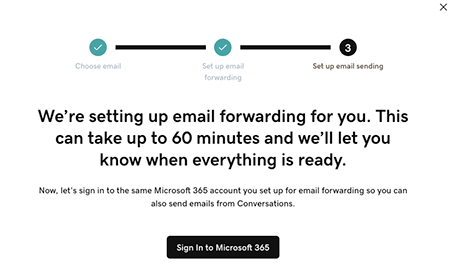
- Email forwarding will be set up for you. This could take up to 60 minutes, but you can continue setting up your email and we’ll let you know when forwarding is ready.
Sign in to the Microsoft 365 account you’re linking to Conversations. This must be the same account you used in Step 7.
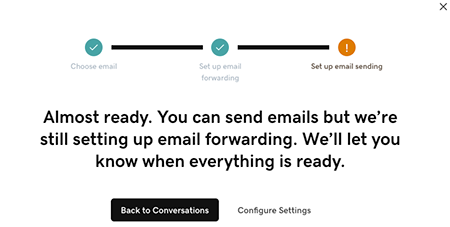
- You’ll see a screen explaining that your email is still being set up.
- Sign in to your GoDaddy mobile app.
- At the bottom of the screen, tap Conversations to see a list of all your unarchived conversations.
- In the top-right corner, tap
 settings.
 - Tap Email. You may be asked to sign in to your GoDaddy account.
- Expand Email, and then tap Connect.
- Tap Microsoft 365, and then tap Next.
- If you already have a Microsoft 365 email address, it’ll show on the screen. If you don’t, you’ll be prompted to get one before you can continue with these steps.
Select the email address you want to connect to Conversations and then tap Continue.
- Email forwarding will be set up for you. This could take up to 60 minutes, but you can continue setting up your email and we’ll let you know when forwarding is ready.
Sign in to the Microsoft 365 account you’re linking to Conversations. This must be the same account you used in Step 7.
- You’ll see a screen explaining that your email is still being set up.
- In a web browser, go to your GoDaddy product page.
-
If you have the standalone version of Conversations, expand Conversations Unified Inbox. To the right of your Conversations plan, select Web Inbox.
OR
If you have a Websites + Marketing plan, scroll to Websites + Marketing and select Manage next to your site. In the left menu, expand Conversations.
- Select Settings.
- Select Channels.
- Expand Email, and then tap Connect.
- Select Microsoft 365, and then tap Next.
- If you already have a Microsoft 365 email address, it’ll show on the screen. If you don’t, you’ll be prompted to get one before you can continue with these steps.
Select the email address you want to connect to Conversations and then tap Continue.
- Email forwarding will be set up for you. This could take up to 60 minutes, but you can continue setting up your email and we’ll let you know when forwarding is ready.
Sign in to the Microsoft 365 account you’re linking to Conversations. This must be the same account you used in Step 7.
- You’ll see a screen explaining that your email is still being set up.
Congratulations! You’ve successfully linked your email address to GoDaddy Conversations. Once forwarding has been finalized you’ll start getting your email messages directly in your Conversations inbox.