Use email labels to organize my inbox
Email labels help manage your inbox and find messages. Creating a label automatically generates a folder with the same name.
Select a link to jump to that section:
- Create a new label
- Apply or remove a label to an email
- Edit or delete a label
- Find email with the same label
Create a new label
Select a tab based on whether you're using webmail on desktop or the mobile app.
- Sign in to webmail. Use your Professional Email powered by Titan address and password (your GoDaddy username and password won't work here).
- In your inbox, select a message.
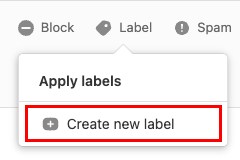
- Above the message, select Label, and then Create new label.
- Enter a label name, select a color, and then Done.
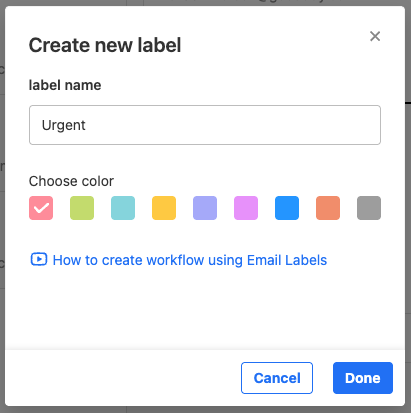
Your message will be marked with the label, and a new folder with the label name will be created. You’ll see the folder listed on the leftmost side of your inbox.
- Open the Titan app.
- In your inbox, tap an email to open it.
- In the upper-right corner, tap
 More options, and then Apply labels.
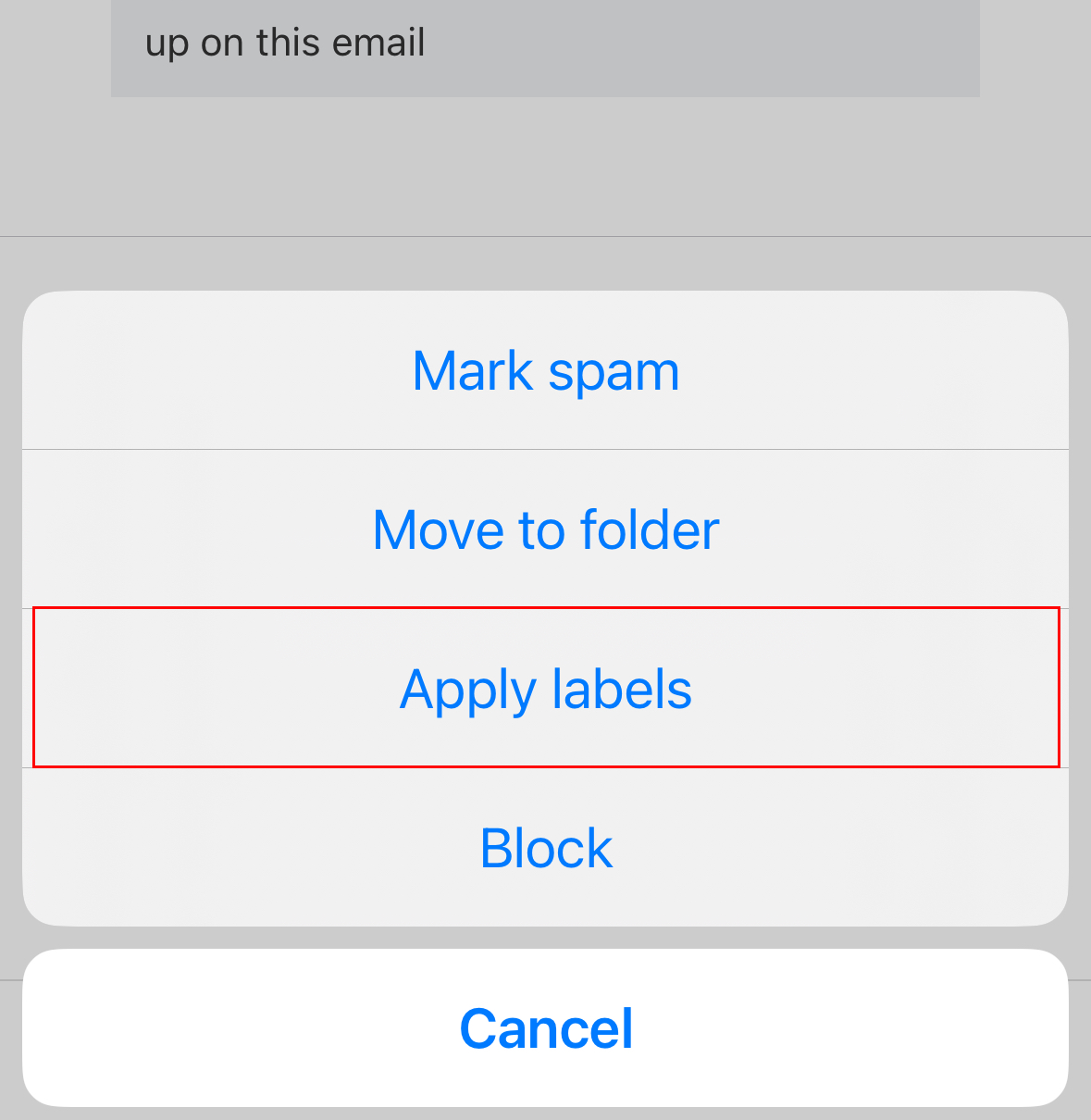
- If you already have existing labels, tap Create label. If this is your first time creating a label, continue to the next step.
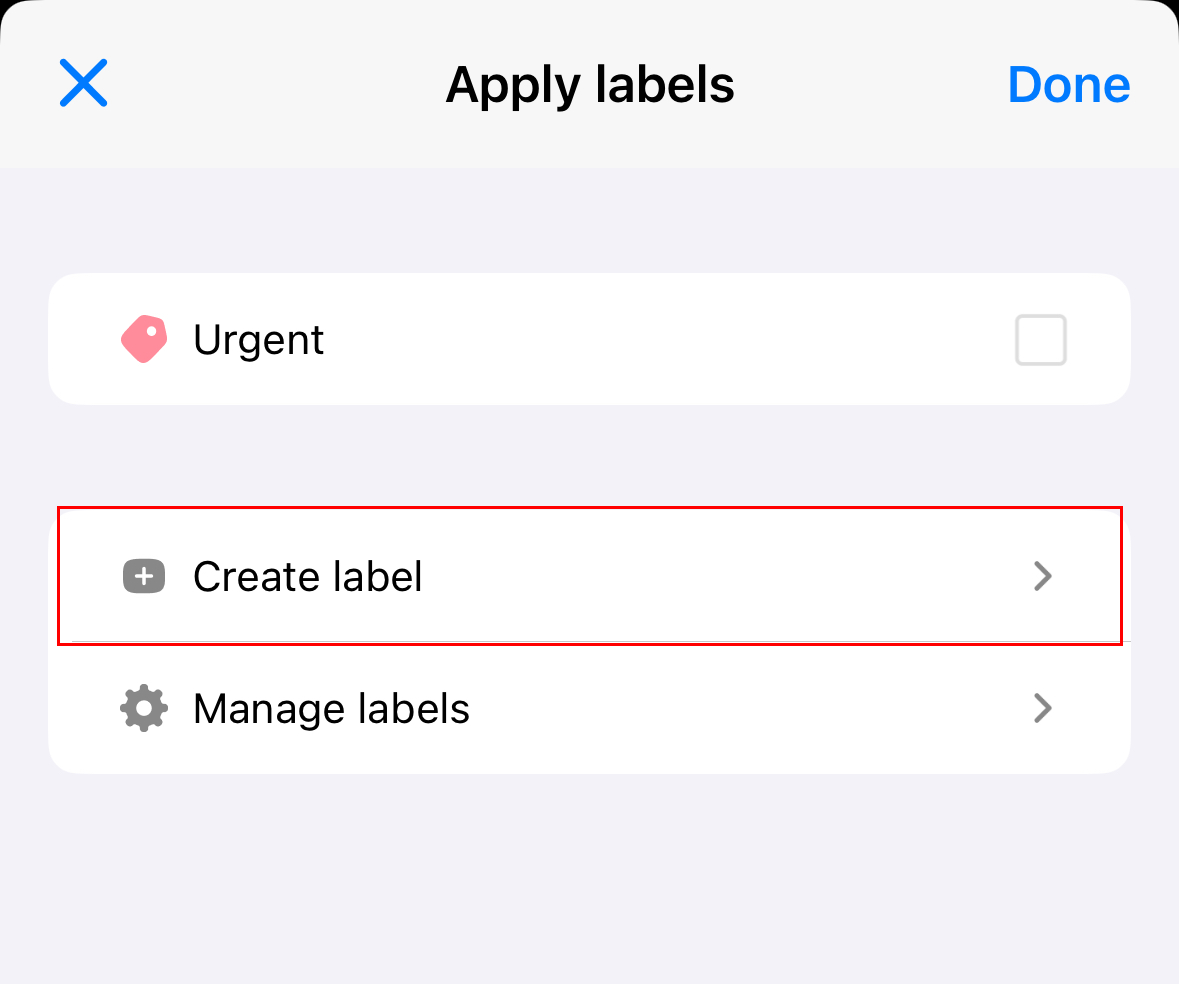
- Enter a label name, choose a color, and then tap Done.
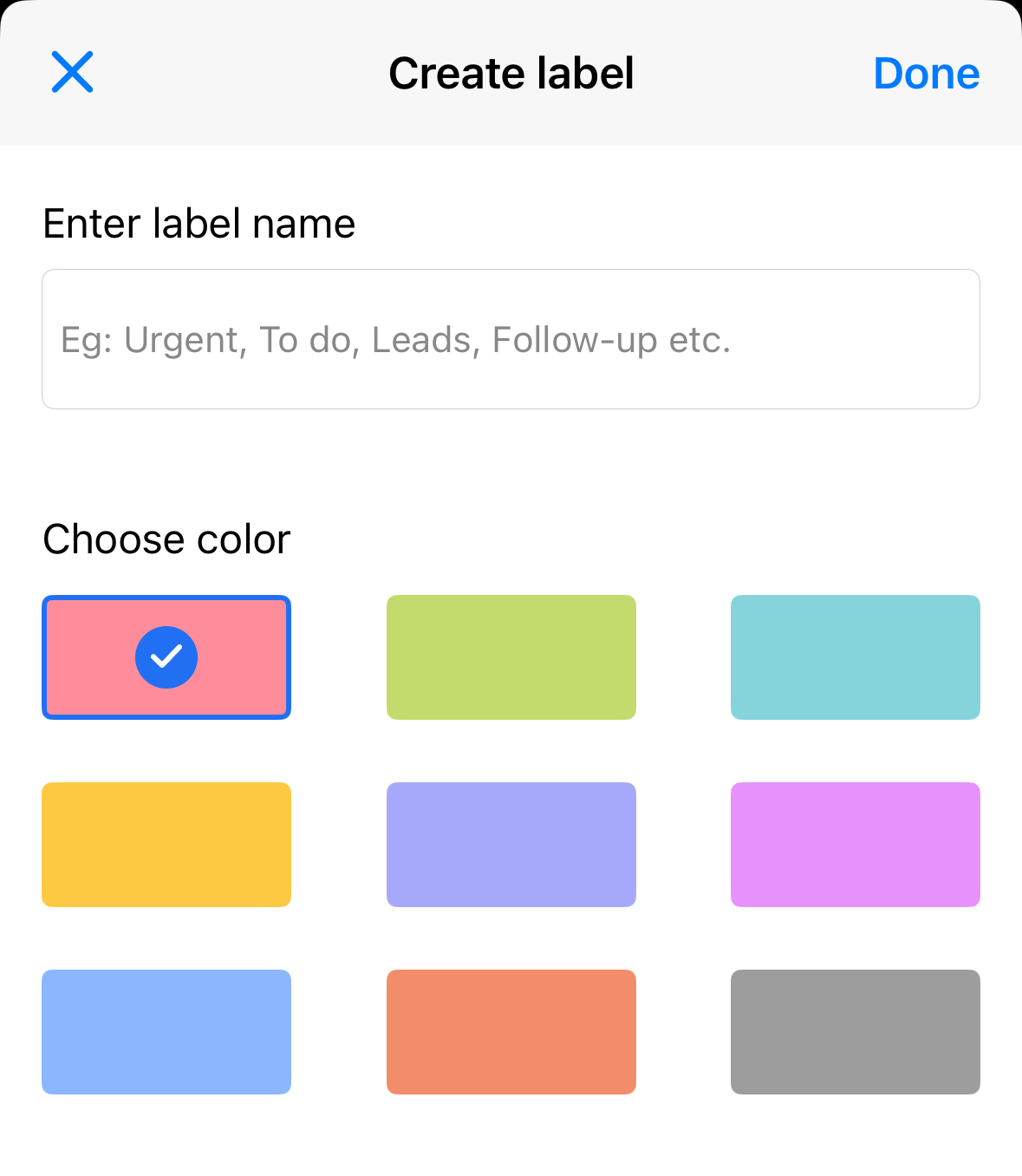
Your label will be created and applied to the current email. Tap Done to close the Apply labels tab.
Apply or remove a label to an email
Select a tab based on whether you're using webmail on desktop or the mobile app.
- Sign in to webmail. Use your Professional Email powered by Titan address and password (your GoDaddy username and password won't work here).
- In your inbox, select a message.
- Above the message, select Label.
- Next to the label that you want to apply or remove, select or clear the checkbox.
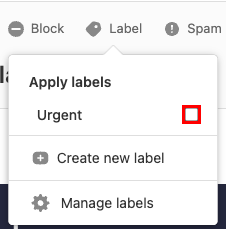
You’ll see a message confirming that the label was either added to or removed.
- Open the Titan app.
- In your inbox, tap an email to open it.
- In the upper-right corner, tap More options, and then Apply labels.
- To apply or remove a label from the email, tap the label, and then Done.
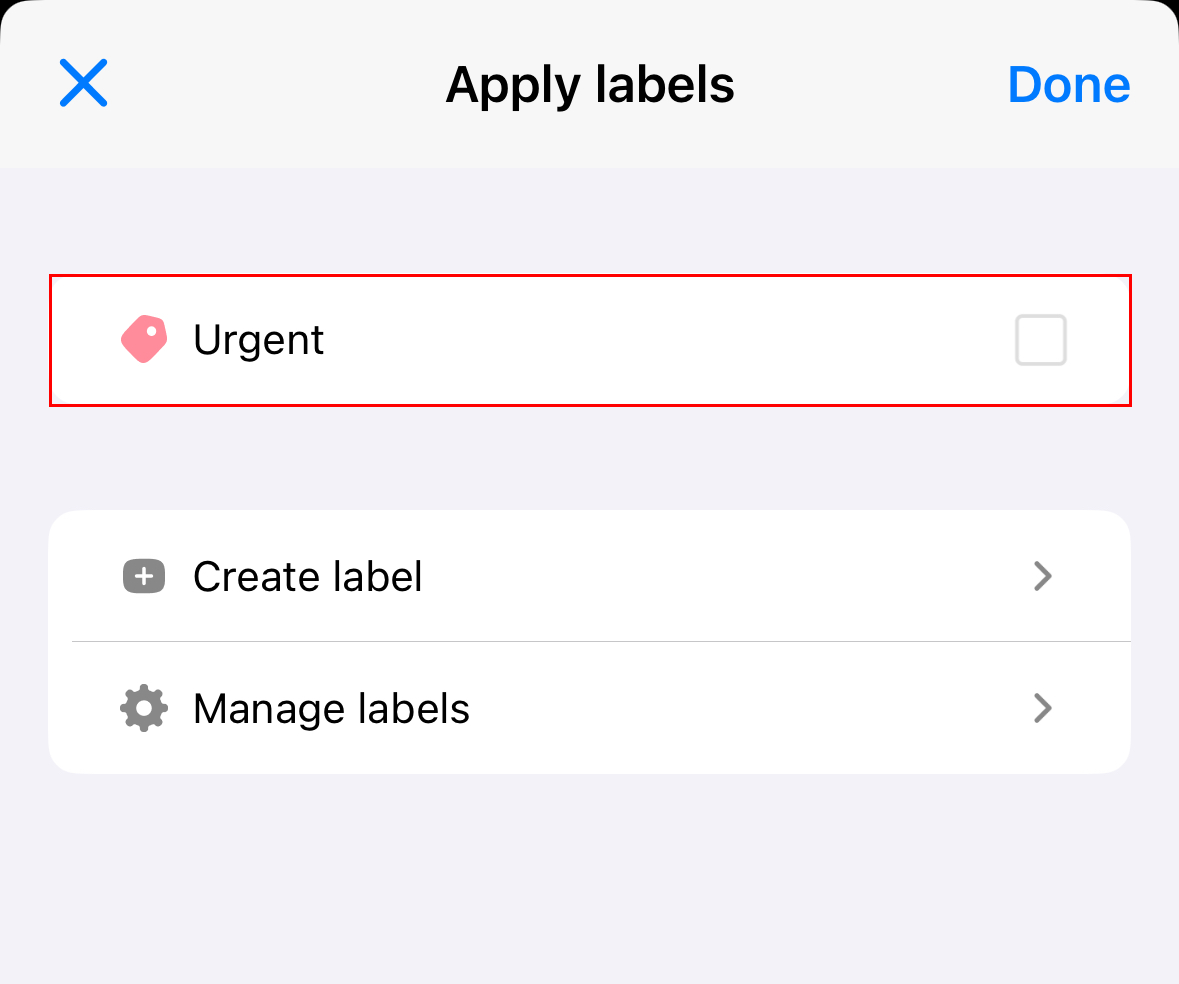
Your label will be added or removed.
Edit or delete a label
Select a tab based on whether you're using webmail on desktop or the mobile app.
- Sign in to webmail. Use your Professional Email powered by Titan address and password (your GoDaddy username and password won't work here).
- In your inbox, select a message.
- Above the message, select Label, and then Manage labels.
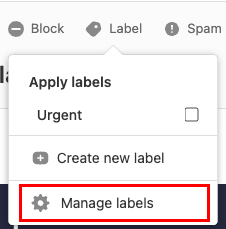
- Next to a label, select
 Edit or
  Delete.
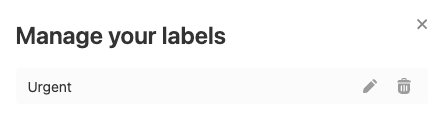
- If you selected Edit, update the label name or color as desired, and then select Save.
- If you selected Delete, to confirm your choice, select Yes, delete.
You’ll see a message confirming that your label was either updated or deleted.
- Open the Titan app.
- In your inbox, tap an email to open it.
- In the upper-right corner, tap More options, and then Apply labels.
- Tap Manage labels.
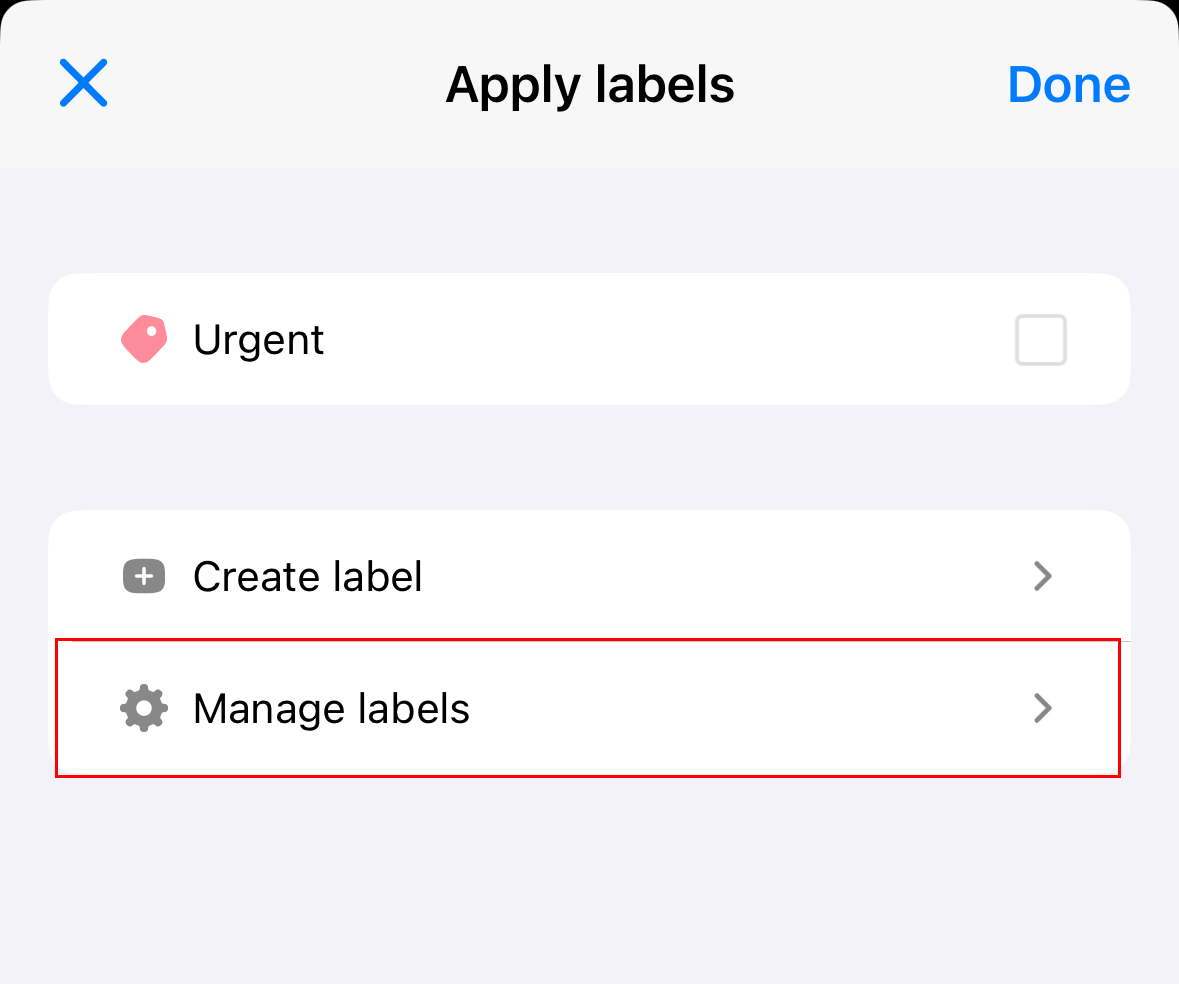
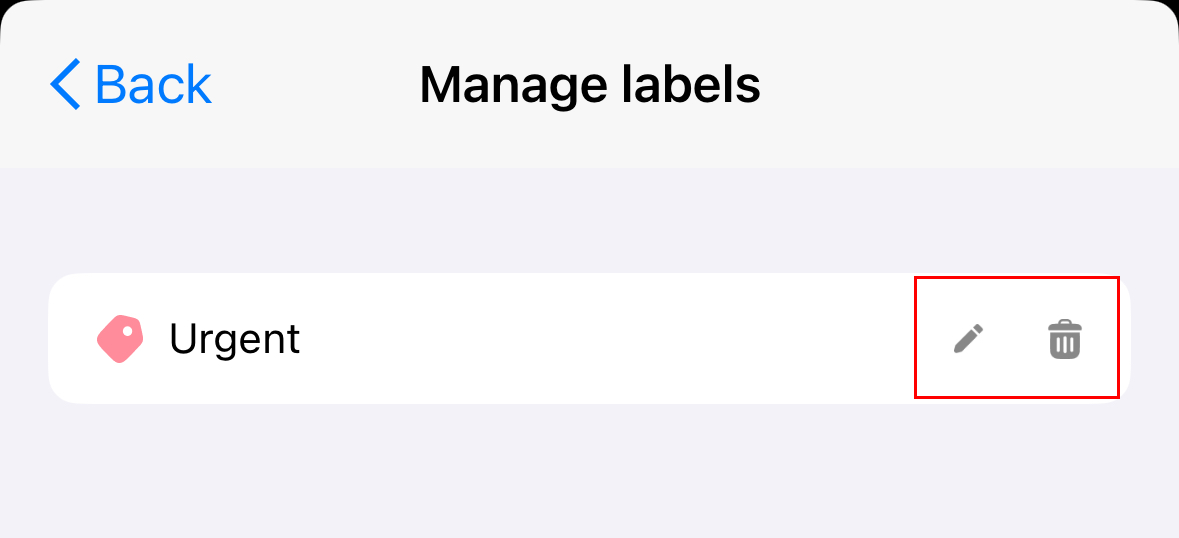
- Next to the label you want to edit, tap Edit or Delete.
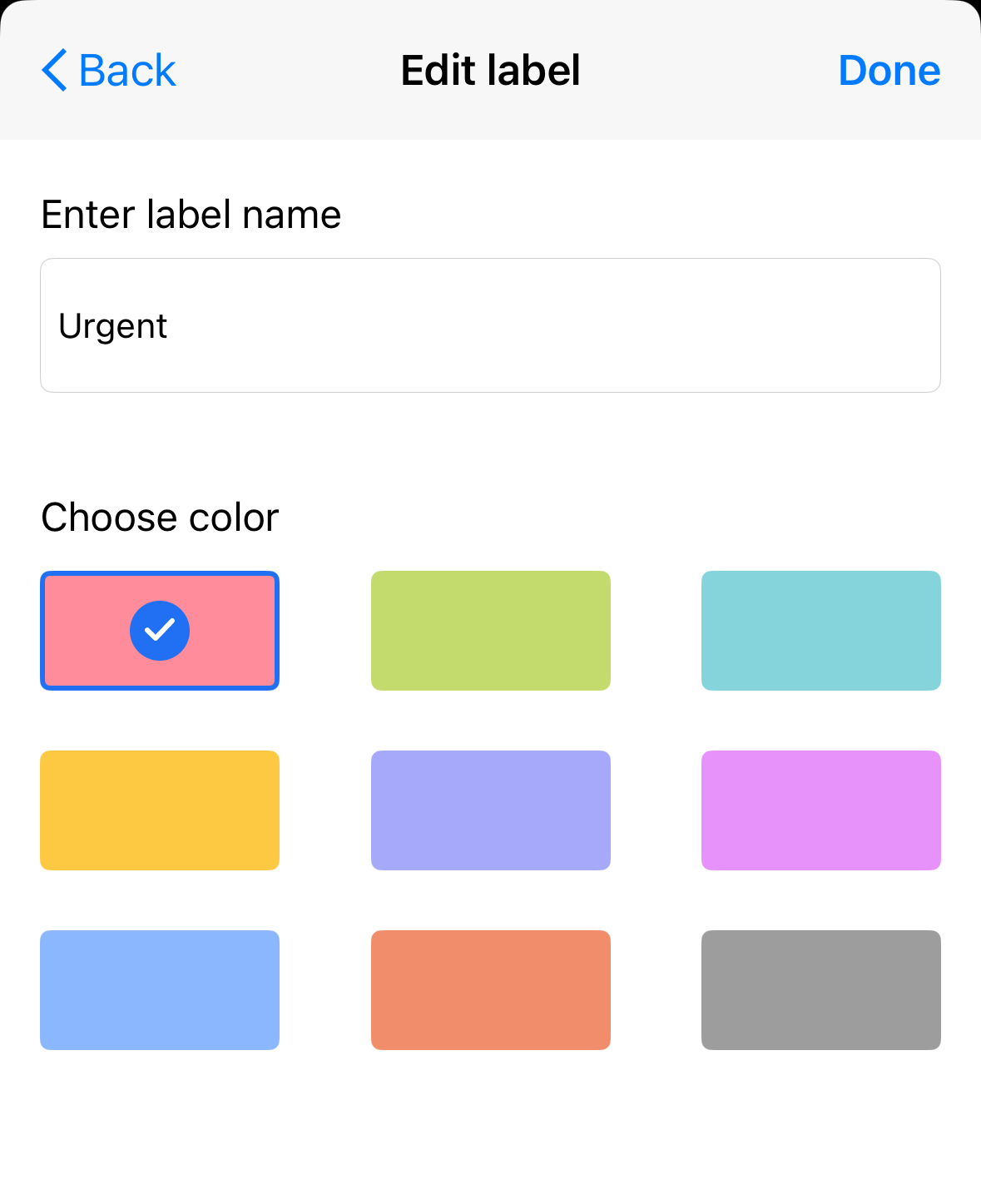
- If you tapped Edit, either edit the label name or choose a new color. Tap Done.
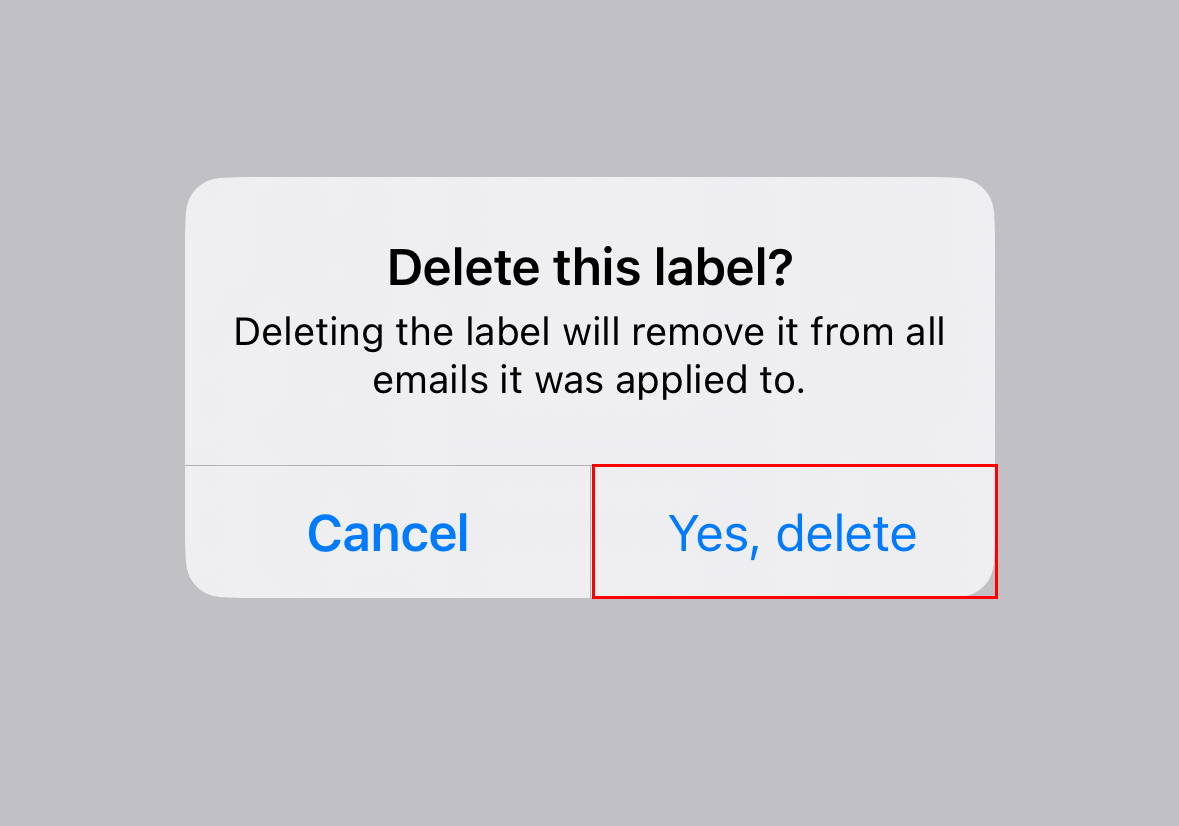
- If you tapped Delete, to confirm you want to delete the label, tap Yes, delete. Swipe down to close the labels tab.
- If you tapped Edit, either edit the label name or choose a new color. Tap Done.
Your label will be edited or deleted.
Find email with the same label
Select a tab based on whether you're using webmail on desktop or the mobile app.
- Sign in to webmail. Use your Professional Email powered by Titan address and password (your GoDaddy username and password won't work here).
- See email by label using 1 of 2 methods:
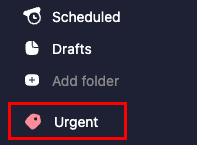
- Folders: On the leftmost side of your inbox, in the folder list, select the email label name. It’ll open a list of messages with the label.
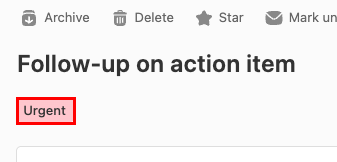
- Message preview: In your inbox, select a message with the email label. In the message preview, above the message, select the label. It’ll open the same list of messages with the label.
- Folders: On the leftmost side of your inbox, in the folder list, select the email label name. It’ll open a list of messages with the label.
- Open the Titan app.
- In the upper-right corner, tap the
 menu or swipe left.
 - Under Labels, to see all email with a specific label, tap a label.
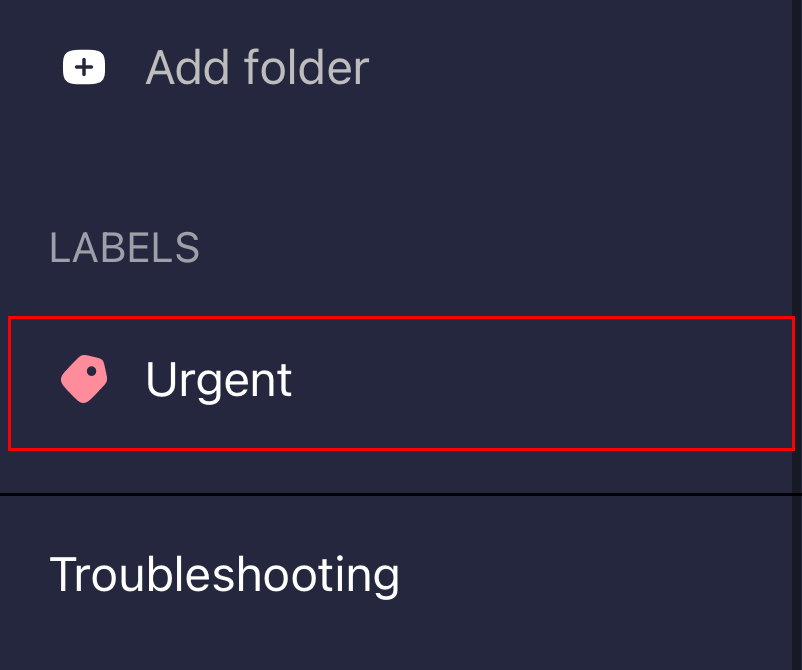
All messages with that label will be listed.