Manage message threads in GoDaddy Conversations
Note: For now, GoDaddy Conversations is available in English only.
We're improving how you view and manage conversation threads in your GoDaddy Conversations inbox to help you provide better service and work more efficiently.
Why we're making this change
The new design:
- Better supports businesses with multiple team members who manage the same inbox
- Helps you track which customer conversations need your attention, with the inclusion of a new filter system
- Helps you manage customer communications more professionally
- Aligns with how most modern communication platforms work
How does this benefit my business?
- Results-based statuses: Use statuses to better track and address customer questions and concerns.
- No more manual reminders: You no longer need to mark conversations as Unread to remember to respond later.
- Better team collaboration: Anyone on your team can read conversations without affecting their status.
- Nothing gets missed: Conversations stay unresolved until someone on your team manually changes the status or replies to the message.
- Improved workflow: New filters help you easily find unresolved conversations or focus on conversations with a specific status.
When is this happening?
This update will be rolling out soon to all GoDaddy Conversations users. You'll see these new statuses in your inbox when you sign in after the update.
What's changing
Current system:- When you select a conversation, it automatically gets marked as Read and the blue dot to the left of the conversation disappears.
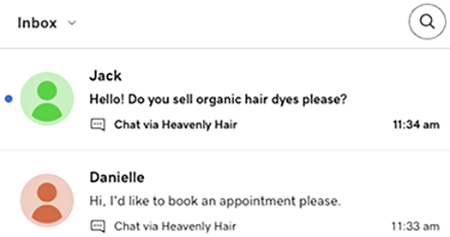
- If you want to come back to it later, you need to manually mark it as Unread.
- Conversations start with an Unresolved (open) status when they arrive in your inbox. They appear in bold font so they're easy to find.

- Selecting the conversation to read it no longer changes the status like it did before.
- When you respond to the conversation, its status automatically changes to Waiting on Customer and it will no longer appear in bold font. There’s a response arrow showing that someone from your team has responded to this message and that this is the latest message in the thread.
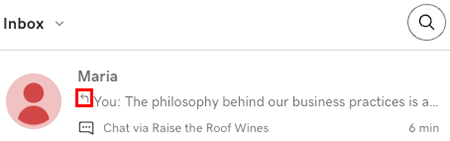
- When the customer responds, the status changes back to Unresolved.
- You can manually Mark as Resolved (closed).
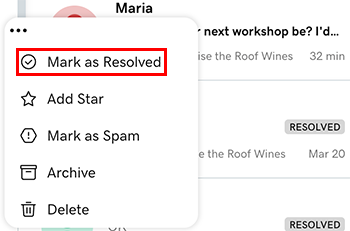
- You can also manually Mark as Unresolved (open) if needed.
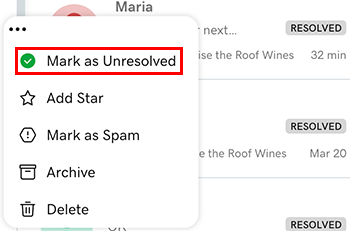
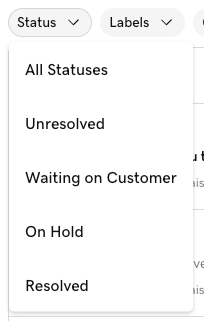
- A new On Hold status is available, which is activated when you set a reminder on a thread. If you change the status of an On Hold conversation to Resolved, the reminder is removed.
- To filter by status, select Status, and then select the status you want to focus on.
What about archiving and spam management?
- You can still archive a conversation as before. If a customer responds to an archived conversation, its status automatically changes to Unresolved and it moves from your Archived folder back to your inbox.
- You can also still mark a conversation as spam. If you later respond to a spam message, it moves from your Spam folder to your inbox, with the status Waiting on Customer.
Required: Spam or Archived messages must be moved to your inbox before you can change their status.
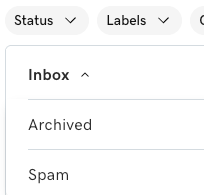
- To filter for spam or archived conversations, select Inbox, and then select the status you want to focus on.
Related steps
- Mark a conversation as resolved or unresolved
- Mark conversations as spam or not spam
- Archive or restore a conversation
- Set and manage reminders in Conversations