Review and remediate risky users and sign-ins
A risky sign-in is when someone tries to sign in from an unfamiliar location or suspicious device. A risky user is an account that has likely been hacked, like if the password was stolen or if it’s had multiple risky sign-ins. You can check and fix both issues in the Microsoft Entra admin center.
- Sign in to the Microsoft Entra admin center. Use your Microsoft 365 email address and password (your GoDaddy username and password won't work here).
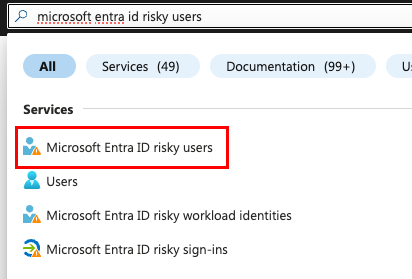
- Search for Microsoft Entra ID risky users or Microsoft Entra ID risky sign-ins, and then select it from the results. (For example, the image below shows how to search for the risky users page.)
- For each risky user or sign-in, review the risk level, detection type and sign-in details.
- Take appropriate action, which might include:
- Resetting the user’s password: Select the user you want to remediate, and then Reset Password. You can either assign a new password or require the user to change it at the next sign-in.
- Dismissing the risk if it’s a known safe activity: Select the user or sign-in event, and then Dismiss Risk. If you’ve verified the activity is legitimate (like from known travel or VPN use), confirm the dismissal. This will update the user’s risk status and remove them from the risky list.
- Blocking the user temporarily if needed: Go to Users, and then All Users. Select the user, and then Block Sign-In.
- Applying Conditional Access policies: Go to Protection, and then Conditional Access. Create a new policy or edit an existing one. You’ll want to target risky users and sign-in risk level or user risk-level. You can require multi-factor authentication (MFA) or a password change, or you can block their access.