Activar o desactivar el filtrado de llamadas de spam en GoDaddy Conversations
Si no activaste el filtrado de llamadas de spam durante la configuración inicial, puedes activarlo más tarde.
- Inicia sesión en tu aplicación móvil GoDaddy.
- At the bottom of the screen, tap Conversations to see a list of all your unarchived conversations.

- In the top-right corner, tap
 more, and then tap Settings.
 - Tap Call & Text. If you don’t see this option, first add a business number.
- Tap Advanced Settings. You'll be asked to sign in to your GoDaddy account.
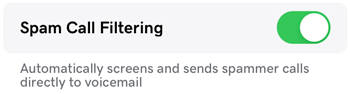
- Next to Spam Call Filtering, switch the toggle on (shows green) or off (shows white).
- Tap Save Changes to apply the setting.
- Inicia sesión en tu aplicación móvil GoDaddy.
- At the bottom of the screen, tap Conversations to see a list of all your unarchived conversations.
- In the top-right corner, tap
 settings.
 - Tap Call & Text. If you don’t see this option, first add a business number.
- Tap Advanced Settings. You'll be asked to sign in to your GoDaddy account.
- Next to Spam Call Filtering, switch the toggle on (shows green) or off (shows white).
- Tap Save Changes to apply the setting.