Set my call availability hours in GoDaddy Conversations
Note:
- The GoDaddy mobile app is not available with free Conversations plans.
- You need a standalone Conversations subscription to get a business phone number. GoDaddy Websites + Marketing plans don't come with a phone number.
Set your call availability hours to take control of your work-life balance and manage customers’ expectations about response times.
By default, your availability is set to all hours. You can change this to receive calls only during certain hours. Outside of these hours, your phone won’t ring. Instead, the caller will be sent to your voicemail to leave a message.
- Sign in to your GoDaddy mobile app.
- At the bottom of the screen, tap Conversations to see a list of all your unarchived conversations.

- In the top-right corner, tap
 more, and then tap Settings.
 - Tap Call & Text.
- Tap Advanced Settings. You'll be asked to sign in to your GoDaddy account.
- Expand Call Availability, and then tap Custom Availability.
- Verify that your time zone is correct.
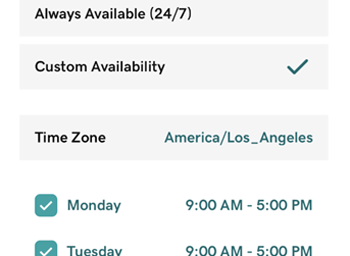
- Tap the day for which you want to set your availability.
- To set specific hours, tap Custom, tap the start or end time, and use the dial to set the time. You can also turn on the All-Day toggle (shows green) if you’d like to receive calls at all hours on that day.
- Tap Save Changes to apply the settings.
- Repeat steps 8 to 10 for all the days where you’d like to set custom availability.
- For days when you're closed for business, clear the checkbox next to that day.
- Sign in to your GoDaddy mobile app.
- At the bottom of the screen, tap Conversations to see a list of all your unarchived conversations.
- In the top-right corner, tap
 settings.
 - Tap Call & Text.
- Tap Advanced Settings. You'll be asked to sign in to your GoDaddy account.
- Expand Call Availability, and then tap Custom Availability.
- Verify that your time zone is correct.
- Tap the day for which you want to set your availability.
- To set specific hours, tap Custom, tap the start or end time, and use the dial to set the time. You can also turn on the All-Day toggle (shows green) if you’d like to receive calls at all hours on that day.
- Tap Save Changes to apply the settings.
- Repeat steps 8 to 10 for all the days where you’d like to set custom availability.
- For days when you're closed for business, clear the checkbox next to that day.
- In a web browser, go to your GoDaddy product page.
-
If you have the standalone version of Conversations, expand Conversations Unified Inbox. To the right of your Conversations plan, select Web Inbox.
OR
If you have a Websites + Marketing plan, scroll to Websites + Marketing and select Manage next to your site. In the left menu, expand Conversations.
- Select Settings.
- Select Channels.
- Under Phone & SMS, select your phone number.
- Expand Call Availability.
- Select Custom Availability and then verify that your time zone is correct.
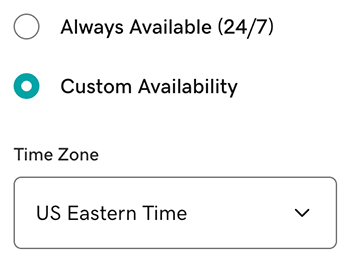
- Select the checkbox next to the day for which you want to set your availability, and then select Custom.
- Select the day for which you want to set your availability.
- To set specific hours, tap Custom, select the start or end time, and use the dial to set the time. You can also turn on the All-Day toggle (shows green) if you’d like to receive calls at all hours on that day.
- Select Save Changes to apply the settings.
- Repeat steps 8 to 10 for all the days where you’d like to set custom availability.
- For days when you're closed for business, clear the checkbox next to that day.