Get a Business Calling & Texting number
Step 2 of the Set up GoDaddy Conversations and connect with customers series
If you have a standalone Conversations subscription, you can set up a dedicated business phone number to connect with customers through text messages and calls, using GoDaddy Conversations.
Note: Calling and texting is only available for U.S. phone numbers. To send text messages through GoDaddy Conversations, you'll need to register your business number for A2P10DLC compliance.
If you didn't set up your Business Calling & Texting number when you bought your Conversations standalone subscription, you can do so when you first sign in to the GoDaddy mobile app.
- Download and install the GoDaddy mobile app, and then sign in using your GoDaddy details.
- At the bottom of the screen, tap Conversations.

- Scroll down your list of ventures to the letter "N", and then tap New Business. This is your new paid subscription.
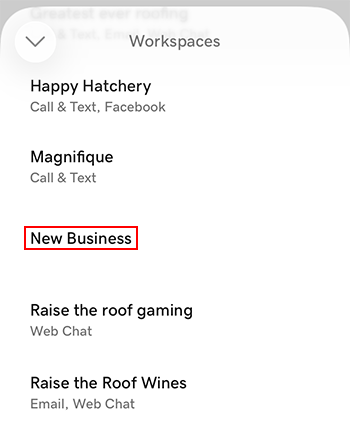 Note: If you can't find New Business in your list of workspaces, it's possible you haven't subscribed to a standalone Conversations plan yet. Visit Conversations plans and pricing.
 - Tap Finish Setup.

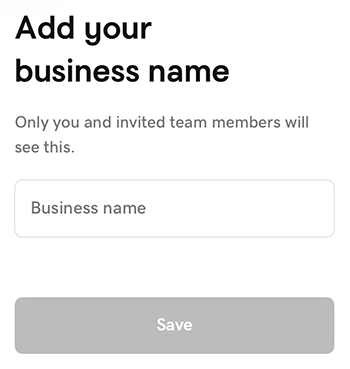
- Enter a name for your business, and then tap Save.
- Enter the 3-digit U.S. area code of the city or region where you do business.
- Tap the phone number you want to use, and then tap Choose Number to finalize your selection.
- Choose a calling method, and then tap Continue. If you're unsure, read our article on using a data or a cellular connection to make and receive calls.
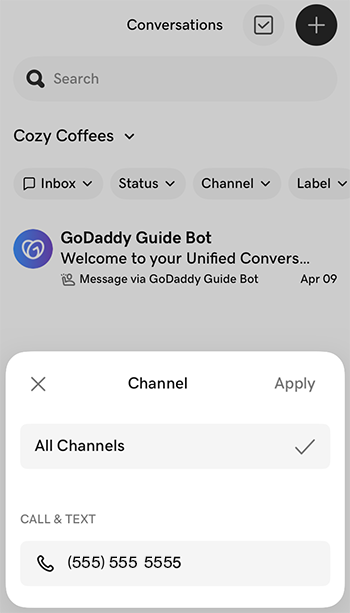
- To find your new number, tap Channel. It'll show under CALL & TEXT.