Buat postingan blog
Dalam postingan blog, Anda menulis konten berdasarkan topik atau kata kunci, memformatnya, dan menambahkan foto. Yang tersisa hanyalah mempublikasikan sekarang atau menjadwalkannya untuk nanti. Tidak yakin harus berkata apa? Versi draf disimpan secara otomatis, jadi cukup tuliskan ide singkatnya dan selesaikan setelah Anda siap. Ingatlah untuk menambahkan bagian blog ke situs web Anda untuk menampilkan postingan.
Video ini adalah bagian dari seri Petunjuk Penggunaan Blog untuk Bisnis Anda .
- Buka halaman produk GoDaddy Anda.
- Gulir ke bawah, luaskan Websites + Marketing , lalu pilih Kelola di samping situs Anda.
- Di dasbor, luaskan Pemasaran , lalu pilih Blog .
- Pilih Buat Postingan .
- Anda dapat memilih agar kecerdasan buatan (AI) membuat postingan untuk Anda, atau membuatnya sendiri.
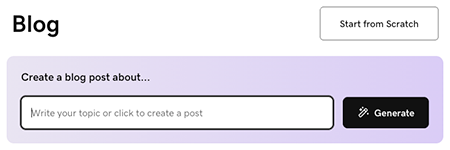
Agar AI membuat postingan untuk Anda:
- Masukkan topik atau deskripsi singkat untuk memandu tentang isi postingan blog, atau cukup pilih Buat agar AI dapat membuat postingan berdasarkan pengetahuannya tentang bisnis Anda.
- AI akan membuat postingan blog dan menampilkannya untuk Anda lihat. Gunakan antarmuka chat untuk membuat perubahan, jika perlu, atau pilih Edit di bawah pratinjau postingan blog untuk mengedit postingan secara manual.
Untuk menulis postingan sendiri, pilih Mulai dari Awal , lalu ikuti langkah-langkah berikut:
- Mulailah dengan judul. Ini harus berisi kata kunci ide utama dan memberi pembaca gambaran tentang manfaat yang akan mereka dapatkan dari membaca artikel Anda. Judul Anda harus kurang dari 65 karakter.
- Tambahkan teks isi. Tulis dengan nada percakapan dan gunakan header untuk memisahkan ide. Sorot teks untuk memformat dan menautkannya.
- Dengan kursor di area teks, pilih
 Tambah untuk menambah gambar, video atau pembatas . Tambahkan gambar atau video stok, atau salah satu gambar atau video Anda sendiri. Pelajari lebih lanjut tentang cara membuat gambar yang tampak profesional .
 - Tambahkan gambar unggulan Anda. Ini akan ditampilkan di postingan Anda dan di bagian blog situs web Anda.
- Pilih kategori atau tambahkan yang baru. Kategori memungkinkan Anda membuat beberapa blog di situs web Anda.
Catatan: Untuk menghapus garis pemisah, pilih garis dan tekan tombol backspace atau delete pada keyboard Anda. - Pilih Publikasikan Sekarang untuk segera mempublikasikan postingan blog, atau pilih Jadwalkan , lalu pilih tanggal dan waktu yang Anda inginkan untuk mempublikasikan postingan blog secara otomatis.
- Untuk menyelesaikan proses ini, pilih Publikasikan Sekarang .
Praktik terbaik postingan blog
Video ini adalah bagian dari seri Petunjuk Penggunaan Blog untuk Bisnis Anda .
Selengkapnya
- Anda telah membuat postingan! Sekarang saatnya menambahkan bagian postingan blog ke situs web Anda .