Tworzenie wpisów na blogu
We wpisie na blogu piszesz zawartość na podstawie tematu lub słów kluczowych, formatujesz ją i dodajesz zdjęcie. Zostało tylko opublikowanie tego teraz lub zaplanowanie na później. Nie wiesz, co powiedzieć? Wersje robocze są zapisywane automatycznie, dlatego po prostu zanotuj krótki pomysł i dokończ go, gdy będziesz gotowy. Pamiętaj, aby dodać sekcję bloga do swojej witryny, aby wyświetlać wpisy.
Ten film jest częścią serii Jak korzystać z bloga w firmie .
- Przejdź do strony produktu GoDaddy.
- Przewiń w dół, rozwiń Websites + Marketing i wybierz opcję Zarządzaj obok swojej witryny.
- Na pulpicie nawigacyjnym rozwiń pozycję Marketing , a następnie wybierz pozycję Blog .
- Wybierz opcję Utwórz wpis .
- Możesz zdecydować się na wygenerowanie wpisu przez sztuczną inteligencję (SI) lub utworzyć go samodzielnie.
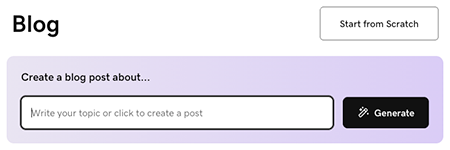
Aby sztuczna inteligencja wygenerowała dla Ciebie wpis:
- Wprowadź temat lub krótki opis, aby wskazać, o czym jest wpis na blogu, albo po prostu wybierz opcję Wygeneruj , aby umożliwić sztucznej inteligencji wygenerowanie wpisu na podstawie tego, co wie o Twojej firmie.
- Sztuczna inteligencja wygeneruje wpis na blogu i wyświetli go, abyś mógł wyświetlić podgląd. Użyj interfejsu czatu, aby wprowadzić zmiany, jeśli to konieczne, lub wybierz Edytuj pod podglądem wpisu na blogu, aby ręcznie edytować wpis.
Aby samodzielnie napisać wpis, wybierz opcję Rozpocznij od zera i wykonaj następujące czynności:
- Zacznij od tytułu. Powinien zawierać słowo kluczowe główny pomysł i dawać czytelnikom wyobrażenie o korzyściach, jakie odniosą z przeczytania Twojego artykułu. Tytuł musi mieć mniej niż 65 znaków.
- Dodaj tekst podstawowy. Pisz tonem konwersacyjnym i używaj nagłówków, aby oddzielić pomysły. Podświetl tekst do sformatowania i połącz go.
- Po ustawieniu kursora w obszarze tekstowym wybierz
 dodaj , aby dodać obrazy, wideo lub linię podziału . Dodaj zdjęcie lub wideo z magazynu albo jedno z własnych obrazów lub filmów. Dowiedz się więcej o tworzeniu profesjonalnie wyglądającego obrazu .
 - Dodaj polecany obraz. Będzie on widoczny w Twoim poście i w sekcji bloga w Twojej witrynie.
- Wybierz kategorię lub dodaj nową. Kategorie umożliwiają tworzenie wielu blogów w witrynie.
Uwaga: Aby usunąć linię podziału, wybierz ją i naciśnij klawisz Backspace lub Delete na klawiaturze. - Wybierz opcję Opublikuj teraz , aby natychmiast opublikować wpis na blogu, lub wybierz opcję Zaplanuj , a następnie wybierz datę i godzinę, kiedy post ma zostać opublikowany automatycznie.
- Aby zakończyć proces, wybierz Opublikuj teraz .
Sprawdzone metody publikowania na blogu
Te filmy są częścią serii Jak korzystać z bloga w firmie .
Więcej informacji
- Utworzyłeś post! Nadszedł czas, aby dodać do witryny sekcję z wpisami na blogu .