將GoDaddy Conversations連接到我的Gmail帳戶
將您的Gmail帳戶轉寄至GoDaddy Conversations,您可以在Conversations統一收件匣內接收所有的Gmail郵件,讓您的商務通訊管理也更輕鬆。
必要條件:您必須同時存取Conversations帳戶設定和Gmail設定,才能連線Gmail,因此開始前,請確定您可以在裝置上的兩個瀏覽器分頁之間自由切換。
- 透過網頁瀏覽器前往您的GoDaddy產品頁面。
如果您有Conversations的獨立版本,展開Conversations統一收件匣。點選Conversations方案右方的「網路收件匣」 。
或
如果您使用Websites + Marketing方案,請捲動到Websites + Marketing並點選網站旁邊的管理。在左側選單中,展開Conversations 。
- 點選「設定」。
- Select Channels.
- Expand Email, and then select Connecct. (If you already have a connected Gmail address, select Add another.)
Note: If you have a Websites + Marketing plan and have enabled chat for your website, you’ll have a default email address to receive chat notifications. This is an internal email address created for you by GoDaddy. Connecting Gmail to Conversations will not affect this default email address.
- 點選「Gmail」後點選「下一步」 。
- 輸入您想連線至「對話」的Gmail地址,然後點選「下一步」 。
- 輸入客戶在您寄送電子郵件時會看到的名稱,然後按一下[下一步] 。
- 點選「開啟Gmail設定」 。
- A new tab will open, showing your Gmail settings.
Warning: Make sure you keep both tabs open because you’ll need to switch between them to be guided through the steps.
- Go back to the Conversations tab and select Copy next to the forwarding address.
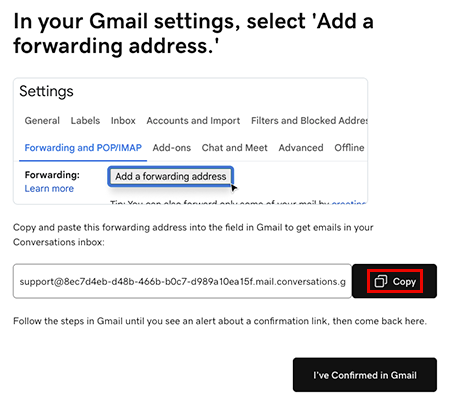
- 前往Gmail設定標籤。點選「轉址及POP / IMAP」下方「新增轉寄地址」 ,並將地址貼到文字方塊中,然後點選「下一步」 。您可能需要確認確實是您。按照畫面上的說明進行。
- 您會看到一則訊息,表示已向您輸入的電子郵件地址發送確認連結。選擇確定。
- Back in the Conversations tab, select I’ve Confirmed in Gmail, and then select Confirm Forwarding in Gmail.
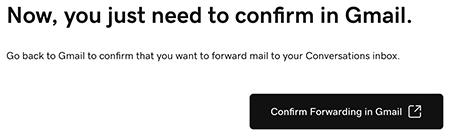
- A new tab will open, showing a Gmail confirmation. Select Confirm. When you see the Confirmation Success! message, you can close this tab.
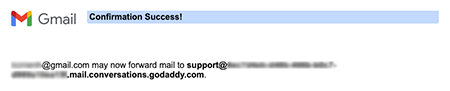
- Go to the Gmail settings tab and reload the page.
Warning: If you don’t reload the page you might not see the option to select Forward a copy of incoming mail.
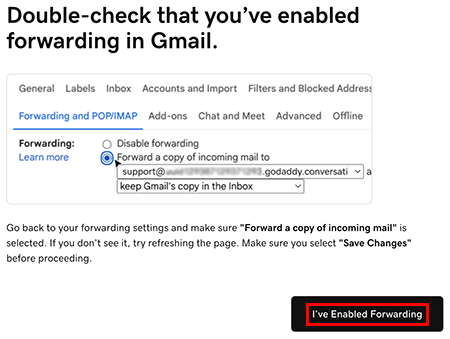
- Under Forwarding and POP/IMAP, make sure Forward a copy of incoming mail is selected. At the bottom of the page, select Save Changes.
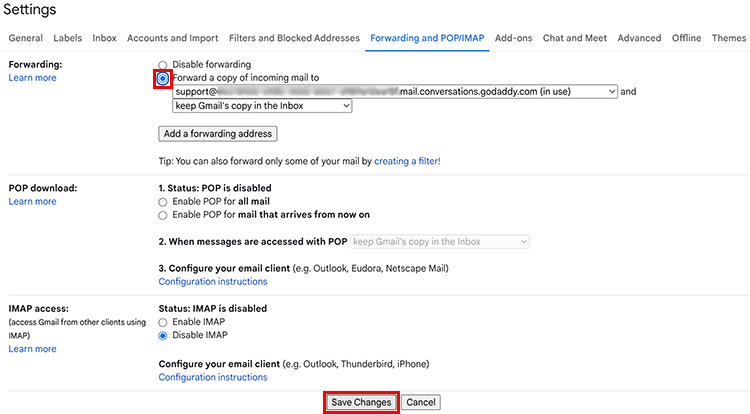
- You’ll be taken to your Gmail inbox. At the top of the page you’ll find a message saying you’re now forwarding your email.

- In the Conversations tab, select I’ve Enabled Forwarding.
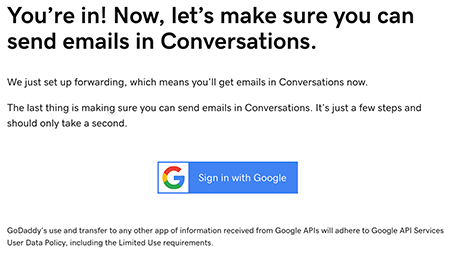
- A message will let you know you’ve successfully set up email forwarding. It could take up to 5 minutes for this message to show. Select Sign in with Google to start the process of making sure you can also reply to Gmail messages from Conversations.
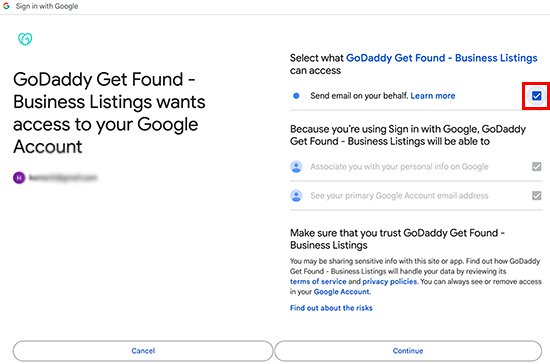
- 登入您在Conversations上所連結的Gmail帳戶,並點選「繼續」 。
- Make sure Send email on your behalf is checked and select Continue.
- 在您的Conversations最近訊息中,您會看到一封確認已設定轉寄的電子郵件。
請注意:您雖然會同時透過Gmail和Conversations收到傳送給您的Gmail帳戶的訊息,但是如果您從Gmail帳戶收到回覆,則您的回覆不會顯示在Conversations上。這是因為Gmail有轉寄的功能。
一切準備就緒!您現在可以使用Conversations整合收件匣來管理所有Gmail郵件,以及您連接到Conversations的其他渠道的郵件。