匯入我的聯絡人,行事歷,email及工作
注意:這些指示僅供參考。我們的GoDaddy指南無法協助您匯入資料。
如果要將Outlook項目從一個地址移動到另一個地址,或從一個裝置移動到另一個裝置,請先建立Outlook備份檔案。取得備份檔案後,即可開始匯入Outlook。請注意,Microsoft不支援Outlook 2016之前的版本。
根據您使用的電子郵件平台選擇適當的標籤。
Outlook網頁版Outlook可以匯入以半形逗號分隔的數值(.csv)。為取得最佳效果,您的檔案也應該使用UTF-8編碼。
- 登入Outlook網頁版。使用Microsoft 365 email地址及密碼(此處無法使用GoDaddy使用者名稱及密碼)。
- 點選頁面最左端的「
 人員」。
人員」。 - 點選「管理」 ,然後點選「匯入聯絡人」 。
- 點選「瀏覽」 ,選擇.csv檔案,然後點選「開啟」 。
- 點選匯入。
Outlook for Windows可以匯入逗號分隔值(.csv)或個人儲存表格(.pst)檔案。
New OutlookClick here to follow the steps for New Outlook.
New Outlook
Click here to follow the steps for New Outlook.
- 開啟 Outlook。
- Select Settings, then Data files, and then Import.
- Under Outlook Data File (.pst), select Get started, and then Select file.
- Browse to and select your .pst file, and then select Open.
- Choose the folder you want to import from. Leave the Include subfolders checkbox selected to include subfolders too.
- Choose how you want duplicate items to be handled, and then select Next.
- Select the destination mailbox from the Account list.
- Select or create the destination folder.
- 點選匯入。
Note: New Outlook currently only supports importing Outlook Data Files (.pst). To import a .csv file, select the Classic Outlook section instead.
Classic OutlookClick here to follow the steps for Classic Outlook.
Classic Outlook
Click here to follow the steps for Classic Outlook.
- 開啟 Outlook。
- 點選左上角的「檔案」 。
- 點選「開啟&匯出,匯入,匯入。
- 點選「從其他程式或檔案匯入」 ,然後點選「下一步」 。
- 選取您的檔案類型(逗號分隔值(.csv)或Outlook資料檔(.pst)),然後點選下一步。
- 點選「瀏覽」 ,選擇您的檔案,然後點選「開啟」 。
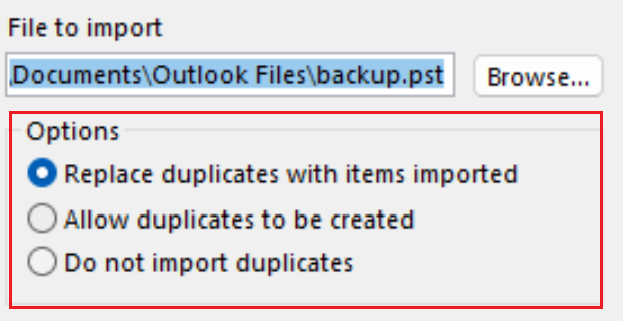
- Under Options, choose how you want duplicate items to be handled, and then select Next.
- 如果檔案有密碼保護,請輸入密碼,然後點選「確定」 。
- 選擇您想匯入資料的Microsoft 365信箱。如果您並未匯入Microsoft 365信箱,請選取。此選項會將您的資料匯入至目前選取的資料夾內。
- 點選完成。 Outlook會開始從您的備份檔案匯入Outlook項目。進度方塊消失後,即表示匯入完成。
Outlook for Mac可以匯入個人儲存表格(.pst)或Outlook for Mac(.olm)檔案。
必要項目:這些步驟僅適用於舊版Outlook。
- 開啟 Outlook。
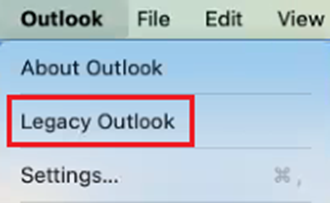
- 如果您使用新版 Outlook,請改為使用舊版 Outlook。點選「Outlook」,然後點選「新版 Outlook」。您可能需要確認要改回舊版。
- 選取「檔案」 ,然後選取「匯入」 。
- 如果您沒有看到匯入,請選擇工具,然後選擇匯入。
- 選取您的備份檔案類型,然後選取繼續。
- 在Mac上找到檔案,然後點選匯入。
- 匯入完成後,點選「完成」 。您匯入的項目會出現在導覽窗格中「我的電腦」下。
更多資訊
- Learn more about exporting and importing files in Outlook from Microsoft.
- See more about how to import contacts to Outlook on the web from Microsoft.
- 將我的email轉移至Microsoft 365