登入 Microsoft 365 帳戶
設定 Microsoft 365 帳戶系列教學步驟 2。
登入後即可存取 Microsoft 365 帳戶。請將此登入頁面加入書籤,以便輕鬆透過網頁瀏覽器存取。
間單來說:登入 Microsoft 365 帳戶
進入登入頁面,並用 Microsoft 365 電子郵件與密碼登入 (這裡無法使用 GoDaddy 憑證),並依系統提示驗證身分,或依需要設定或確認多重要素驗證,然後點選「應用程式」選單的「Outlook」。如需更多資訊,請參閱以下步驟說明。
進入登入頁面,並用 Microsoft 365 電子郵件與密碼登入 (這裡無法使用 GoDaddy 憑證),並依系統提示驗證身分,或依需要設定或確認多重要素驗證,然後點選「應用程式」選單的「Outlook」。如需更多資訊,請參閱以下步驟說明。
- 前往 Microsoft 365 登入頁面。
- 輸入您的 Microsoft 365 電子郵件地址及密碼即可登入 (此處無法使用 GoDaddy 使用者名稱及密碼)。
注意:如果您的瀏覽器已經為您自動填入使用者名稱和密碼,請檢查是否正確填寫 Microsoft 365 電子郵件地址和密碼,而非 GoDaddy 帳戶憑證。
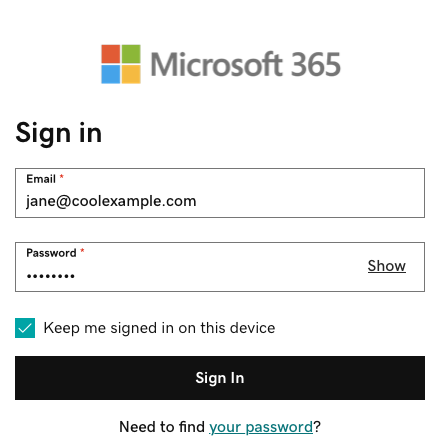
- (非必要) 如果您想在每次開關瀏覽器時都能保持登入,請勾選「在此裝置上保持登入」旁邊的核取方塊。
- 點選「登入」。
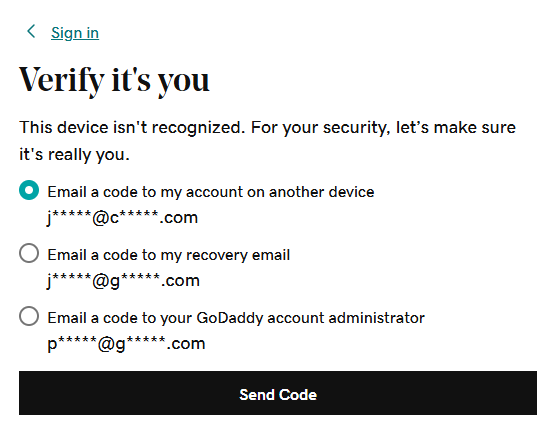
- 如果使用新裝置,或從新地點登入,系統會顯示「驗證您的身分」指示,並透過單次代碼確認身分。
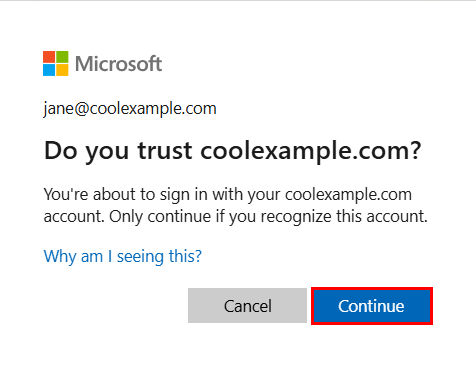
- 如果系統要求您信任您的網域,請點選「繼續」 。
- 如果這是您第一次登入,並已啟用多重要素驗證 (MFA),系統會指示您設定驗證方式。(如果您無法順利依照畫面上的說明操作,請改用這些方式嘗試設定 MFA。)
- 如果您已設定 MFA,請用驗證方式確認身分 (無法存取 MFA 方式嗎?您可以重設方法。
- 前往 M365 Copilot 頁面左側,點選「應用程式」。
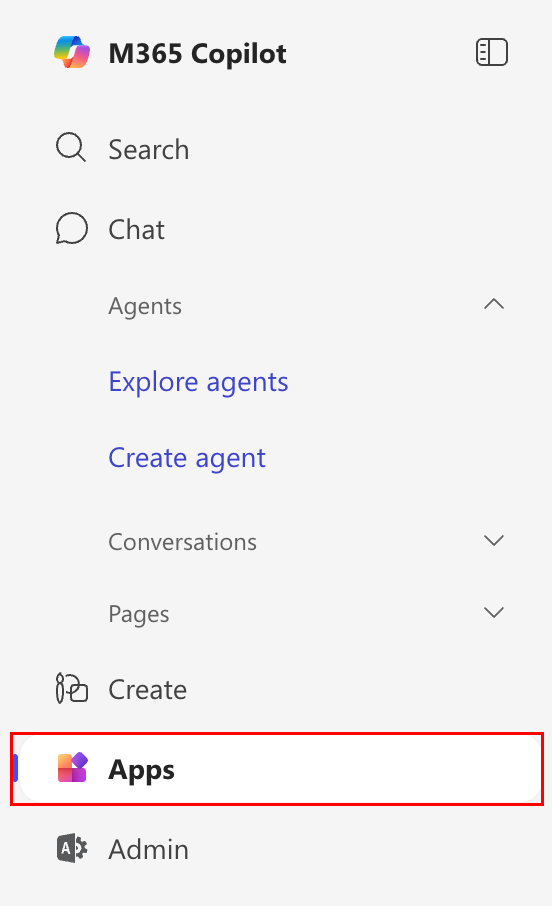
- 如果要開啟電子郵件,可點選「Outlook」。
- 如果系統顯示指示,說明有多個 Microsoft 帳戶使用您的電子郵件,請點選「工作或學校」帳戶 (不是「個人」帳戶)。
更多資訊
- 如果您無法順利使用密碼,或無法登入 Microsoft 365 帳戶,不妨參閱疑難排解步驟。
- 存取電子郵件及 Office 儀表板即可變更密碼、建立別名,以及為裝置設定電子郵件。