Connect my Professional Email powered by Titan account to AI tools with the Titan MCP
Titan MCP lets you use compatible third-party AI tools like Claude and ChatGPT to work with your Professional Email powered by Titan inbox, calendar, contacts and labels using natural language. For example, you can ask the AI tool to find an email, draft a reply or check your calendar for the week.
Before you begin
- You'll need an active and supported Claude (or other AI tool) account. We strongly recommend that you use a personal, trusted AI account, rather than connect to a shared or public AI account.
- If an organization manages your Professional Email powered by Titan mailbox or AI account, obtain any required administrator approval and follow your organization’s security, confidentiality and acceptable-use policies.
- Have your Titan email address and password ready. Enter your password only on the official Titan or GoDaddy sign-in page opened during authorization—never enter it in an AI chat or prompt.
Connect Titan Mail to Claude
The following instructions cover the steps in Claude, and may change as Claude updates its service. Setup steps, availability and permission controls differ between AI tools. For more information on setup and permissions for each AI tool, consult the tool’s website.
The following instructions cover the steps in Claude, but you can replicate them in other AI tools.
- Sign in to claude.ai.
- On the leftmost side, select Customize.
- Select Connectors, then select Add.
- In the Add custom connector dialog, enter the following:
- Name:
Titan MCP -
Remote MCP server URL:
https://api.titan.email/mcp- The correct server URL depends on the server used to configure your email. If
https://api.titan.email/mcpdoesn't work for you, try usinghttps://api-euc1.titan.email/mcpinstead.
- The correct server URL depends on the server used to configure your email. If
Required: Check that the URL is entered exactly as shown. Only connect to the official Titan MCP server URL.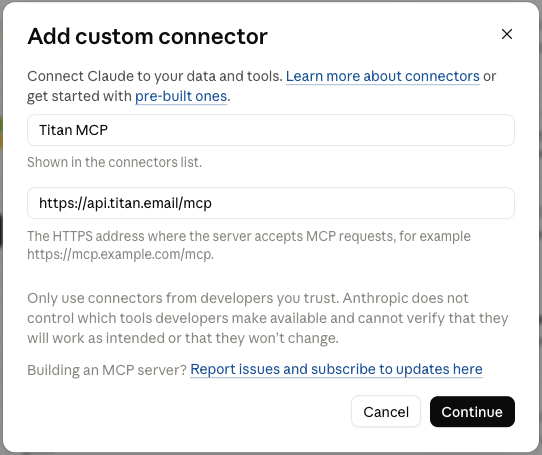
- Name:
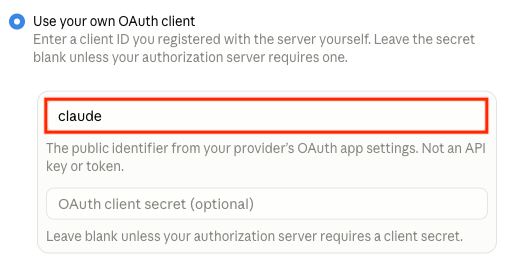
- Under OAuth client, select Use your own OAuth client, and then enter
claudein the OAuth Client ID field.
- Select Add.
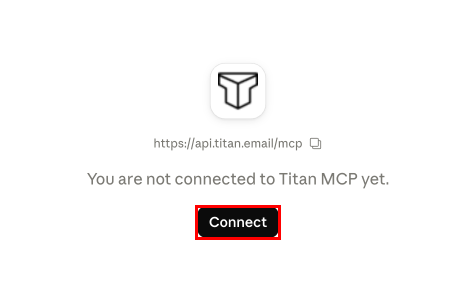
- Select Connect.
- On the Titan login screen, enter your Titan email address, and then select Login. You'll be redirected to the GoDaddy sign-in page.
- Enter your Professional Email powered by Titan address and password (your GoDaddy username and password won't work here), and then select Sign In.
- Review the requested permissions, and then select Approve to authorize the connection. If the requested permissions are broader than you expect or need, don’t approve the connection. Where available, disable tools you don’t need or configure them to require approval. For more information about how the tool uses your data, please see the linked privacy policy.
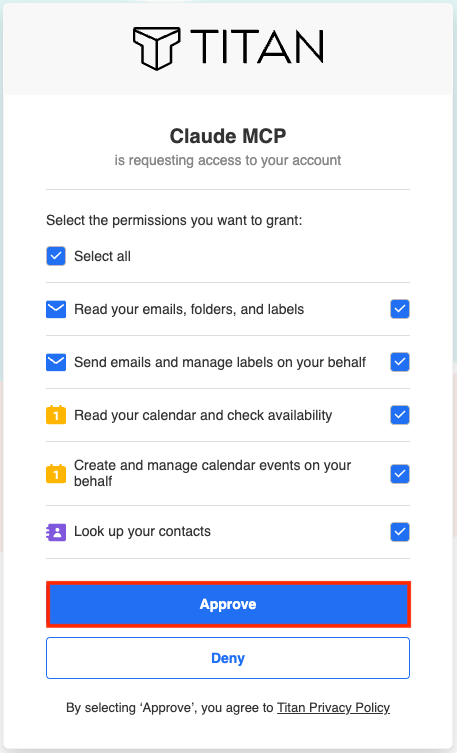
Once connected, Titan MCP will appear in your Connectors list and you can start using it in a supported Claude chat where the connector is enabled.
What you can do once connected
After connecting, you can use natural language in Claude or ChatGPT to:
- Search and read emails
- Send emails
- Browse folders and labels
- Create and manage labels
- View your calendar and events
- Check attendee availability
- Create calendar events
- Search contacts
AI-generated content and actions can be inaccurate or unintended. Before approving an action, review the recipients, content, attachments, dates, times, attendees and other relevant details. You remain responsible for the instructions you give and the actions you approve. Where your AI tool offers permission controls, consider requiring approval for actions that send, create, change or delete information. Only allow tools to run without further approval if you understand and accept the resulting access and risk.
Important information about third-party AI tools
Claude, ChatGPT and other third-party AI tools are operated independently of Titan and GoDaddy. Their availability, functionality and outputs may change. Your use of those services is subject to their applicable terms, privacy policies and account settings. Review those materials before connecting your account. If you do not agree to those terms or privacy policies, do not connect your account.
Titan MCP and your Professional Email powered by Titan account remain subject to the applicable Titan and GoDaddy terms and privacy notices.
Connecting Titan MCP allows the AI tool to access information in your Professional Email powered by Titan account. Depending on the permissions and tools you enable, it may also take actions on your behalf. This may include reading email content and attachments, email metadata, folders and labels, contacts, and calendar information, as well as sending emails and creating or changing calendar events. Carefully review the requested permissions before approving the connection.
Information accessed through Titan MCP is processed by the AI tool provider under its own terms, privacy policy and account settings. Those settings may affect how information is retained or used, including whether it may be used to improve the provider’s models. Your mailbox may contain personal, confidential or commercially sensitive information about other people. Only connect and use an AI tool if you are authorized to share that information and doing so complies with your organization’s policies and applicable law.