Turn email threading on or off for Professional Email powered by Titan
By default, webmail for Professional Email powered by Titan groups emails that share the same subject line together into threads across all folders. This means that replies and follow-ups to the same email are stacked together rather than displayed as individual emails.
If you've recently migrated to Professional Email powered by Titan and feel like some of your emails are missing, don't worry — check whether threading is enabled. Your emails might just be grouped together in a thread.
Select a tab based on whether you’re using webmail on desktop or the Titan mobile app.
- Sign in to webmail. Use your Professional Email powered by Titan address and password (your GoDaddy username and password won't work here).
- In the upper-right corner, select
 Settings.
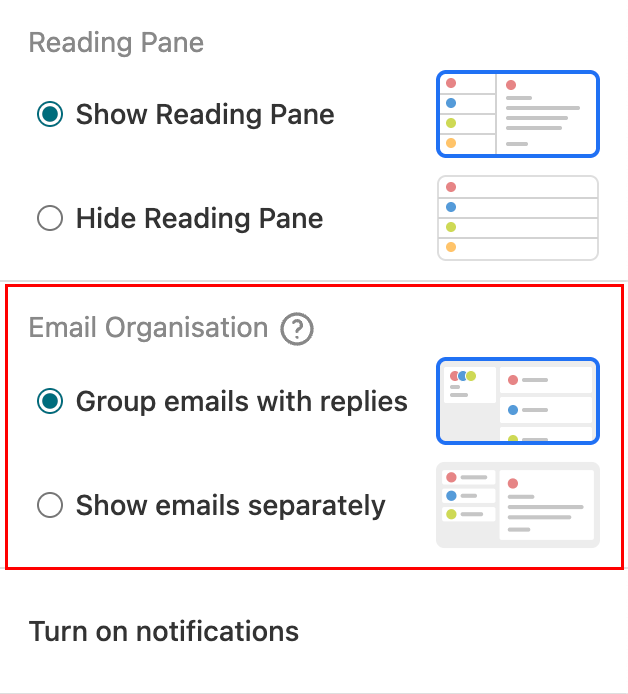
 - Under Email Organisation, turn threading on or off:
- To turn threading on, select Group emails with replies. (By default, it’s selected.)
- To turn threading off, select Show emails separately.
- Open the Titan app.
- In the upper-right corner, tap the
 menu or swipe left, and then tap Settings.
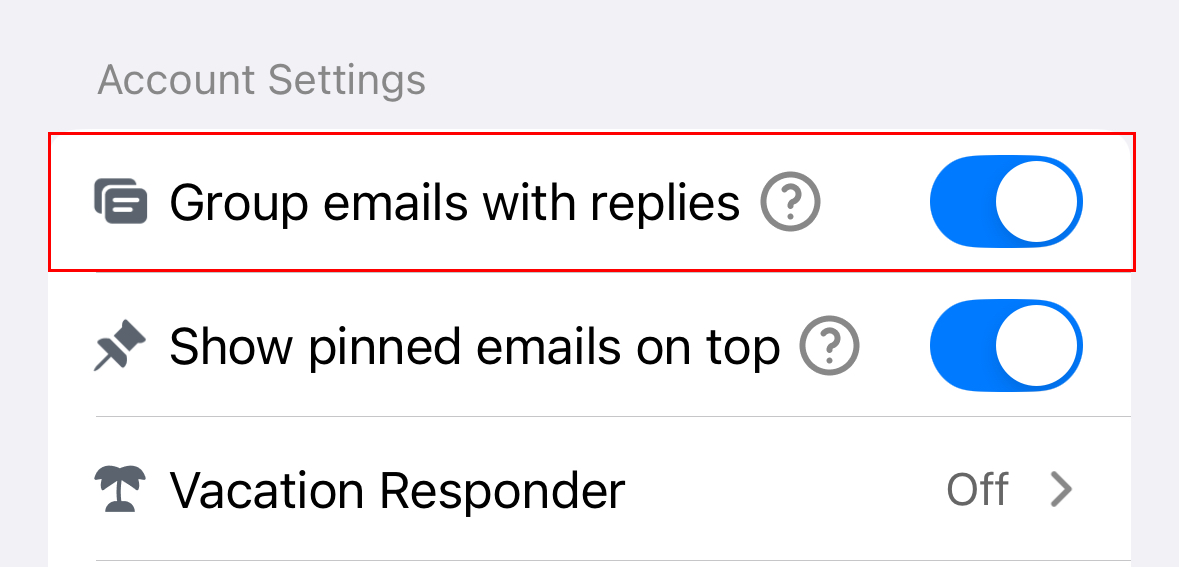
 - Under Account Settings, find the Group emails with replies toggle:
- To turn threading on, turn on the Group emails with replies toggle. (By default, it’s on.)
- To turn threading off, turn the Group emails with replies toggle off.
Your preference will be saved automatically. Toggling threading on or off is purely a display preference. Your emails are always safe and unaffected.
More info
- Schedule an email to send later
- Turn Email Tracking on or off
- Use the search feature to find any email in your inbox without having to manually scroll.