Change the location for an online appointment or event
If you need to change the location of a service (an appointment or event), use the steps that follow to avoid conflict with already-scheduled services, future services and past services.
Example: I'm an interior decorator and new clients can book my "Initial Design Consultation Session". I now want to change my in-person sessions to online sessions. To avoid causing problems with current bookings, I could:
- Create a new service and name it "Initial Design Consultation—Online.”
- Edit the original service and name it "Initial Design Consultation—In person."
1. Copy the service, or create a new service
You can either create a brand new blank service or copy an existing service and use it as a template for your new service.
- Go to your GoDaddy product page.
- Scroll down, expand Websites + Marketing and select Manage next to your site.
- On your dashboard, expand Appointments, and then select Services.
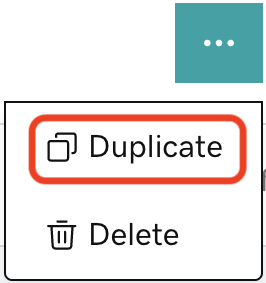
- Add a service or copy an existing service by selecting the
 menu for that service, and then selecting Duplicate.
- Give your new service a descriptive name so customers understand what it is, and to help you more easily manage your service list. If you copied a service, edit Service Name to differentiate it from the original service.
Note: The service name is included in email updates to your customers, so don’t add the word “Cancelled” to your existing service, or people may not realize it’s been replaced by a new service.
2. Add attendees to the new service (or invite people to reschedule themselves)
- Add attendees to the new service. Doing this yourself is easiest because you can then mark if they’ve paid or not.
- Contact attendees directly via email or phone and let them know the location has changed. Although they receive automated emails, establishing a personal connection builds loyalty.
Or, send attendees an email to let them know the location of your event has changed. Include a link to your services page so they can sign themselves up for a new session.
Note: If people paid for a session and then sign up for a new session, you’ll need to manually track and mark them as paid after they’ve signed up. Or, you can issue a refund if they’ve paid twice for one service.
3. (Optional) Delete the old service
- Depending on the service you offer, what type it is and how many people are signed up, you may choose to delete the old appointment or event from the Services list. Appointments and repeating events still show in your services calendar if they have attendees, but they're not visible for new sign-ups.
Note: One-time events are deleted and attendees receive a cancellation notice in their email.