Get found with GoDaddy's AI visibility tool
Use GoDaddy Visibility to see how your business appears when people search using AI platforms like ChatGPT and Claude, and then take action to improve your results. It’s available on all Websites + Marketing and Digital Marketing plans.
Select your product and follow the steps to measure AI visibility for your business.
First measurement
Follow these steps the first time you open GoDaddy Visibility.
- Go to your GoDaddy product page.
- Scroll down, expand Websites + Marketing and select Manage next to your site.
- In the left menu, expand Marketing, and then select AI Visibility. GoDaddy Visibility automatically generates 10 prompts (questions customers might use to find businesses like yours) based on your business details and runs a measurement. The measurement usually takes about 60 seconds to check ChatGPT and Claude.
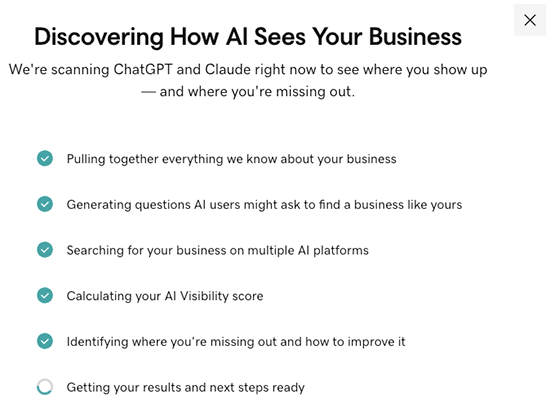
- Review your score. Your overall score (0–100) appears at the top, with individual scores for each AI platform below it.
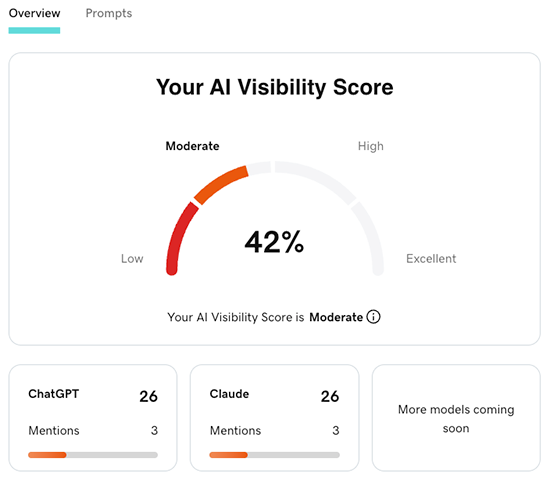
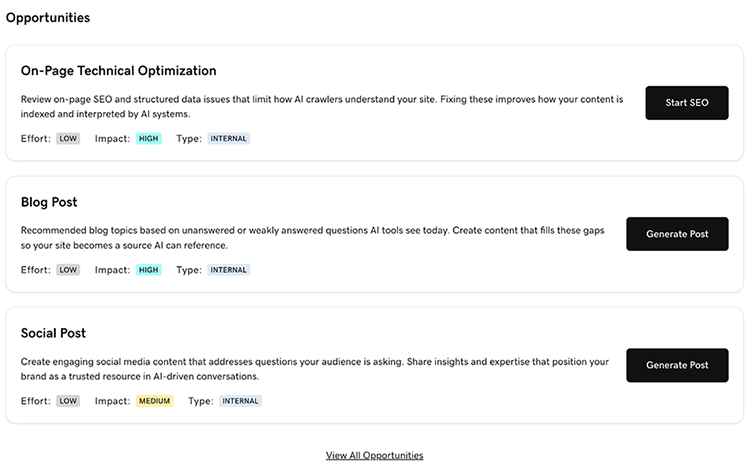
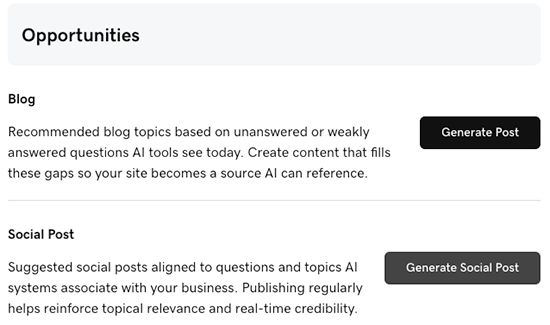
- For recommended actions, scroll down to Opportunities.
- To optimize your website for search engines (SEO), select Start SEO.
- To create a blog post, select Generate Post.
- To create a social post, select Generate Social Post.
Remeasure after making improvements
Once you've published new recommended content, remeasure your AI visibility score. AI platforms can take several days to reflect new content, so allow some time before running a new measurement.
- Go to your GoDaddy product page.
- Scroll down, expand Websites + Marketing and select Manage next to your site.
- In the left menu, expand Marketing, and then select AI Visibility.
- Select Prompts.
- Make at least 1 change to your prompts, like adding a new prompt, editing an existing one or deleting one. You can have up to 20 prompts in total.
- Select Measure My Visibility to run a new measurement.
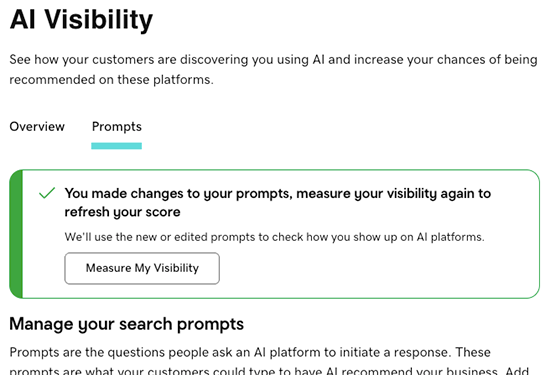
- Select Overview to review your updated score and opportunities.
First measurement
Follow these steps the first time you open AI Visibility.
- Go to your GoDaddy product page.
- Scroll down, expand Digital Marketing and select Manage next to your plan.
- In the left menu, expand Marketing, and then select AI Visibility. GoDaddy Visibility automatically generates 10 prompts (questions customers might use to find businesses like yours) based on your business details and runs a measurement. The measurement usually takes about 60 seconds to check ChatGPT and Claude.
- Review your score. Your overall score (0–100) appears at the top, with individual scores for each AI platform below it.
- For recommended actions, scroll down to Opportunities.
- To create a blog post, select Generate Post.
- To create a social post, select Generate Social Post.
Remeasure after making improvements
Once you've published new recommended content, remeasure your AI visibility score. AI platforms can take several days to reflect new content, so allow some time before running a new measurement.
- Go to your GoDaddy product page.
- Scroll down, expand Websites + Marketing and select Manage next to your site.
- In the left menu, expand Marketing, and then select AI Visibility.
- Select Prompts.
- Make at least 1 change to your prompts, like adding a new prompt, editing an existing one or deleting one. You can have up to 20 prompts in total.
- Select Measure My Visibility to run a new measurement.
- Select Overview to review your updated score and opportunities.