Manage notifications for Chat + Conversations
When customers send a message through your Websites + Marketing site's chat widget, you'll also get an email notification. You can turn these notifications off or change the email address they're sent to.
Note: The GoDaddy mobile app is not available with free Conversations plans.
Required: You need a Websites + Marketing plan to use Chat + Conversations. If you're subscribed to Conversations standalone you won't have this feature.
- Go to your GoDaddy product page.
- Scroll down, expand Websites + Marketing and select Manage next to your site.
- In the menu on the left, expand Conversations, and then select Settings.
- Select Notifications.
- To receive chat messages through email, turn the
 toggle on (shows green). To stop receiving chat messages through email, turn the toggle off (shows white).
 - You'll receive email notifications on the primary email address associated with your GoDaddy account. To change it, type the new email address into the box.
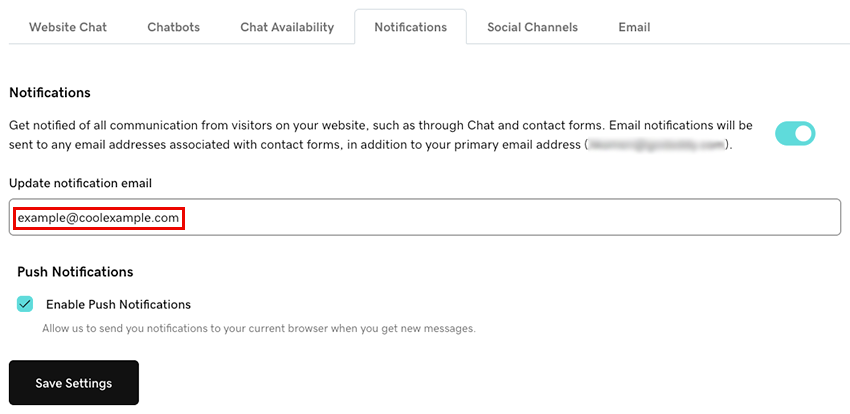
- To receive notifications in your browser whenever you get new messages through Conversations, select the Enable Push Notifications checkbox. This will send notifications to your current browser.
- Select Save Settings to save your changes.
- Sign in to your GoDaddy mobile app.
- At the bottom of the screen, tap Conversations to see a list of all your unarchived conversations.

- In the top-right corner, tap
 more, and then tap Settings.
 - Next to Email Notifications, to receive chat messages through email, turn the toggle on (shows green). To stop receiving chat messages through email, turn the toggle off (shows white).
- You'll receive email notifications on the primary email address associated with your GoDaddy account. To change it, follow the steps outlined in the Web tab of this article.
- To receive notifications in the Conversations app whenever you get new messages, select Manage in Device Settings.
- Allow in-app notifications for GoDaddy Conversations.
- Sign in to your GoDaddy mobile app.
- At the bottom of the screen, tap Conversations to see a list of all your unarchived conversations.
- In the top-right corner, tap
 settings.
 - Next to Email Notifications, to receive chat messages through email, turn the toggle on (shows green). To stop receiving chat messages through email, turn the toggle off (shows white).
- You'll receive email notifications on the primary email address associated with your GoDaddy account. To change it, follow the steps outlined in the Web tab of this article.
- To receive notifications in the Conversations app whenever you get new messages, select Manage in Device Settings.
- Allow in-app notifications for GoDaddy Conversations.
If you’re having trouble setting up your notifications, try the steps in our artice on troubleshooting notifications for Chat + Conversations.