Change the position of text in my website header
Your header is the first thing people encounter when they visit your website, so it's important to make sure the text and image work well together. If your title sits over the focal point of the image, like a face or product, the text can be hard to read and the impact of the image is lost. Fix this by moving the text to a different position.
- Go to your GoDaddy product page.
- Scroll down, expand Websites + Marketing and select Manage next to your site.
- Select Edit Website to open your website builder.
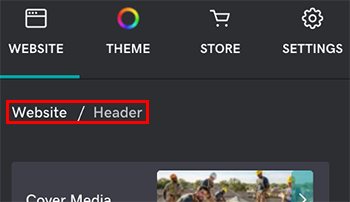
- In the center preview area, select the header section (the first section, at the top of the page. At the top of the panel on the right, it will show Website / Header).
- In the panel on the right, use the alignment buttons to set the text for the section to left, center or right.

- For more precise control, first apply the Flex Fill layout (only available on your home page) to the section:
- In the panel on the right, select Cover Media.
- Select the Flex Fill layout.
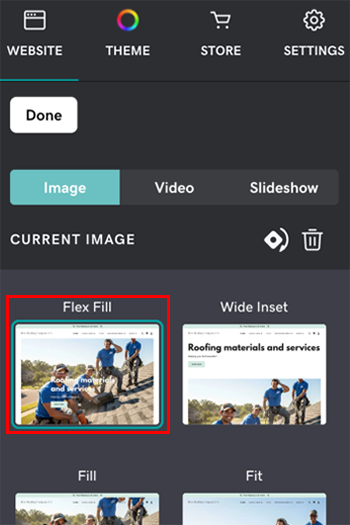
- Select Done.
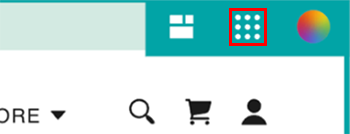
- Hover your mouse curser over the header section. In the top-right corner, select the grid. (If the grid doesn’t show, make sure you’ve applied the Flex Fill layout as explained in step 6.)
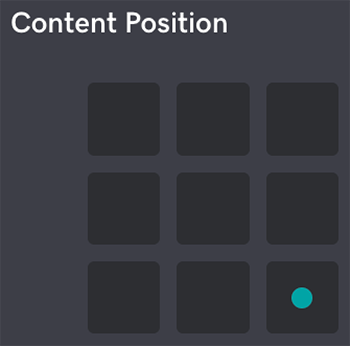
- Select a place on the 9-block grid to move the text to that position: top-left, center, bottom-right and so on.
- (Optional) Adjust Media Height (Small, Medium or Large) and switch the Full Width and Rounded Corners toggles on or off to further fine-tune the layout.
- Full Width stretches the header to the full width of the page.
- Rounded Corners give the corners of the header section a rounded finish.
- Your changes are saved automatically. Select Preview to see the results, and when you're ready to make them public, publish your site.