Create email folders for Professional Email powered by Titan
Folders can help you keep your inbox and messages organized. You can create both folders and subfolders in webmail for Professional Email powered by Titan.
Select a tab based on whether you're on webmail on desktop or the mobile app.
Create a folder
- Sign in to webmail. Use your Professional Email powered by Titan address and password (your GoDaddy username and password won't work here).
- On the leftmost side, under the list of folders, select + Add folder.
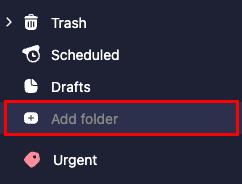
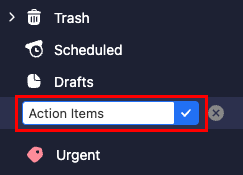
- Enter a folder name, and then select the Enter key. The folder will be created and added to the bottom of your folder list.
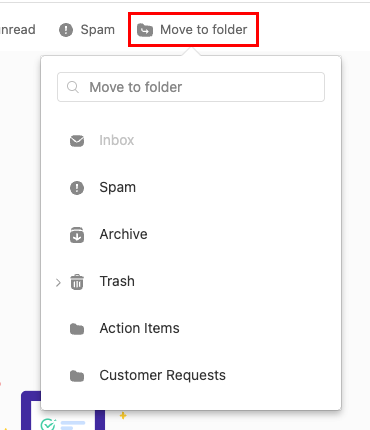
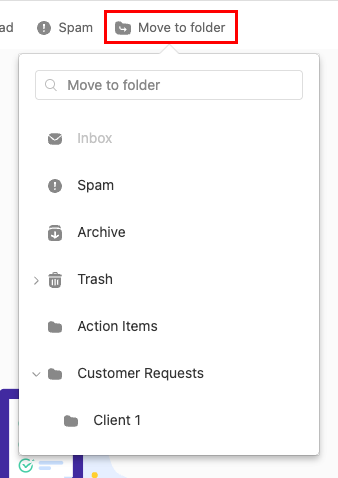
To move messages to a folder, next to each message, select the checkbox, and then Move to folder. Select the folder where you want your messages moved.
Create a subfolder
- Sign in to webmail. Use your Professional Email powered by Titan address and password (your GoDaddy username and password won't work here).
- Hover over your desired primary folder, select
 More actions, and then Create a subfolder.
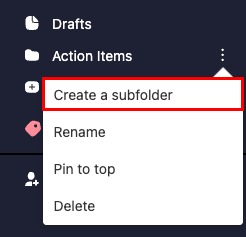
- Enter a name for the subfolder, and then select the Enter key. The subfolder will be created and nested under the original folder.
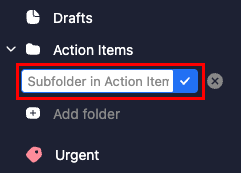
To move messages to a subfolder, next to each message, select the checkbox, and then Move to folder. Next to the main folder, select the  arrow, and then the subfolder where you want the messages moved.
Note: You can only create folders on the Titan mobile app. To create subfolders, follow the steps in the Webmail tab.
Create a folder
- Open the Titan app.
- In the upper-right corner, tap the
 menu or swipe left, and then tap Settings.
 - Under FOLDERS, tap Add folder. The Add Folder window will open.
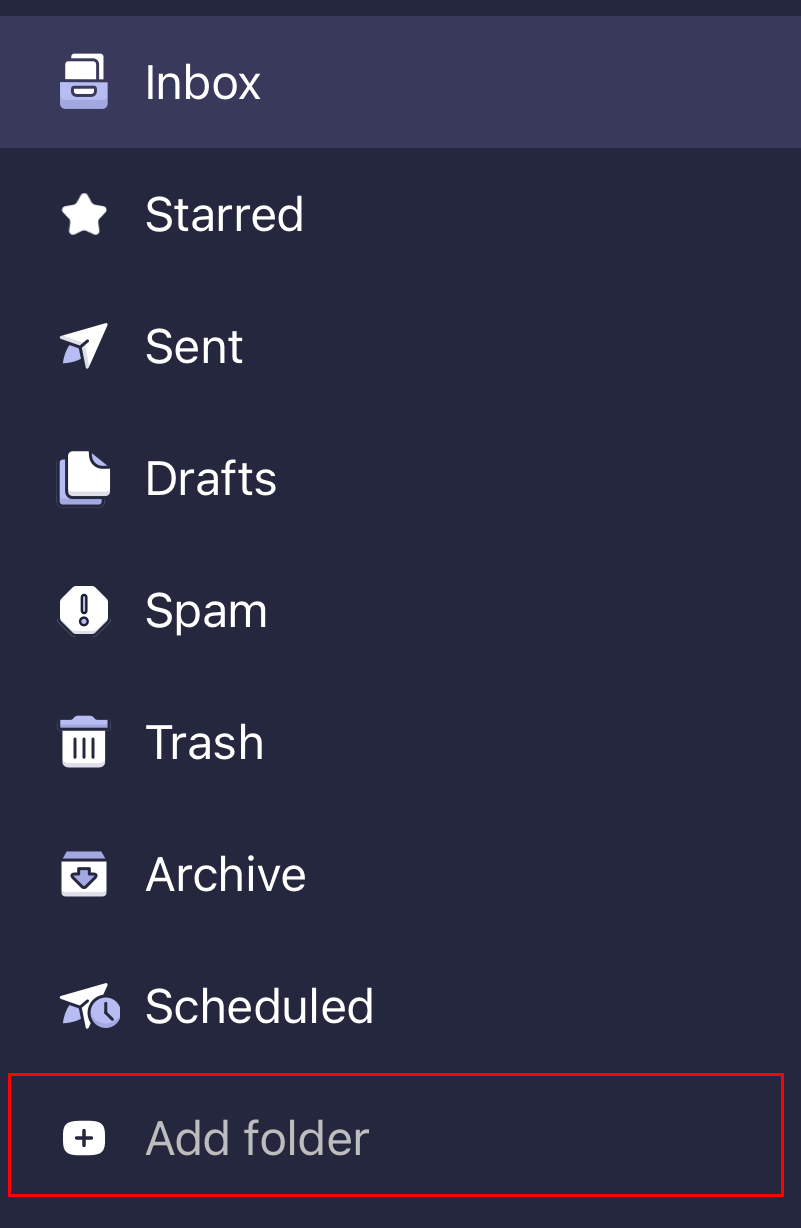
- Enter a folder name, and then tap Done. You'll see a confirmation that the folder was created, and the folder will open.