Conectar GoDaddy Conversations a mi cuenta de Gmail
Reenvía tu cuenta de Gmail a GoDaddy Conversations para recibir todos tus mensajes de Gmail en tu bandeja de entrada unificada de Conversations, lo que facilita la administración de tus comunicaciones comerciales.
- En un navegador web, ve a tu de producto de GoDaddy.
Si tienes la versión independiente de Conversations, expande la bandeja de entrada unificada de Conversations . A la derecha de tu plan Conversations, selecciona Bandeja de entrada web .
O
Si tienes un plan Websites + Marketing, desplázate hasta Websites + Marketing y selecciona Administrar al lado de tu sitio. En el menú de la izquierda, expande Conversations .
- Selecciona Configuración.
- Select Channels.
- Expand Email, and then select Connecct. (If you already have a connected Gmail address, select Add another.)
Note: If you have a Websites + Marketing plan and have enabled chat for your website, you’ll have a default email address to receive chat notifications. This is an internal email address created for you by GoDaddy. Connecting Gmail to Conversations will not affect this default email address.
- Selecciona Gmail y luego selecciona Siguiente .
- Ingresa la dirección de Gmail a la que deseas conectarte a Conversaciones y selecciona Siguiente .
- Ingresa el nombre que verán tus clientes cuando les envíes un correo electrónico y selecciona Siguiente .
- Selecciona Abrir configuración de Gmail .
- A new tab will open, showing your Gmail settings.
Warning: Make sure you keep both tabs open because you’ll need to switch between them to be guided through the steps.
- Go back to the Conversations tab and select Copy next to the forwarding address.
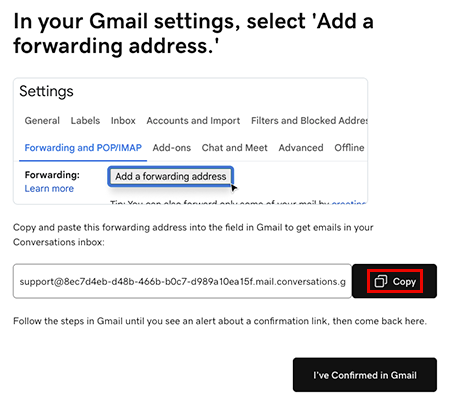
- Ve a la pestaña de configuración de Gmail. En Reenvío y POP/IMAP, selecciona Agregar una dirección de reenvío , pega la dirección en el cuadro de texto y selecciona Siguiente . Es posible que debas confirmar que eres tú. Sigue las indicaciones en pantalla para hacer esto.
- Recibirás un mensaje indicando que se envió un enlace de confirmación a la dirección de correo electrónico que ingresaste. Selecciona Aceptar .
- Back in the Conversations tab, select I’ve Confirmed in Gmail, and then select Confirm Forwarding in Gmail.
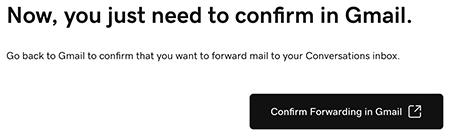
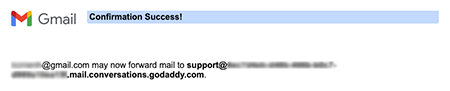
- A new tab will open, showing a Gmail confirmation. Select Confirm. When you see the Confirmation Success! message, you can close this tab.
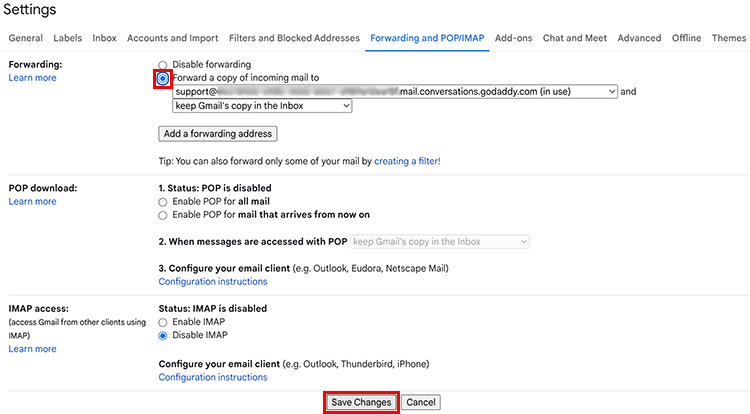
- Go to the Gmail settings tab and reload the page.
Warning: If you don’t reload the page you might not see the option to select Forward a copy of incoming mail.
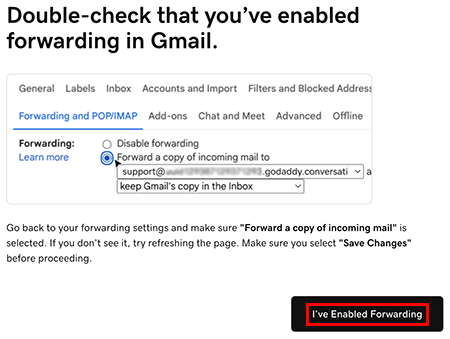
- Under Forwarding and POP/IMAP, make sure Forward a copy of incoming mail is selected. At the bottom of the page, select Save Changes.
- You’ll be taken to your Gmail inbox. At the top of the page you’ll find a message saying you’re now forwarding your email.

- In the Conversations tab, select I’ve Enabled Forwarding.
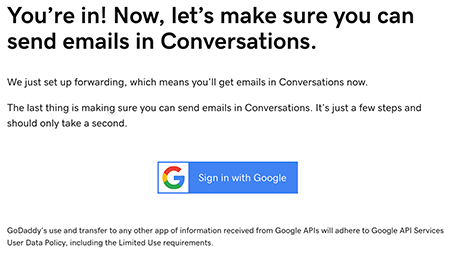
- A message will let you know you’ve successfully set up email forwarding. It could take up to 5 minutes for this message to show. Select Sign in with Google to start the process of making sure you can also reply to Gmail messages from Conversations.
- Inicia sesión en la cuenta de Gmail que conectaste a Conversations y selecciona Continuar .
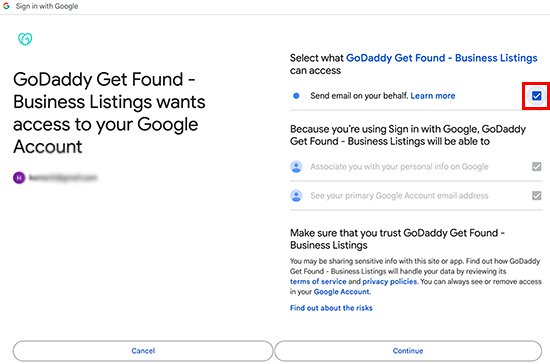
- Make sure Send email on your behalf is checked and select Continue.
- En tus mensajes recientes de Conversations encontrarás un correo electrónico que confirma que se ha configurado el reenvío.
¡Estás listo! Ahora puedes usar tu bandeja de entrada unificada de Conversations para administrar todos tus mensajes de Gmail, junto con los mensajes de los otros canales que conectes a Conversations.