Upload and organize files with Titan Drive
Titan Drive is a secure file storage feature built into your Titan email account. Upload files, organize folders, save email attachments and attach files to emails without downloading them to your device first.
Note: Titan Drive is only included in Pro Plus (5 GB of storage), Premium (25 GB), and Ultra (50 GB) plans. Upgrade my email plan
Upload files to Titan Drive
Upload files or folders from your device.
- Sign in to webmail. Use your Professional Email powered by Titan address and password (your GoDaddy username and password won't work here).
- In the upper-left corner, select
 Switch apps, and then select Drive.
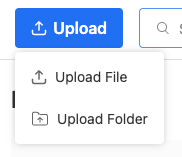
- At the top of your Drive, select Upload.
- Select Upload File or Upload Folder, and then select
the items from your device.
Create a new folder
- Sign in to webmail. Use your Professional Email powered by Titan address and password (your GoDaddy username and password won't work here).
- In the upper-left corner, select Switch apps, and then select Drive.
- In the upper-right corner, select New Folder.
- Enter a name, and then select Create.
Rename a folder or file
- Sign in to webmail. Use your Professional Email powered by Titan address and password (your GoDaddy username and password won't work here).
- In the upper-left corner, select Switch apps, and then select Drive.
- Next to a file, select
 More options, and then select
Rename.
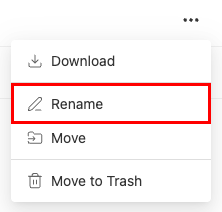
- Enter the new name, and then select Rename.
Move files to or send them to Trash
- Sign in to webmail. Use your Professional Email powered by Titan address and password (your GoDaddy username and password won't work here).
- In the upper-left corner, select Switch apps, and then select Drive.
- Next to a file, select More options.
- Select Move or Move to Trash.
- If you select Move: Select a destination folder, then select Move here. You’ll see a confirmation that the file was moved.
- If you select Move to Trash: To confirm that you want to delete the file, select Move to Trash again. You’ll see a confirmation that the file was moved to Trash.
Manage deleted files
When you delete a file, it moves to Trash. You can restore or permanently delete files in Trash.
Note: Files stay in Trash for 30 days before they’re permanently deleted. You can restore or delete them at any time during this period.
- Sign in to webmail. Use your Professional Email powered by Titan address and password (your GoDaddy username and password won't work here).
- In the upper-left corner, select Switch apps, and then select Drive.
- On the leftmost side, select Trash to restore or permanently delete files:
- Restore a file:To return a file to its original folder, select the file and then select Restore.
- Delete forever: To permanently remove a file, select the file, and then select Delete Forever.
- Empty Trash: To remove all deleted files at once, select Empty Trash.