Add a payment method to my GoDaddy account
Follow these steps to add a checking account, PayPal account, bank card (credit, debit or prepaid), or Good As Gold to use as payment methods for your GoDaddy products or services.
Note: To make sure you're eligible to add a checking account or PayPal, check out our list of payment methods we accept for each country we support.
- Go to your GoDaddy Payment Methods page. You might be prompted to sign in.
- Select Add Payment Method.
- Next to Billing Information, select Edit.
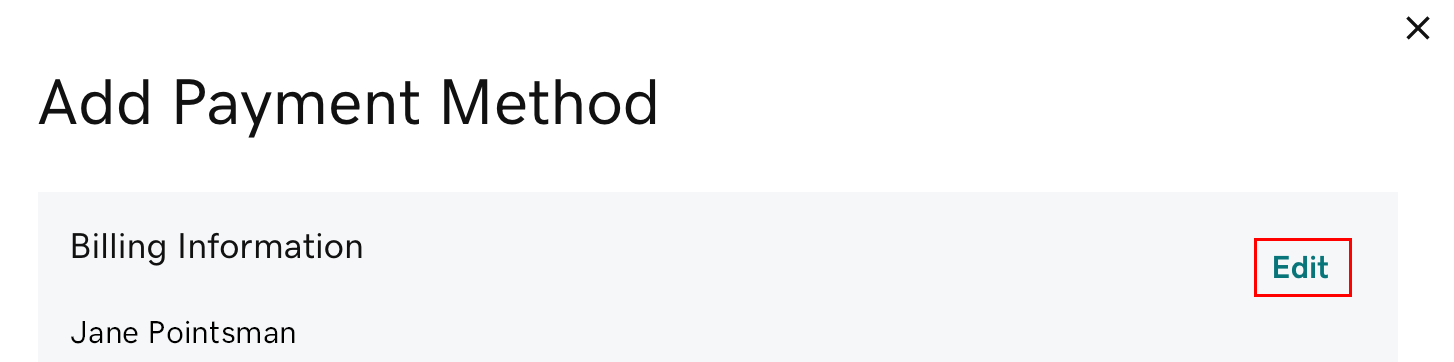
- Update the billing information as needed, then select Save.
- In the Payment Methods section, select one of Add New Card, PayPal, Checking or Good As Gold (available options may vary by region).
- Good As Gold is our wire transfer payment option. If you select this option, immediately select Learn More to find out how to set up a Good As Gold account.
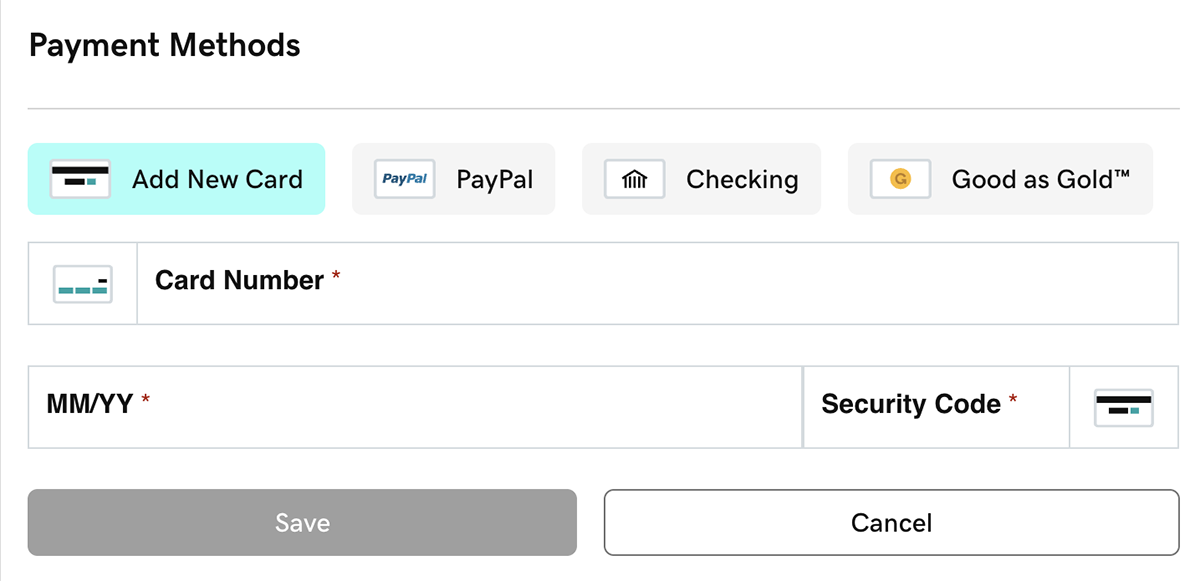
- Enter the required payment details, then select Save. You'll see your payment method listed.
Note: When adding PayPal, you’ll be prompted to sign in to your PayPal account. The payment method you select in your PayPal Wallet is what you’ll use for future GoDaddy purchases and renewals using PayPal. Change your PayPal Wallet payment method from within your PayPal account.
Related steps
- “Oops” message displaying or payment info not saving?
- First, open an incognito window in your browser. In that window, sign in to your account and try adding the payment method.
- If the incognito window does not work, try our troubleshooting tips.
- To use your new payment method for your products, change your primary payment method.
More info
- For products set to auto-renew: If the selected payment method can't be charged at billing time, we will try to bill a different payment method in your account.
- If a payment method is not specified for a product and not used for a year, we'll remove it from your account.
- Delete payment methods you don't want to use.