Change my primary FTP password in Web Hosting (cPanel)
You need your FTP login and password to upload files to your Web Hosting (cPanel) account with an FTP app. This login and password are the same as your cPanel login and password.
When we set up your Web Hosting (cPanel) account (also known as "provisioning"), we generated a cPanel login and password to set up cPanel for your account. You can't change your cPanel login, and we don't show you the password for security reasons. Follow these steps to change your cPanel password to something you know.
Note: These steps will change the password for the "primary" FTP user - that's you as the account owner. If you added other FTP users, like your web designer/developer, you can edit their user credentials.
- Go to your GoDaddy product page.
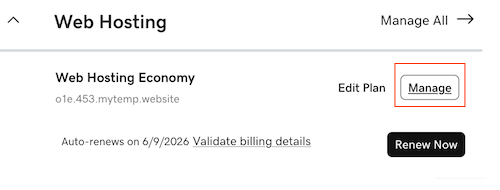
- Under Web Hosting, next to the Web Hosting (cPanel) account you want to use, select Manage.
- In the account Dashboard, select the Settings tab
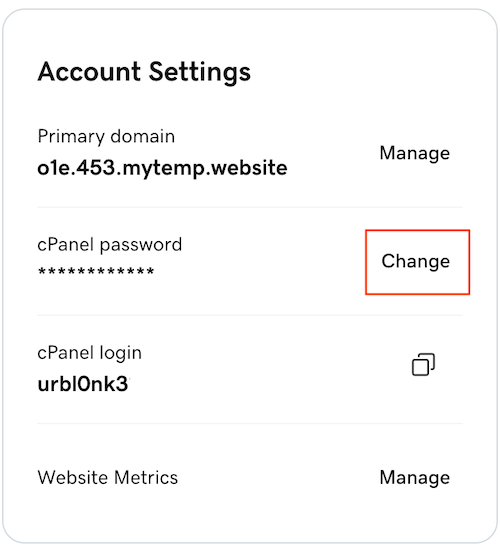
- Under Account Settings next to your cPanel Password select Change.
- Enter a new Password, and then select Change Password.
Related step
More info
- To sign directly in to cPanel, go to https://myDomainName/cpanel, where "myDomainName" is your domain with its .tld, like coolexample.com. You'll need your cPanel login and new password.
- You can use an FTP app (like FileZilla) to connect to your hosting account with this username and password.