Connetti GoDaddy Conversations al mio account Gmail
Inoltra il tuo account Gmail a GoDaddy Conversations per ricevere tutti i tuoi messaggi Gmail nella tua casella di posta unificata Conversations, semplificando la gestione delle comunicazioni aziendali.
Obbligatorio: per connetterti a Gmail devi avere accesso sia alle impostazioni del tuo account Conversations che alle impostazioni di Gmail, quindi assicurati di poter passare comodamente da una scheda del browser all'altra sul tuo dispositivo prima di iniziare.
- In un browser web, vai alla tua prodotto GoDaddy.
Se disponi della versione standalone di Conversations, espandi Conversations Unified Inbox . A destra del tuo piano Conversations, seleziona Posta in arrivo web .
OPPURE
Se disponi di un piano Websites + Marketing, scorri fino a Websites + Marketing e seleziona Gestisci accanto al tuo sito. Nel menu a sinistra, espandi Conversations .
- Seleziona Impostazioni.
- Select Channels.
- Expand Email, and then select Connecct. (If you already have a connected Gmail address, select Add another.)
Note: If you have a Websites + Marketing plan and have enabled chat for your website, you’ll have a default email address to receive chat notifications. This is an internal email address created for you by GoDaddy. Connecting Gmail to Conversations will not affect this default email address.
- Seleziona Gmail e quindi Avanti .
- Inserisci l'indirizzo Gmail che vuoi connettere a Conversazioni e seleziona Avanti .
- Inserisci il nome che i clienti vedranno quando invii loro un'email e seleziona Avanti .
- Seleziona Apri impostazioni Gmail .
- A new tab will open, showing your Gmail settings.
Warning: Make sure you keep both tabs open because you’ll need to switch between them to be guided through the steps.
- Go back to the Conversations tab and select Copy next to the forwarding address.
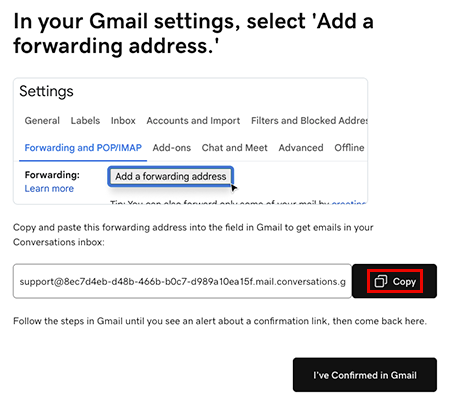
- Vai alla scheda Impostazioni di Gmail. In Inoltro e POP/IMAP, seleziona Aggiungi un indirizzo di inoltro , incolla l'indirizzo nella casella di testo e seleziona Avanti . Potrebbe essere necessario confermare la tua identità. Segui le istruzioni sullo schermo per farlo.
- Riceverai un messaggio che ti informa che un link di conferma è stato inviato all'indirizzo email che hai inserito. Seleziona OK .
- Back in the Conversations tab, select I’ve Confirmed in Gmail, and then select Confirm Forwarding in Gmail.
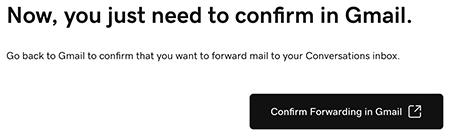
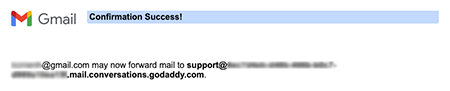
- A new tab will open, showing a Gmail confirmation. Select Confirm. When you see the Confirmation Success! message, you can close this tab.
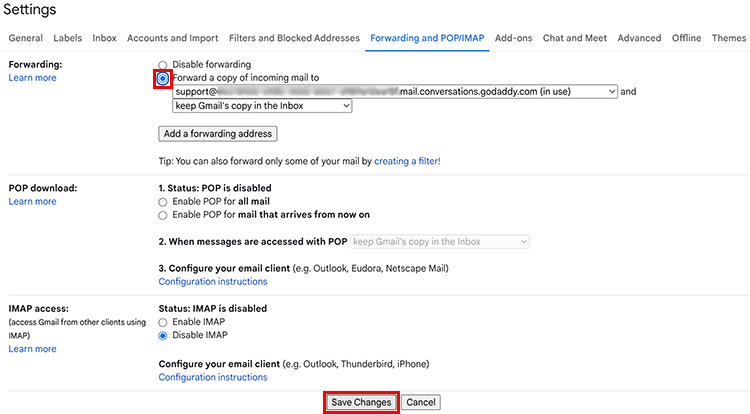
- Go to the Gmail settings tab and reload the page.
Warning: If you don’t reload the page you might not see the option to select Forward a copy of incoming mail.
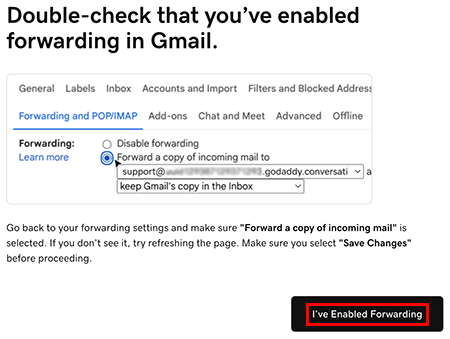
- Under Forwarding and POP/IMAP, make sure Forward a copy of incoming mail is selected. At the bottom of the page, select Save Changes.
- You’ll be taken to your Gmail inbox. At the top of the page you’ll find a message saying you’re now forwarding your email.

- In the Conversations tab, select I’ve Enabled Forwarding.
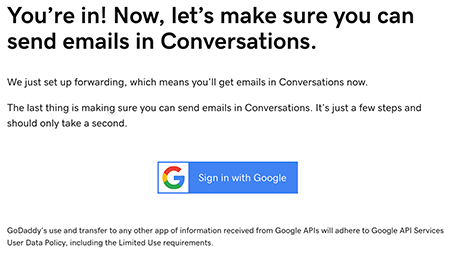
- A message will let you know you’ve successfully set up email forwarding. It could take up to 5 minutes for this message to show. Select Sign in with Google to start the process of making sure you can also reply to Gmail messages from Conversations.
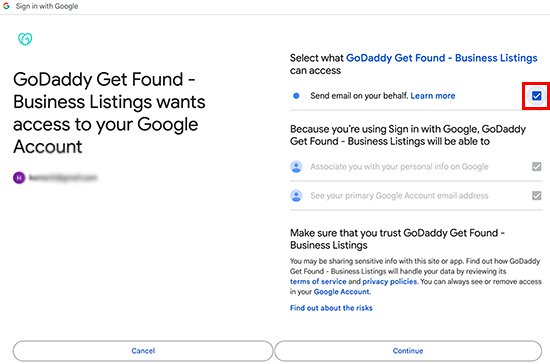
- Accedi all'account Gmail che hai collegato a Conversations e seleziona Continua .
- Make sure Send email on your behalf is checked and select Continue.
- Nei tuoi messaggi recenti Conversations troverai un'email che conferma che l'inoltro è stato impostato.
Nota: anche se riceverai messaggi inviati al tuo account Gmail sia in Gmail che in Conversations, se rispondi dal tuo account Gmail, la tua risposta non verrà visualizzata in Conversations. Ciò è dovuto al modo in cui funziona l'inoltro in Gmail.
È tutto a posto! Ora puoi usare la tua casella di posta unificata Conversations per gestire tutti i tuoi messaggi Gmail, insieme ai messaggi degli altri canali che ti colleghi a Conversations.