Make a chat widget to use on my website
A chatbot provides your customers with round-the-clock support, even when you’re not available, and ensures you never miss an opportunity to engage with them.
If you have a GoDaddy Websites + Marketing site, you already have a chat widget built into your site, which you can customize to suit your needs. For additional websites, both Websites + Marketing customers and Conversations standalone customers can generate an HTML script chat widget to add to any website that supports custom code.
- In a web browser, go to your GoDaddy product page.
-
If you have the standalone version of Conversations, expand Conversations Unified Inbox. To the right of your Conversations plan, select Web Inbox.
OR
If you have a Websites + Marketing plan, scroll to Websites + Marketing and select Manage next to your site. In the left menu, expand Conversations.
- Select Settings.
- Select Channels.
- Select Website Chat.
- Select Add another. (If you have a Websites + Marketing plan, you'll also see your built-in chat widget here, which you can simply customize if needed.)
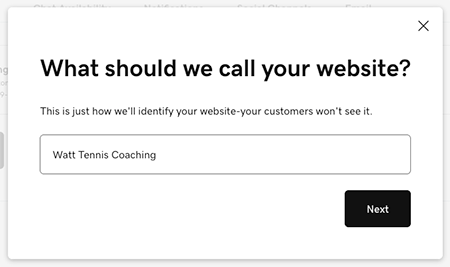
- Give your chat widget a name, and then select Next. The name won't be visible to your customers but you'll use it to identify the widget, so it's a good idea to name it after your website.
- Select the email address where your chat messages will be sent. This acts as a backup to the chat, and you can continue the conversation outside of your chat widget when you're not online.
Note: If you have a paid Websites + Marketing plan, we create a customer support email address for you. Consider replacing this with your Microsoft 365 from GoDaddy email address or your connected Gmail address. You can also create a new email address here.
- Select Next. Your chat widget will appear under Web Chat. Select the widget to preview it.
- You can then customize your chat widget.
- To use your new chat widget, select Copy Code under the HTML Code block and paste it into your website.