จัดการการแจ้งเตือนสำหรับ Chat + Conversations
When customers send a message through your Websites + Marketing site's chat widget, you'll also get an email notification. You can turn these notifications off or change the email address they're sent to.
Note: The GoDaddy mobile app is not available with free Conversations plans.
Required: You need a Websites + Marketing plan to use Chat + Conversations. If you're subscribed to Conversations standalone you won't have this feature.
- ลงชื่อเข้าใช้แอพมือถือ GoDaddy ของคุณ
- At the bottom of the screen, tap Conversations to see a list of all your unarchived conversations.

- In the top-right corner, tap
 more, and then tap Settings.
 - Next to Email Notifications, to receive chat messages through email, turn the toggle on (shows green). To stop receiving chat messages through email, turn the toggle off (shows white).
- คุณจะได้รับการแจ้งเตือนทางอีเมลในที่อยู่อีเมลหลักที่เชื่อมโยงกับบัญชี GoDaddy ของคุณ หากต้องการเปลี่ยนแปลงให้ทำตามขั้นตอนที่ระบุไว้ในแท็บ เว็บ ของบทความนี้
- To receive notifications in the GoDaddy mobile app whenever you get new messages, select Manage in Device Settings.
- อนุญาตการแจ้งเตือนในแอปสำหรับ GoDaddy Conversations
- ลงชื่อเข้าใช้แอพมือถือ GoDaddy ของคุณ
- At the bottom of the screen, tap Conversations to see a list of all your unarchived conversations.
- In the top-right corner, tap
 settings.
 - Next to Email Notifications, to receive chat messages through email, turn the toggle on (shows green). To stop receiving chat messages through email, turn the toggle off (shows white).
- คุณจะได้รับการแจ้งเตือนทางอีเมลในที่อยู่อีเมลหลักที่เชื่อมโยงกับบัญชี GoDaddy ของคุณ หากต้องการเปลี่ยนแปลงให้ทำตามขั้นตอนที่ระบุไว้ในแท็บ เว็บ ของบทความนี้
- To receive notifications in the GoDaddy mobile app whenever you get new messages, select Manage in Device Settings.
- อนุญาตการแจ้งเตือนในแอปสำหรับ GoDaddy Conversations
- ไปที่ หน้าผลิตภัณฑ์ GoDaddy ของคุณ
- เลื่อนลงขยาย Websites + Marketing แล้วเลือก จัดการ ถัดจากเว็บไซต์ของคุณ
- ในเมนูทางด้านซ้ายให้ขยาย Conversations จากนั้นเลือก การตั้งค่า
- เลือก การแจ้งเตือน
- หากต้องการรับข้อความแชทผ่านอีเมลให้เปิด
 เปิด / ปิด (แสดงเป็นสีเขียว) หากต้องการหยุดรับข้อความแชทผ่านอีเมลให้ปิดสวิตช์ (จะแสดงเป็นสีขาว)
 - คุณจะได้รับการแจ้งเตือนทางอีเมลในที่อยู่อีเมลหลักที่เชื่อมโยงกับบัญชี GoDaddy ของคุณ หากต้องการเปลี่ยนแปลงให้พิมพ์ที่อยู่อีเมลใหม่ลงในช่อง
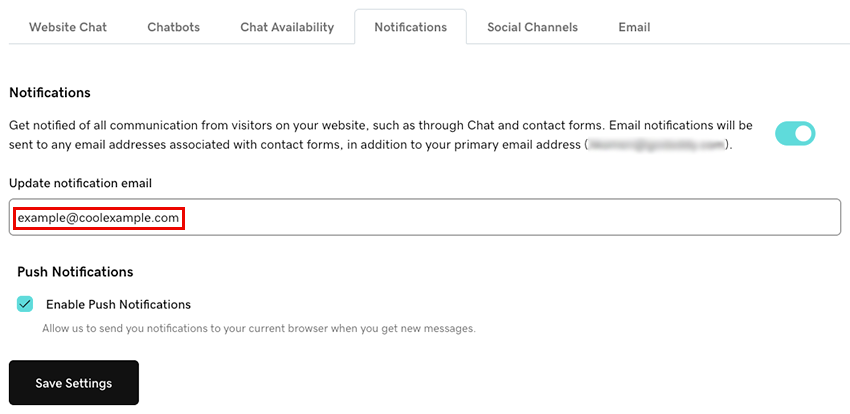
- หากต้องการรับการแจ้งเตือนในเบราว์เซอร์ของคุณเมื่อใดก็ตามที่คุณได้รับข้อความใหม่ผ่าน Conversations ให้เลือกกล่องกา เครื่องหมายเปิดใช้งานการแจ้งเตือนแบบพุช การดำเนินการนี้จะส่งการแจ้งเตือนไปยังเบราว์เซอร์ปัจจุบันของคุณ
- เลือก บันทึกการตั้งค่า เพื่อบันทึกการเปลี่ยนแปลงของคุณ
หากคุณมีปัญหาในการตั้งค่าการแจ้งเตือนให้ลองทำตามขั้นตอนในส่วนของเราเกี่ยวกับ การแก้ไขปัญหาการแจ้งเตือนสำหรับ Chat + Conversations