E-posta eklerini Titan Drive'a kaydedin
E-posta eklerini doğrudan Titan Drive'a kaydedebilir, böylece önce dosyaları bilgisayarınıza indirmenize gerek kalmaz. Bu şekilde önemli dosyaları düzenli tutabilir ve Titan e-posta hesabınızdan erişebilirsiniz.
Tek bir eki Titan Drive'a kaydedin
- Web posta postasına giriş yapın. Professional Email powered by Titan adresinizi ve şifrenizi kullanın (GoDaddy kullanıcı adınız ve şifreniz burada çalışmaz).
- Eki içeren e-postayı açın.
- E-posta mesajının altındaki eki bulun.
- Ekin üzerine gelin ve ardından Drive'a Ekle seçeneğini belirleyin.
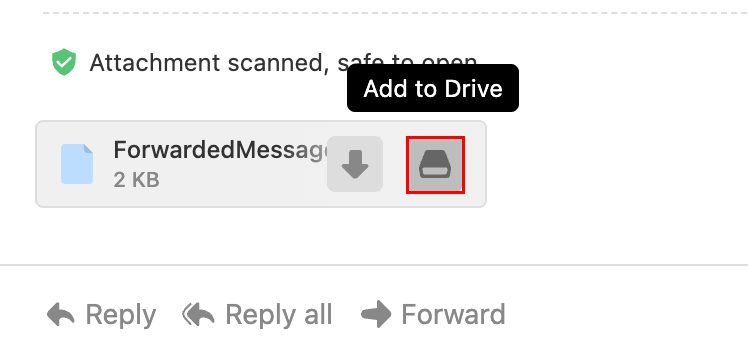
Ek, Titan Sürücünüze kaydedilecektir.
Tek seferde birden çok eki kaydedin
Bir e-posta birden fazla ek içeriyorsa bunların tümünü tek adımda kaydedebilirsiniz.
- Web posta postasına giriş yapın. Professional Email powered by Titan adresinizi ve şifrenizi kullanın (GoDaddy kullanıcı adınız ve şifreniz burada çalışmaz).
- Ekli e-postayı açın.
- Tümünü Drive'a ekle öğesini seçin.
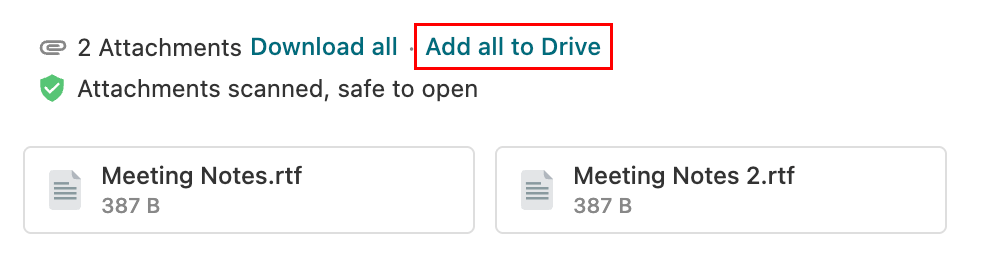
- Dosyaları kaydetmek istediğiniz klasörü seçin.
- Kaydet öğesini seçin.
Tüm ekler seçilen Titan Drive klasörüne yüklenecektir. Kayıtlı dosyalarınıza nasıl erişeceğinizi öğrenin.
Kaydedilen ekleri görüntüleyin
Bir ek zaten Titan Drive'a kaydedilmişse:
- Web posta postasına giriş yapın. Professional Email powered by Titan adresinizi ve şifrenizi kullanın (GoDaddy kullanıcı adınız ve şifreniz burada çalışmaz).
- E-postayı açın.
- Ekin yanındaki Drive'da Göster’i seçin.
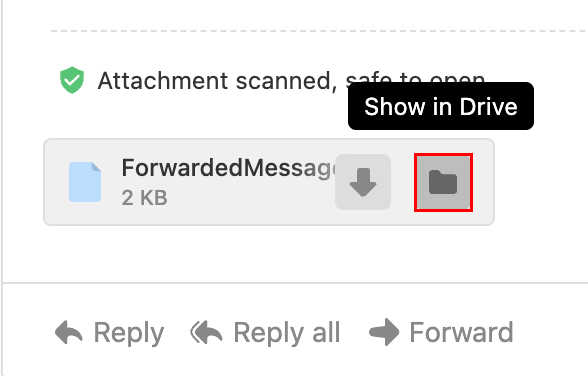
Yeni bir tarayıcı sekmesi açılır ve dosyayı Titan Drive'daki klasöründe vurgular.
Gönderilen ekleri Titan Drive'a kaydedin
Bilgisayarınızdan eki yüklenmiş bir e-posta gönderdiğinizde, mesaj gönderildikten sonra Titan bu dosyayı Drive'a kaydetmenizi isteyebilir.
- Web posta postasına giriş yapın. Professional Email powered by Titan adresinizi ve şifrenizi kullanın (GoDaddy kullanıcı adınız ve şifreniz burada çalışmaz).
- Yeni bir e-posta oluşturun.
- Cihazınızdan bir dosya ekleyin.
- E-postayı gönderin.
- Gönderilen e-postadaki ekin üzerine gelin ve ardından Drive'a Ekle seçeneğini belirleyin.
Dosya gönderildikten sonra Titan Drive'a kaydedilecektir.