Set up a Business Auto-reply with Professional Email powered by Titan
Business Auto-reply lets customers know you’ve received their email, even when you’re offline or outside business hours. Professional Email powered by Titan’s Business Auto-reply feature sends an automatic response for you, so nothing goes unanswered while you’re away.
Note: Business Auto-reply is only available to Pro Plus, Premium and Ultra plans. Upgrade my email plan
- Web posta postasına giriş yapın. Professional Email powered by Titan adresinizi ve şifrenizi kullanın (GoDaddy kullanıcı adınız ve şifreniz burada çalışmaz).
- Sağ üst köşede şunu seçin:
 Ayarlar ve ardından Tercihler .
 - On the leftmost side, under Send & Reply, select Business Auto-reply.
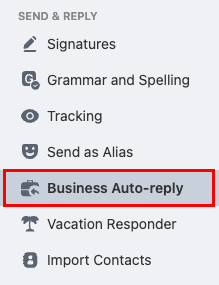
- Turn on the Enable Business Auto-reply toggle.

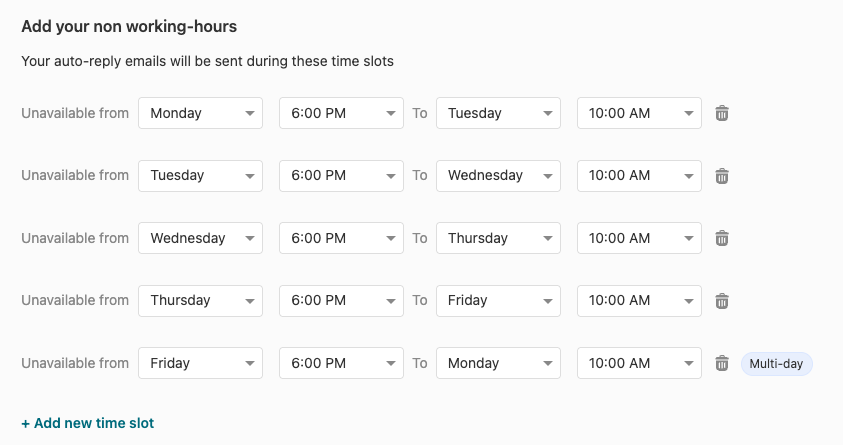
- Add your non-working hours. Your auto-reply will be sent during your selected dates and times.
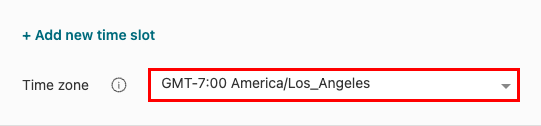
- Select a time zone.
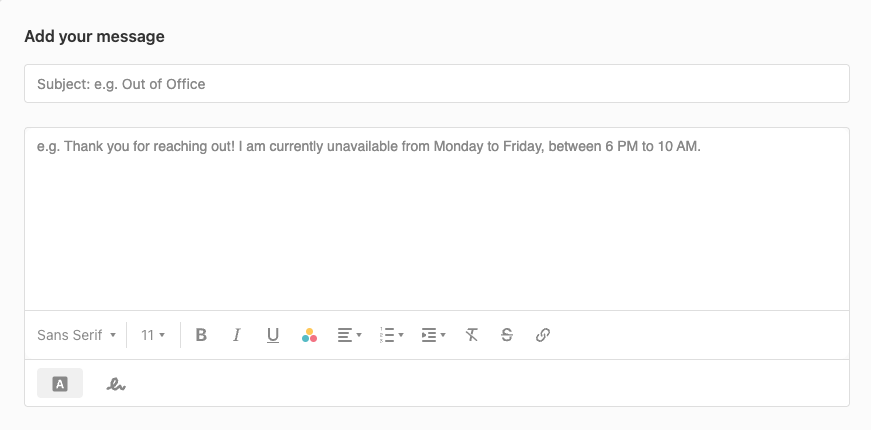
- Create your auto-reply message. Enter a subject and your desired text.
- Select how often you want to reply to consecutive emails from the same sender. This helps prevent customers from receiving repeated responses if they email you multiple times.

- At the bottom of the page, select Save.
Titan automatically sends your Business Auto-reply to incoming emails based on your settings. You can turn the feature off or update the message anytime on the Business Auto-reply page.
Daha fazla bilgi
- Use Email Tracking to get a notification when your email is opened by the recipient.
- Daha sonra göndermek üzere bir e-posta planlayın
- Set up Vacation Responder for out-of-office auto-replies