Titan Drive ile dosya yükleme ve düzenleme
Titan Drive, Titan e-posta hesabınızda yerleşik olarak bulunan güvenli bir dosya depolama özelliğidir. Dosyaları yükleyin, klasörleri düzenleyin, e-posta eklerini kaydedin ve önce cihazınıza indirmeden dosyaları e-postalara ekleyin.
Not: Titan Drive yalnızca Pro Plus, Premium ve Ultra planları için kullanılabilir. E-posta planınızı yükseltme
Titan Drive'a dosya yükleme
Cihazınızdan dosya veya klasör yükleyin.
- Web posta postasına giriş yapın. Professional Email powered by Titan adresinizi ve şifrenizi kullanın (GoDaddy kullanıcı adınız ve şifreniz burada çalışmaz).
- Sol üst köşede şunu seçin:
 Uygulamalar arasında geçiş yapın ve ardından Drive'ı seçin.
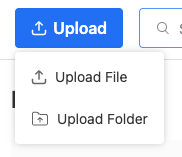
- Drive'ınızın üst kısmındaki Yükle seçeneğini belirleyin.
- Dosya Yükle veya Klasör Yükle seçeneğini belirleyin ve ardından cihazınızdan öğeleri seçin.
Yeni bir klasör oluşturun
- Web posta postasına giriş yapın. Professional Email powered by Titan adresinizi ve şifrenizi kullanın (GoDaddy kullanıcı adınız ve şifreniz burada çalışmaz).
- Sol üst köşede şunu seçin: Uygulamalar arasında geçiş yapın ve ardından Drive'ı seçin.
- Sağ üst köşede Yeni Klasör seçeneğini belirleyin.
- Bir ad girin ve ardından Oluştur seçeneğini belirleyin.
Bir klasörü veya dosyayı yeniden adlandırın
- Web posta postasına giriş yapın. Professional Email powered by Titan adresinizi ve şifrenizi kullanın (GoDaddy kullanıcı adınız ve şifreniz burada çalışmaz).
- Sol üst köşede şunu seçin: Uygulamalar arasında geçiş yapın ve ardından Drive'ı seçin.
- Bir dosyanın yanından şunu seçin:
 Diğer seçenekler ve ardından Yeniden Adlandır seçeneğini belirleyin.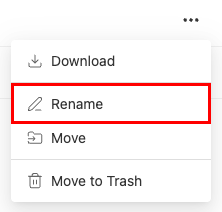
- Yeni adı girin ve ardından Yeniden Adlandır öğesini seçin.
Dosyaları çöp kutusuna taşıma veya çöp kutusuna gönderme
- Web posta postasına giriş yapın. Professional Email powered by Titan adresinizi ve şifrenizi kullanın (GoDaddy kullanıcı adınız ve şifreniz burada çalışmaz).
- Sol üst köşede şunu seçin: Uygulamalar arasında geçiş yapın ve ardından Drive'ı seçin.
- Bir dosyanın yanından şunu seçin: Daha fazla seçenek .
- Taşı veya Çöp Kutusuna Taşı seçeneğini belirleyin.
- Taşı seçeneğini belirlerseniz: Bir hedef klasör seçin ve ardından Buraya taşı seçeneğini belirleyin. Dosyanın taşındığına dair bir onay göreceksiniz.
- Çöp Kutusuna Taşı seçeneğini belirlerseniz: Dosyayı silmek istediğinizi onaylamak için tekrar Çöp Kutusuna Taşı seçeneğini belirleyin. Dosyanın Çöp Kutusu'na taşındığına dair bir onay göreceksiniz.
Silinen dosyaları yönetin
Sildiğiniz bir dosya Çöp Kutusu’na taşınır. Çöp Kutusu’ndaki dosyaları geri yükleyebilir veya kalıcı olarak silebilirsiniz.
Not: Dosyalar, kalıcı olarak silinmeden önce 30 gün Çöp Kutusu'nda kalır. Bu süre içinde bunları istediğiniz zaman geri yükleyebilir veya silebilirsiniz.
- Web posta postasına giriş yapın. Professional Email powered by Titan adresinizi ve şifrenizi kullanın (GoDaddy kullanıcı adınız ve şifreniz burada çalışmaz).
- Sol üst köşede şunu seçin: Uygulamalar arasında geçiş yapın ve ardından Drive'ı seçin.
- Dosyaları geri yüklemek veya kalıcı olarak silmek için en solda Çöp Kutusu’nu seçin:
- Dosyayı geri yükleme: Dosyayı orijinal klasörüne geri döndürmek için dosyayı seçin ve ardından Geri Yükle seçeneğini belirleyin.
- Kalıcı olarak sil: Bir dosyayı kalıcı olarak kaldırmak için dosyayı seçin ve ardından Kalıcı Olarak Sil seçeneğini belirleyin.
- Çöp Kutusunu Boşalt: Silinen tüm dosyaları bir defada kaldırmak için Çöp Kutusunu Boşalt seçeneğini belirleyin.