使用Professional Email powered by Titan存档或取消存档电子邮件
要让收件箱整洁,请将邮件移动到存档文件夹。绝不会删除存档文件夹中的邮件。
Select a tab based on whether you're on webmail on desktop or the mobile app.
存档电子邮件
- 登录到webmail 。使用您的Professional Email powered by Titan地址和密码(您的GoDaddy用户名和密码在这里无效)。
- 在收件箱中,选择一封电子邮件。
- 在电子邮件上方,选择存档。
电子邮件将被移动到存档文件夹。除非您删除或将其移回收件箱,否则它将永久保留在文件夹中。
取消存档电子邮件
- 登录到webmail 。使用您的Professional Email powered by Titan地址和密码(您的GoDaddy用户名和密码在这里无效)。
- 在最左侧的位置,选择存档文件夹。
- 选择一封电子邮件。
- 在邮件上方,选择移动到文件夹,然后选择收件箱。如果您看不到移到文件夹,请选择
 单击更多操作,然后移动到文件夹。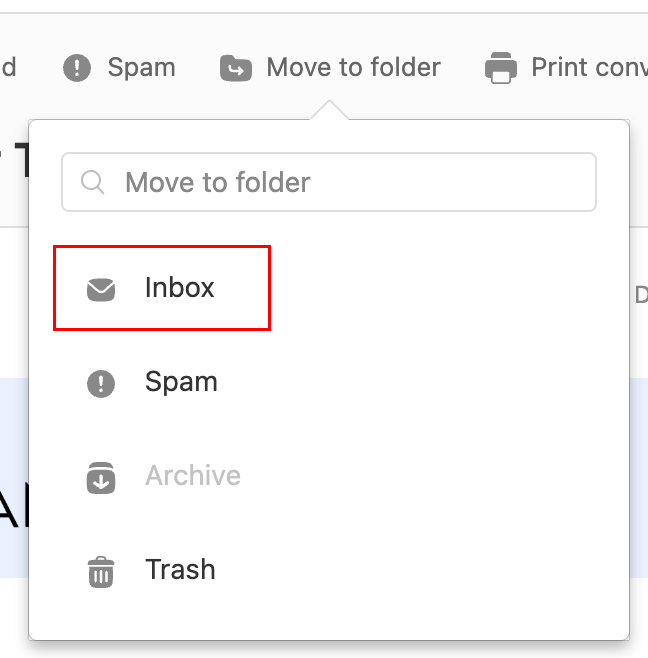
您会看到一条消息,确认电子邮件已移动到您的收件箱。
存档电子邮件
- 打开Titan应用程序。
- In your inbox, tap an email.
- At the top of the email, tap
 Archive.
You'll see a confirmation that the conversation was moved to the archive.
取消存档电子邮件
- Open the Titan mobile app.
- In the upper-right corner, tap the
 icon for the menu. menu or swipe left, and then tap Settings.
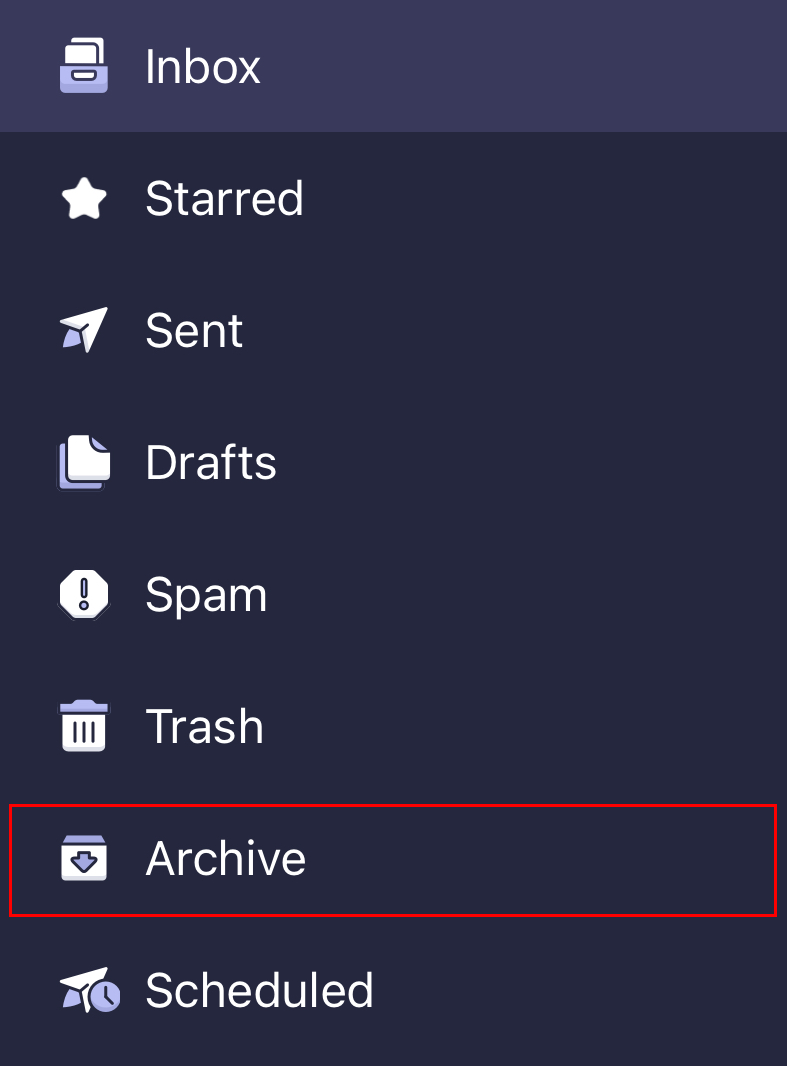
 - Tap Archive.
- In the upper-right corner, tap
 More actions, and then Move to folder.
 - Tap Inbox. You'll see a confirmation that the message was moved to your inbox.
更多信息
- 要存档早于特定日期的电子邮件,请首先使用高级搜索过滤您的邮件。
- 使用电子邮件标签整理收件箱
- 将接收的电子邮件转发到其他电子邮件地址