创建Professional Email powered by Titan的电子邮件文件夹
文件夹可以帮助您让收件箱和邮件井井有条。您可以在Webmail中为Professional Email powered by Titan创建文件夹和子文件夹。
Select a tab based on whether you're on webmail on desktop or the mobile app.
创建文件夹
- 登录到webmail 。使用您的Professional Email powered by Titan地址和密码(您的GoDaddy用户名和密码在这里无效)。
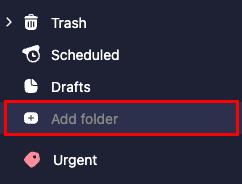
- 在最左侧的文件夹列表下,选择+添加文件夹。
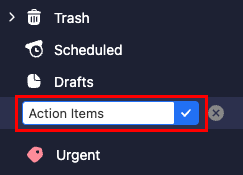
- 输入文件夹名称,然后选择Enter键。将创建该文件夹并将其添加到文件夹列表的底部。
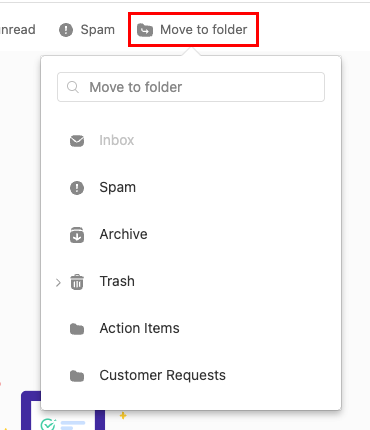
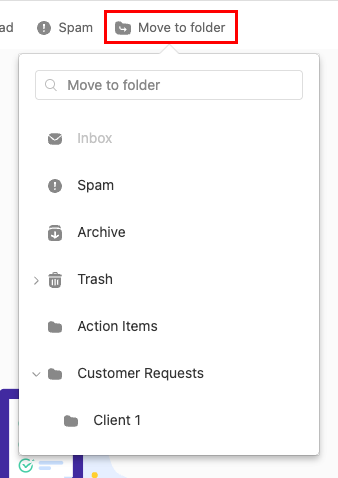
要将邮件移动到文件夹,请在每封邮件旁边选中复选框,然后移动到文件夹。选择要将邮件移动到的文件夹。
创建子文件夹
- 登录到webmail 。使用您的Professional Email powered by Titan地址和密码(您的GoDaddy用户名和密码在这里无效)。
- 将鼠标悬停在所需的主文件夹上,然后选择
 单击“更多操作” ,然后“创建子文件夹” 。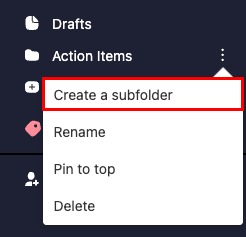
- 输入子文件夹的名称,然后选择Enter键。将创建子文件夹并将其嵌套在原始文件夹下。
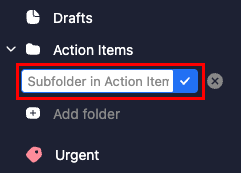
要将邮件移动到子文件夹,请在每封邮件旁边选中复选框,然后选中移动到文件夹。在主文件夹旁边,选择 箭头,然后是您要将邮件移动到的子文件夹。
Note: You can only create folders on the Titan mobile app. To create subfolders, follow the steps in the Webmail tab.
创建文件夹
- 打开Titan应用程序。
- 在右上角,轻触
 菜单或向左滑动,然后轻触设置。
 - Under FOLDERS, tap Add folder. The Add Folder window will open.
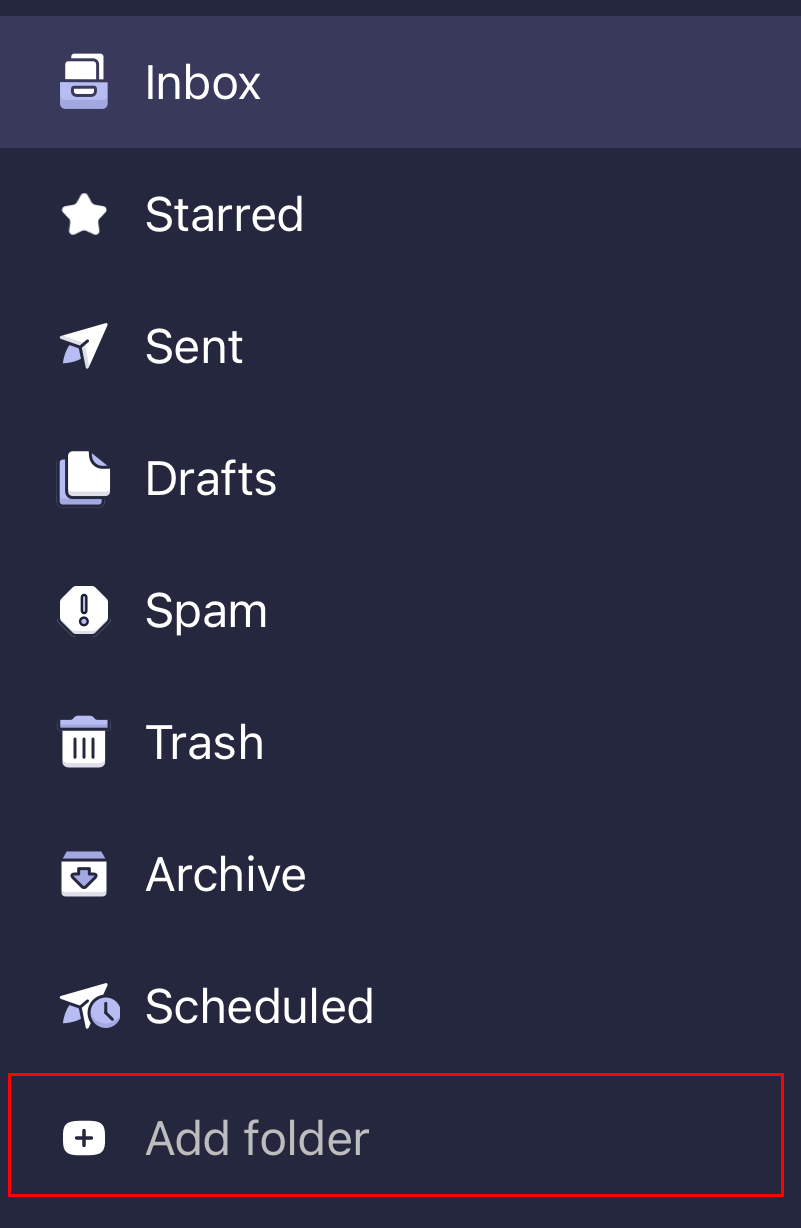
- Enter a folder name, and then tap Done. You'll see a confirmation that the folder was created, and the folder will open.