Verbinden Sie Conversations über die E-Mail-Adresse von GoDaddy mit Microsoft 365
Link your Microsoft 365 email address to Conversations to get your emails directly in your Conversations unified inbox. If you’re a Websites + Marketing subscriber and you’re using a chat widget or web forms on your website, messages from those sources will also show in your Conversations box, through this email address.
- Melden Sie sich bei Ihrer GoDaddy-Mobil-App an.
- At the bottom of the screen, tap Conversations to see a list of all your unarchived conversations.

- In the top-right corner, tap
 more, and then tap Settings.
 - Tap Email. You may be asked to sign in to your GoDaddy account.
- Expand Email, and then tap Connect.
- Tap Microsoft 365, and then tap Next.
- Wenn Sie bereits eine Microsoft 365-E-Mail-Adresse haben, wird diese auf dem Bildschirm angezeigt. Wenn nicht, werden Sie aufgefordert, eine zu erhalten, bevor Sie mit diesen Schritten fortfahren können.
Wählen Sie die E-Mail-Adresse aus, die Sie mit Conversations verbinden möchten, und tippen Sie dann auf Weiter .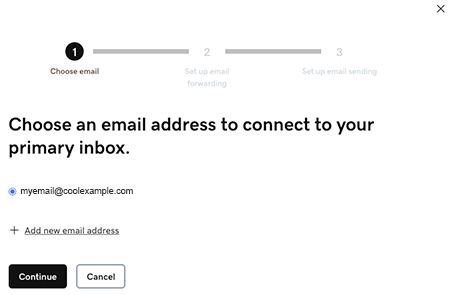
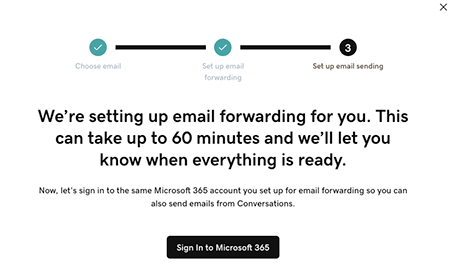
- Email forwarding will be set up for you. This could take up to 60 minutes, but you can continue setting up your email and we’ll let you know when forwarding is ready.
Sign in to the Microsoft 365 account you’re linking to Conversations. This must be the same account you used in Step 7.
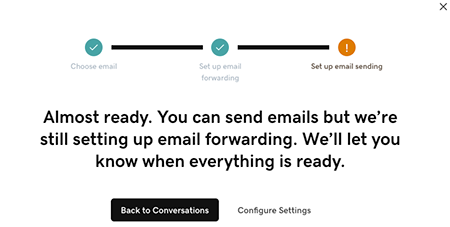
- Auf einem Bildschirm wird erklärt, dass Ihre E-Mail noch eingerichtet wird.
- Melden Sie sich bei Ihrer GoDaddy-Mobil-App an.
- At the bottom of the screen, tap Conversations to see a list of all your unarchived conversations.
- In the top-right corner, tap
 settings.
 - Tap Email. You may be asked to sign in to your GoDaddy account.
- Expand Email, and then tap Connect.
- Tap Microsoft 365, and then tap Next.
- Wenn Sie bereits eine Microsoft 365-E-Mail-Adresse haben, wird diese auf dem Bildschirm angezeigt. Wenn nicht, werden Sie aufgefordert, eine zu erhalten, bevor Sie mit diesen Schritten fortfahren können.
Wählen Sie die E-Mail-Adresse aus, die Sie mit Conversations verbinden möchten, und tippen Sie dann auf Weiter . - Email forwarding will be set up for you. This could take up to 60 minutes, but you can continue setting up your email and we’ll let you know when forwarding is ready.
Sign in to the Microsoft 365 account you’re linking to Conversations. This must be the same account you used in Step 7.
- Auf einem Bildschirm wird erklärt, dass Ihre E-Mail noch eingerichtet wird.
- Rufen Sie in einem Webbrowser Ihrer GoDaddy -Produktseite auf.
Wenn Sie die eigenständige Version von Conversations haben, erweitern Sie Conversations Unified Inbox . Wählen Sie rechts von Ihrem Conversations-Paket die Option Web-Posteingang aus.
ODER
Wenn Sie ein Websites + Marketing-Paket haben, scrollen Sie zu Websites + Marketing und wählen Sie neben Ihrer Website die Option Verwalten . Erweitern Sie im linken Menü Conversations .
- Wählen Sie Einstellungen.
- Select Channels.
- Expand Email, and then tap Connect.
- Select Microsoft 365, and then tap Next.
- Wenn Sie bereits eine Microsoft 365-E-Mail-Adresse haben, wird diese auf dem Bildschirm angezeigt. Wenn nicht, werden Sie aufgefordert, eine zu erhalten, bevor Sie mit diesen Schritten fortfahren können.
Wählen Sie die E-Mail-Adresse aus, die Sie mit Conversations verbinden möchten, und tippen Sie dann auf Weiter . - Email forwarding will be set up for you. This could take up to 60 minutes, but you can continue setting up your email and we’ll let you know when forwarding is ready.
Sign in to the Microsoft 365 account you’re linking to Conversations. This must be the same account you used in Step 7.
- Auf einem Bildschirm wird erklärt, dass Ihre E-Mail noch eingerichtet wird.
Glückwunsch! Sie haben Ihre E-Mail-Adresse erfolgreich mit GoDaddy Conversations verknüpft. Nach Abschluss der Weiterleitung erhalten Sie Ihre E-Mails direkt in Ihrem Conversations-Posteingang.